
You’re in the middle of a haircut, a training session or a client call, and your phone buzzes three times. “Do you have anything tomorrow?” “Can I move Thursday?” “Are you free at 4?” By the time you reply, one of them has booked somewhere else. An online booking system for small business owners fixes this. Clients see the times you’re actually free and book themselves, even while you’re working.
The tool matters less than the decisions you make before you open it. This guide covers five choices to settle first, compares the main booking tools using their official help pages, and shows you how to set up, share and test your booking page.
What an online booking system does
It gives you a page, or a link, where clients pick a service and an open time. Behind the scenes, it checks your calendar so you don’t get double-booked and adds the appointment for you.
Google sums up its appointment schedules this way: bookings are added to your calendar, and the booking page blocks off times when you’re unavailable. Dedicated tools add reminders, deposits and cancellation rules on top.
Decide five things before you pick a tool
Write your answers down. They’ll tell you which tool fits, and they make the setup much faster.
Services and how long they take
List every service you want people to book, with a realistic length. A 30-minute consultation and a 90-minute color appointment should be separate services, because each needs a different slot.
Tools name these differently: event types in Calendly, appointment types in Acuity Scheduling, services in Microsoft Bookings. When you define a service in Microsoft Bookings, you set its name, location, duration, reminders and pricing.
Availability and buffer times
Decide which days and hours you take bookings, and how much breathing room you need between clients for cleanup, travel or notes. That gap is called a buffer. Acuity calls it padding.
Buffers are easy to underestimate. Calendly’s page on how to use buffers explains that a 30-minute meeting with 15-minute buffers before and after needs 60 minutes free. Acuity’s guide to adding padding notes that clients see only the appointment length, while your calendar blocks both.
Think about limits, too. When you create an appointment schedule in Google Calendar, you can cap appointments per day, set how far ahead people can book and set a minimum notice, which defaults to 4 hours. Microsoft Bookings has similar lead time settings.
Which calendar it should sync with
Your booking tool needs to see your real calendar, or it will offer times when you’re busy. Pick the calendar you actually use, whether that’s Google, Outlook or iCloud, and confirm the tool supports it.
Support varies. Calendly connects to Google Calendar, Office 365 or Outlook.com, and Exchange. Acuity syncs with Google, iCloud and three versions of Outlook. Square Appointments syncs with Google Calendar. Microsoft Bookings works with Outlook.
Confirmations and reminders
A confirmation tells the client the booking worked. A reminder brings them back. Decide whether email is enough or you also want text messages, and how far ahead reminders should go out.
Plans differ most here. Acuity sends up to three email reminders, but text reminders are limited to certain plans. Microsoft says Bookings text messages need an extra Teams Premium license and work only in North America and the United Kingdom. Calendly lists its reminder automations on paid plans. In Google Calendar, email reminders are a premium feature.
Payments, deposits and cancellations
Decide whether clients pay when they book, leave a deposit, save a card or pay at the appointment, and what happens after a late cancellation or no-show. The policy is your decision. The tool only applies the settings you choose.
Acuity can require full payment, a fixed or percentage deposit, or saved card details. Square Appointments can require full prepayment for fixed-price services or hold a card in case of a no-show. Google Calendar and Calendly collect payments through a connected Stripe account. Microsoft’s Bookings FAQ says there’s no payment support in Bookings.
Refunds usually land on you. Google says Stripe handles all payments and refunds, and Calendly says account holders handle refunds manually.
Which type of booking tool fits your business
Here’s how five common options compare, based only on their official help pages.
| Tool | Calendar sync | Reminders | Payments and deposits | Account or plan needed |
|---|---|---|---|---|
| Google Calendar appointment schedules | Built in. Checking several calendars is a premium feature. | Up to 5 email reminders (premium feature) | Through Stripe, with an eligible Workspace subscription | Personal Google Account or Workspace. Personal accounts get a single booking page. |
| Calendly | Google, Office 365 or Outlook.com, Exchange. One calendar on the free plan. | Email and text automations on paid plans | Through Stripe, per event type, on paid plans | Calendar connection on all plans |
| Acuity Scheduling | Google, iCloud, Outlook (Office 365, Exchange, Outlook.com) | Up to 3 emails. One text per appointment on Standard/Growing or Premium/Powerhouse plans. | Stripe, Square or PayPal. Full payment, deposit or saved card. | Check the official pricing page |
| Square Appointments | Google Calendar, on Plus or Premium | Text and/or email reminders. Check the official page for plan details. | Prepayment or a card held for no-shows, on Plus or Premium | Online booking site on Free, Plus or Premium |
| Microsoft Bookings | Works with Outlook and staff calendars | Email reminders. Text messages need Teams Premium. | None, per Microsoft | Included in Microsoft 365 Business Basic, Standard and Premium, among others |
Plans and prices change, so check the official pricing pages for Calendly, Acuity Scheduling, Square Appointments and Google Workspace.
- Already in Google Calendar and want something simple? Start with appointment schedules.
- Already on Microsoft 365 Business? Bookings is included, but you’ll need another way to take payments.
- Want deposits or prepayment built in? Look at Acuity Scheduling or Square Appointments.
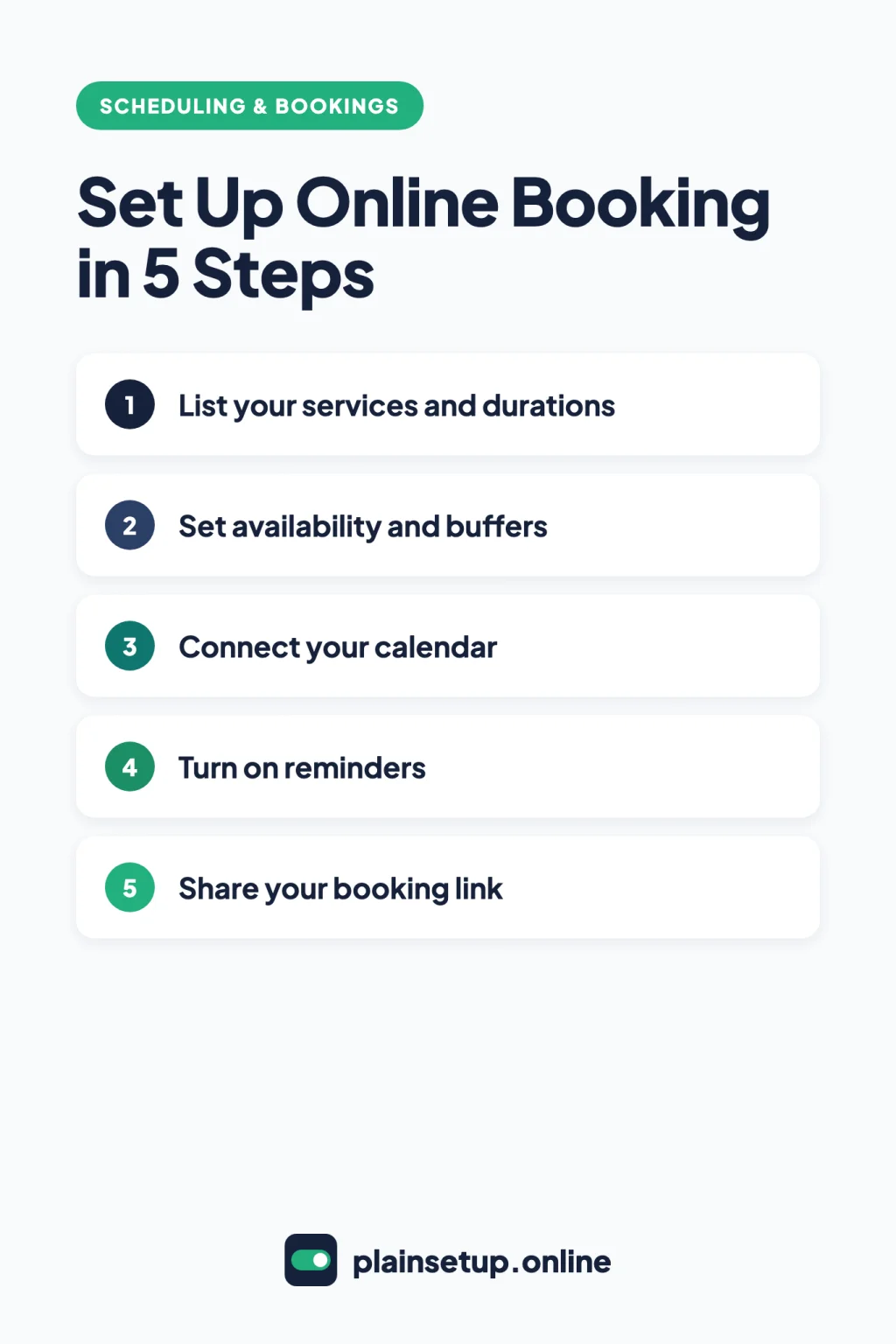
Step by step: set up your booking page
The menus differ, but this order works in every tool and avoids most double-booking problems.
- Connect your calendar first. In Calendly, connect your calendar from Availability, then Calendar settings. In Square, go to Appointments, then Settings, then Calendar & booking to link your Google Calendar.
- Add your services. In Google Calendar, click Create, then Appointment schedule, on a computer; Google says you can’t create one in the phone app. In Microsoft Bookings, open your booking page and select Services, then Add new service.
- Set your hours, buffers and limits. Enter your weekly availability, then add buffers and any daily cap or minimum notice.
- Turn on confirmations and reminders. In Square, reminders live under Appointments, then Settings, then Communications. In Acuity, reminder emails are under Client Emails, then Reminders.
- Add payment rules if you need them. In Google Calendar, go to Settings, then General, then Appointment schedules to connect Stripe. In Calendly, connect Stripe, then turn on “Require payment to book this meeting” per event type. In Acuity, choose how clients pay under Payments, then Payment at Booking. In Square, set prepayment and cancellation rules under Appointments, then Settings, then Payments & cancellations.
- Keep the booking form short. Google’s form requires first name, last name and email, and you can add more fields. Ask only what you need.
Share your booking link
Put the link wherever people already try to reach you.
- Your website. Google lets you share your appointment schedule as a link, a “Button with popup” or an “Inline booking page.” Square offers a URL, a “Book Appointment” button or embed code, and its online booking site can work as your website. Microsoft Bookings can be embedded or shared as a link.
- Your email signature. Add a line such as “Book a time:” followed by your link, so every email doubles as an invitation.
- Instagram. Square Appointments can add a Book Now button to an Instagram business profile once your booking site is on. Only one action button can show at a time. With other tools, add the link to your profile.
One privacy check: Google says its booking page is always public, and anyone with the link can see your profile photo and account name.
Test it like a client before you share it
- Open your link in a private browser window and on your phone.
- Book a test appointment with a second email address.
- Check that the confirmation arrives and the appointment lands on your calendar at the right time.
- Check that a time already busy on your personal calendar isn’t offered.
- Reschedule, then cancel, from the client’s side if your tool allows it.
Common surprises: a new Google booking page may show no times today because of the 4-hour default notice. Acuity says changes made on your outside calendar won’t stick, so edit synced appointments in Acuity. Microsoft says Bookings appointments can only be edited in the Bookings web portal. With Calendly, Stripe must be in live mode to accept real payments.
Sources
- Google: Learn about appointment schedules
- Google: Create an appointment schedule
- Google: Compare premium features for appointment schedules
- Google: Require payments for appointments
- Google: Share your appointment schedule
- Calendly: Connect your calendar
- Calendly: How to use buffers
- Calendly: Automations overview
- Calendly: Calendly + Stripe
- Acuity: Syncing your calendar
- Acuity: Adding padding between appointments
- Acuity: Sending reminder emails
- Acuity: Sending appointment reminders via text
- Acuity: Choosing how clients pay
- Acuity: Choose a payment processor
- Square: Sync your Google Calendar
- Square: Notifications and reminders
- Square: Cancellations and prepayment policies
- Square: Set up online booking
- Square: Bookings through Instagram and Facebook
- Microsoft Learn: Microsoft Bookings
- Microsoft Learn: Define your services
- Microsoft Learn: Bookings FAQ
- Microsoft Learn: Bookings service description
- Pricing pages: Calendly, Acuity Scheduling, Square Appointments, Google Workspace
Your Next Step
Today, write down your services with their lengths and your weekly hours, then pick one tool from the table and connect your calendar. For more help, browse our Scheduling & Bookings guides.
Once bookings come in, keep each client’s details in a simple CRM.

Fernando Pompeu is a journalist and digital content writer with more than 8 years of experience in media outlets and news portals. He writes to explain things clearly and without jargon. At PlainSetup, he publishes step-by-step guides to the everyday tools small businesses run on, based on each tool’s official documentation and written for owners without an IT team.