
A customer emails to ask whether you ever sent the quote you discussed last month. You think you did. The first conversation happened on WhatsApp, the price sits in a spreadsheet row you haven’t touched in weeks, and the follow-up is still in your drafts folder. You reply with an apology instead of a quote.
That is the problem a simple CRM for small business owners solves. It gives every customer one record, every possible sale one place, and every follow-up a due date. You don’t need a sales team or an IT department. You need a free plan, a clean spreadsheet and a little setup time.
This guide covers the minimum setup, and what to leave alone until the basics work.
What a CRM is, in plain English
CRM stands for customer relationship management. In practice, it’s a shared address book connected to a to-do list and a simple sales board.
Each person you deal with gets a record showing their details, the emails you’ve exchanged, notes from your last call and any sale in progress. A spreadsheet can store names and numbers, but it can’t remind you to follow up or show every open sale at a glance.
Signs you’ve outgrown your spreadsheet
- You’ve missed a follow-up because the reminder lived only in your head.
- Your “Notes” column has turned into paragraphs nobody reads.
- The same customer appears in several rows with different spellings.
- You can’t quickly answer “Which quotes are still open?”
- Someone else needs customer history, so you end up forwarding emails.
If several of these sound familiar, it’s time to move.
The four things to set up first: contacts, companies, deals and tasks
Most CRMs offer dozens of features. Four building blocks cover day one. HubSpot’s guide to CRM objects describes the first three in similar terms.
| Building block | What it holds | Example |
|---|---|---|
| Contacts | The people you talk to | Maria Lopez, office manager |
| Companies | The businesses they work for | Lopez Dental Clinic |
| Deals | A possible sale | Website redesign quote |
| Tasks | The next action, with a due date | Call Maria on Thursday |
The value comes from linking them. HubSpot’s guide to creating tasks explains that a task can be associated with a contact, company or deal. When Maria calls, you open her record and see the clinic, the quote and your next step.
Names vary by tool: Pipedrive calls contacts “people” and companies “organizations.” If you sell mostly to consumers, skip companies.
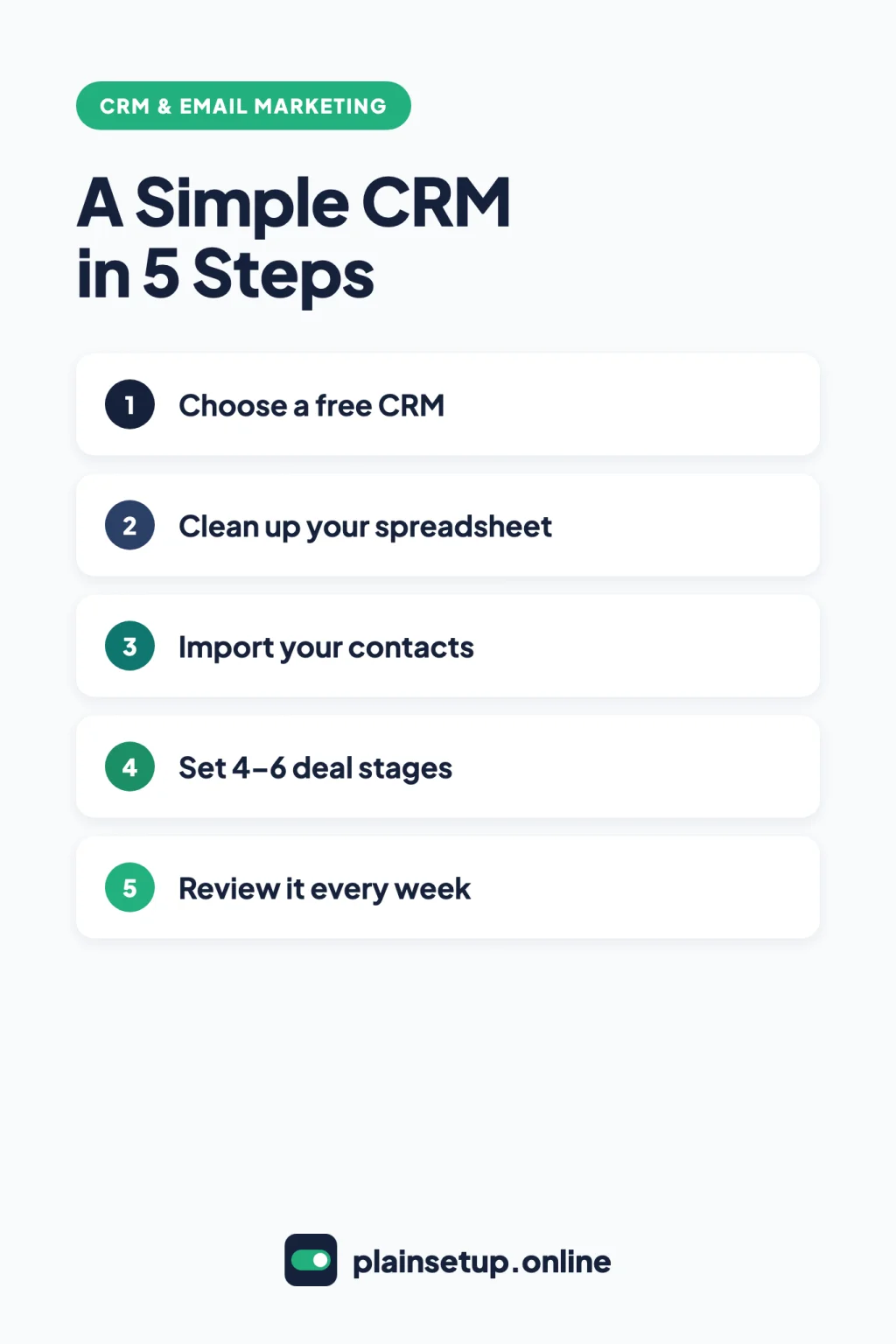
Step 1: Pick a free or low-cost CRM
Here is what the official pages of three widely used options showed as of October 2026. Plans change, so confirm before you sign up.
| CRM | Free option | Limits and conditions |
|---|---|---|
| HubSpot free tools | Yes, no time limit | Up to 2 users and 1,000 contacts; no credit card required |
| Zoho CRM editions | Yes, a free edition | Up to 3 users; no credit card required |
| Pipedrive plans | No free plan listed; free 14-day trial | No credit card required for the trial; paid plans are Lite, Growth, Premium and Ultimate |
The HubSpot free CRM page describes it as free with no expiration date. Pipedrive’s trial expiry article says access is restricted when the trial ends until someone adds billing details.
To decide quickly:
- Count the people who need to log in and compare with each user limit.
- Count your contacts. Over 1,000? HubSpot’s free limit may not fit.
- Pick one and start. Setting up one tool teaches you more than comparing five.
Paid prices change often, so check the pricing pages linked above.
Step 2: Clean up your spreadsheet before importing
An import copies your spreadsheet exactly as it is, mess included. Save a copy of the original and work on the copy.
- Keep one header row with column names like First name, Last name, Email, Phone and Company. HubSpot’s import file guide and Pipedrive’s spreadsheet import guide both require one.
- Use one row per person and one piece of information per column.
- Fill in email addresses where you can. HubSpot can use email to recognize existing contacts and avoid duplicates.
- Remove duplicates. Sort by email, then by last name, and merge rows for the same person.
- Spell company names the same way every time.
- Use one date format. HubSpot’s import file guide lists the formats it accepts.
- Delete what you don’t need: blank lines, test rows and long notes you can add by hand later.
- Save as CSV or Excel, one sheet per file. HubSpot accepts .csv, .xlsx and .xls; Pipedrive accepts XLS, XLSX or CSV.
Step 3: Import your contacts
Do a test run first. Import five to ten rows, check that each column landed in the right field, then import the rest. Some imports can’t be stopped once they begin; Zoho’s importing data guide says so directly.
- HubSpot: go to Data Management > Data Integration > Import data and choose the quick import for contacts. Map each column, name the import and tick the consent checkbox. See HubSpot’s guide to importing contacts.
- Zoho CRM: open the module, such as Contacts, and choose import from the Create dropdown. You can skip records that match existing ones.
- Pipedrive: go to account menu > Tools and apps > Import data > Import from spreadsheet. Rows that fail go into a skip file that explains why.
Before you email anyone in bulk: having a contact in your CRM isn’t the same as having permission to send marketing emails. HubSpot’s single-object import guide asks you to confirm that contacts expect to hear from you and that the file isn’t a purchased list. Rules differ by country, so check what applies to you. This isn’t legal advice.
Step 4: Create a simple pipeline with 4 to 6 stages
A pipeline is a board of columns. Each column is a stage, each card is a deal, and cards move right as a sale progresses.
Keep it short. Pipedrive’s guide to designing a sales process warns that too many stages make a pipeline harder to scan, and suggests names that describe something that happened rather than vague labels like “in progress.” A starting point for a service business:
| Stage | Move a deal here when… |
|---|---|
| New inquiry | Someone asked about your work |
| Call booked | You’ve agreed on a time to talk |
| Quote sent | They have your price in writing |
| Waiting on decision | You’ve followed up and they’re deciding |
| Won | They said yes |
| Lost | They said no, or stopped replying |
Rename stages to match how you sell. HubSpot’s pipeline guide says every account has a default pipeline, but free accounts can’t add custom ones. Edit it under Settings > Data Management > Objects > Deals > Pipelines, and keep a won and a lost stage so reports count deals correctly.
One rule: every open deal needs a next task. A deal with no next step is either finished or forgotten.
Step 5: Connect your email and calendar
If you don’t have a business email address yet, set up Google Workspace first.
Connecting your inbox logs emails on the right contact record, so you stop copying conversations by hand.
- HubSpot email: Settings > General > Email > Connect email account. HubSpot’s work email guide lists this for all plans, with Gmail, Outlook, Exchange and IMAP support.
- HubSpot calendar: Settings > General > Calendar > Connect your calendar. HubSpot’s calendar guide allows one Google, Office 365 or Exchange calendar.
- Pipedrive: Pipedrive’s email sync guide lists email sync on Growth and higher plans.
- Zoho CRM: check the email features for your edition on Zoho’s pricing page.
Read the permission screen before you click Allow. HubSpot notes that connecting lets it send emails to your contacts through your email servers. For WhatsApp or text conversations, add a one-line note to the contact after anything important.
Step 6: Build a weekly CRM routine
A CRM only helps if it stays current. Block a short review on the same day each week:
- Add anyone new from the past week.
- Move each deal to its correct stage.
- Mark deals that are clearly over as Lost.
- Do, reschedule or delete overdue tasks.
- Make sure every open deal has one next task with a due date.
- Send the follow-ups waiting in “Quote sent” and “Waiting on decision.”
Two daily habits help: after every call, add a one-line note and the next task; when a new inquiry arrives, create the contact and deal right away. HubSpot tasks can send an email reminder, which helps if follow-ups tend to slip.
What to skip at the start
The quickest way to abandon a CRM is to spend the first week configuring it. Leave these for later:
- Custom fields. Add one only when you keep needing the same information.
- Extra pipelines. Start with one.
- Automations. Automate a process only after it works by hand.
- Bulk marketing emails. Newsletters are a separate project with their own consent questions.
- Dashboards. With a few deals, the pipeline board is your report.
- Add-ons and extra integrations. Connect email and calendar first.
- Every old contact. People you haven’t dealt with in years can stay in the archived spreadsheet.
Sources
- HubSpot: Free CRM Software
- HubSpot: Free Tools pricing
- HubSpot: How to use objects for business processes
- HubSpot: Create tasks
- HubSpot: Format import files
- HubSpot: Import contacts
- HubSpot: Import records for a single object
- HubSpot: Set up and manage object pipelines
- HubSpot: Connect an individual work email
- HubSpot: Connect your calendar to HubSpot
- Zoho CRM: Pricing and Editions
- Zoho CRM Help: Importing Data
- Pipedrive: CRM Pricing Plans
- Pipedrive: What happens when my trial expires?
- Pipedrive: Importing data with spreadsheets
- Pipedrive: How to design your sales process
- Pipedrive: Email Sync
Your Next Step
Today, copy your customer spreadsheet, clean the first ten rows with the Step 2 checklist, and import them into a free CRM as a test. For more help, browse our CRM & Email Marketing guides.

Fernando Pompeu is a journalist and digital content writer with more than 8 years of experience in media outlets and news portals. He writes to explain things clearly and without jargon. At PlainSetup, he publishes step-by-step guides to the everyday tools small businesses run on, based on each tool’s official documentation and written for owners without an IT team.