
It’s 6 p.m. and the real work is done, but you’re still at your desk. Three people filled out your contact form today, so you copy each answer into a spreadsheet, one cell at a time. Then you type almost the same email to each of them: thanks, I got your message, here’s what happens next. Tomorrow you’ll do it again.
You don’t need a developer, or any code, to automate small business tasks like these. Many tools you already use have automations built in, and when they don’t, services like Zapier and Make can connect one app to another. Here’s how to pick the right tasks and the right tool.
What a no-code automation is: a trigger and an action
Every automation has the same shape: when something happens, do something. The “when” is the trigger. The “do” is the action.
Zapier describes a trigger as the event that starts a workflow and an action as what the workflow does next (see Zapier’s “What is a Zap?” guide). A Zap is Zapier’s name for one workflow, and it can have one or more actions. Make calls the same idea a scenario: an outside event triggers the first module, and the modules after it run in order (see Make’s explanation of scenarios).
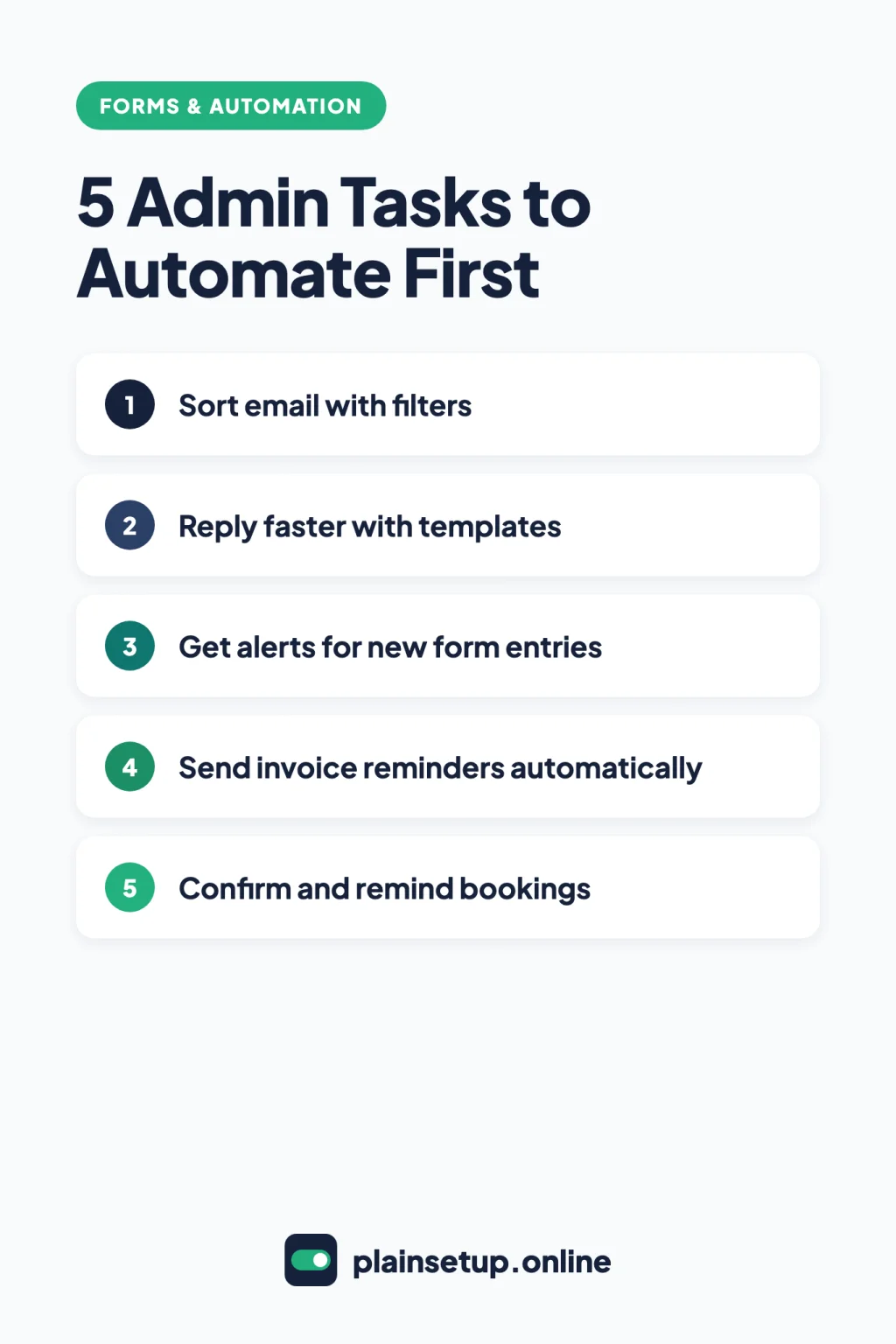
You’ll find the same pattern inside everyday tools:
| Tool | Trigger (when…) | Action (do…) |
|---|---|---|
| Gmail filter | An email matches your search | Label, archive, forward, or reply with a template |
| Google Forms | Someone submits the form | Add the answers to a sheet and email you |
| Wave invoices | A date you chose around the due date | Email the customer a reminder |
| Google Calendar or Calendly | Someone books a time | Send booking reminders |
| Zapier or Make | An event in one app | An action in another app |
How to find tasks worth automating
Start with a list, not a tool. For one normal week, write down every task you repeat that involves copying, pasting, retyping or sending the same message. Then check each one:
- Does it happen often? A daily task beats one you do twice a year.
- Is it the same every time? If it follows a clear rule, software can follow it. If each case needs your judgment, keep it manual.
- Is the information already digital? An automation can’t read the sticky note on your monitor.
- What if it goes wrong? A misfiled email is easy to fix. A reminder sent to a client who already paid is awkward. Start with low-risk tasks.
Now rewrite each task that passes as one sentence: “When ___ happens, do ___.” For example: “When someone submits my contact form, add their answers to a spreadsheet and email me.” If you can’t fill in both blanks, decide how the process should work before you automate it.
Start with automations your tools already have
Before you sign up for anything new, check the apps you already use. Built-in features keep your data in one place and mean one less account to manage.
Email: filters, templates and auto-replies
If you still use a personal Gmail account for work, start by setting up Google Workspace.
Filters sort mail for you. In Gmail on a computer, click Show search options in the search box, enter your criteria (a sender, a word in the subject), click Create filter, and choose an action. Gmail’s guide to filters lists sending mail to a label, archiving, deleting, starring and forwarding. A filter that forwards messages only affects new messages.
Templates save you from retyping the same reply. Turn them on in Settings > See all settings > Advanced by clicking Enable next to Templates, then Save Changes. To save one, write the message, then click More options > Templates > Save draft as template > Save as new template. Per Gmail’s template instructions, templates work only in Gmail on a computer. You can also check Send template when creating a filter, and Gmail will reply to matching messages automatically.
Auto-replies cover the days you’re away: Settings > See all settings > General > Vacation responder. According to Gmail’s out-of-office page, in most cases each person gets the reply only the first time they write, but someone who writes again after four days, while it’s still on, can get it again.
Forms: notifications and response sheets
Google Forms can email you when a response arrives (Responses > More > Get email notifications for new responses) and send every response to a spreadsheet, as described in Google’s guide to managing form responses. If you later unlink the sheet, new responses stop going there, but existing data stays, per Google’s page on where responses are saved. The full setup is in the step-by-step section below.
Invoices: automatic payment reminders
Many invoicing tools can follow up on unpaid invoices. We’ll use Wave as the example; for another tool, search its help center for “payment reminders.”
Wave’s guide to payment reminders says they’re available to businesses that accept online payments or subscribe to the Pro Plan, and the customer needs an email address on their profile. Open an invoice from Sales & Payments > Invoices and select the reminder checkboxes: 14, 7 or 3 days before the due date, on the due date, or 3, 7 or 14 days after it.
To set defaults for new invoices, go to Business settings > Invoices and estimates > Reminder settings. Note the limits: reminders go only to the customer’s primary email, stop once an invoice is marked fully paid, and the default doesn’t apply to recurring invoices.
Bookings: confirmations and reminders
Google Calendar appointment schedules are set up on a computer from Create > Appointment schedule. Google’s setup guide describes a Booking confirmations and reminders section with up to five reminders; you can’t edit the reminder text. Google’s overview of appointment schedules lists email reminders as a paid-subscription feature, so check your plan first.
Calendly offers basic notifications: email and text reminders before and after events, on paid plans, according to Calendly’s help page. Go to Scheduling, choose the event type, select More options, open Notifications and automations, switch the notification on and select Save changes.
When Zapier or Make is worth it
Built-in automations work inside one tool. A connector is worth a look when the trigger happens in one app, the action belongs in another, and the two don’t connect directly. For example, a new form entry should create a contact in your CRM.
Know these facts before you sign up:
- Zapier counts tasks. Its key concepts guide defines a task as an action your Zap completes successfully.
- The Free plan is limited. As of October 2026, Zapier’s pricing page lists 100 tasks per month and two-step Zaps (one trigger, one action) on Free.
- It may not be instant. Zapier’s page on triggers says many triggers check for new data on an interval that depends on your plan (15 minutes on Free), and Zaps don’t run for data created before you turned them on.
- Make builds scenarios from modules, each tied to one app. Make says standard scenarios suit simple, repetitive tasks like notifications and syncing data, and its first-scenario walkthrough notes a Make account is free to create.
If a built-in feature does the job, use it. Add a connector only for the gaps.
Step by step: your first automation
This first project needs no new tools: every Google Form response goes into a spreadsheet and you get an email. That’s the end-of-day copying job from the start of this guide.
- Open your form in Google Forms and click Responses at the top.
- Click More > Select destination for responses. (You can also use the Link to Sheets button.)
- Choose Create a new spreadsheet, or Select existing spreadsheet if you already keep one, then click Create or Select.
- In the Responses tab, click More again and choose Get email notifications for new responses.
- Test it. Open your form’s public link, submit an entry with obviously fake details (“TEST” as the name), and check that a new row appears in the sheet and an alert reaches your inbox.
- Remove the test entry so it doesn’t mix with real ones.
- Optional: in Gmail, check the box next to the alert, click More > Filter messages like these, and send future alerts to a label.
Keep your automations safe
An automation runs when you’re not watching. That’s the point, and also the risk. Three habits help.
Test before you trust it. Run every new automation with made-up data and check the result. In Zapier, setting up a trigger pulls in a test record, and Zap history logs every run.
Write it down. Keep a simple record of each automation:
Name: Contact form to sheet
Trigger: New Google Form response
Action: Add row to "Leads" sheet + email alert
Where it lives: Google Forms > Responses
Last checked: [date]
If something breaks, this tells you (or whoever helps you) where to look.
Review access regularly.
- A new response spreadsheet gives form collaborators access automatically, and later permission changes on the form don’t carry over to the sheet. Remove people from both.
- To check which outside apps can reach your Google Account, open your Google Account linked apps page, select Access to your Google Account, pick the app and choose See details. If you no longer use it, select Remove access. Google’s help page on linked apps warns this may make some features unavailable.
- Check your Gmail filters in Settings > See all settings > Filters and Blocked Addresses, especially any that forward mail.
Sources
- Gmail Help: Create rules to filter your emails
- Gmail Help: Create a template in Gmail
- Gmail Help: Send an automatic reply when you’re out of office
- Google Docs Editors Help: View & manage form responses
- Google Docs Editors Help: Choose where to save form responses
- Wave Help Center: Schedule invoice payment reminders
- Google Calendar Help: Create an appointment schedule
- Google Calendar Help: Learn about appointment schedules in Google Calendar
- Calendly Help: How to set up basic notifications
- Zapier Help Center: What is a Zap?
- Zapier Help Center: Learn key concepts in Zap workflows
- Zapier Help Center: How Zap triggers work
- Zapier: Plans and pricing
- Make Help Center: What’s a scenario and which type should you use?
- Make Help Center: Create your first scenario
- Google Account Help: Manage links between your Google Account & apps from other developers
Your Next Step
Pick the form you copy from most often and do steps 1 to 5 above today: link it to a sheet, turn on email alerts and send a test entry. Then browse our Forms & Automation guides for the next task on your list.

Fernando Pompeu is a journalist and digital content writer with more than 8 years of experience in media outlets and news portals. He writes to explain things clearly and without jargon. At PlainSetup, he publishes step-by-step guides to the everyday tools small businesses run on, based on each tool’s official documentation and written for owners without an IT team.