
A client books a 10 a.m. slot on your booking page, and you already have a dentist appointment at 10 sitting in your calendar. Your booking tool didn’t see it. To stop double bookings, you usually don’t need a new tool. You need to find out why your booking page couldn’t see that event.
This guide covers the usual causes in order, with fixes for Calendly, Google Calendar appointment schedules, Acuity Scheduling and Microsoft Bookings. Menu names come from each vendor’s help center and can change. Paid-plan fixes are marked.
If you haven’t picked a tool yet, start with how to set up an online booking system for a small business.
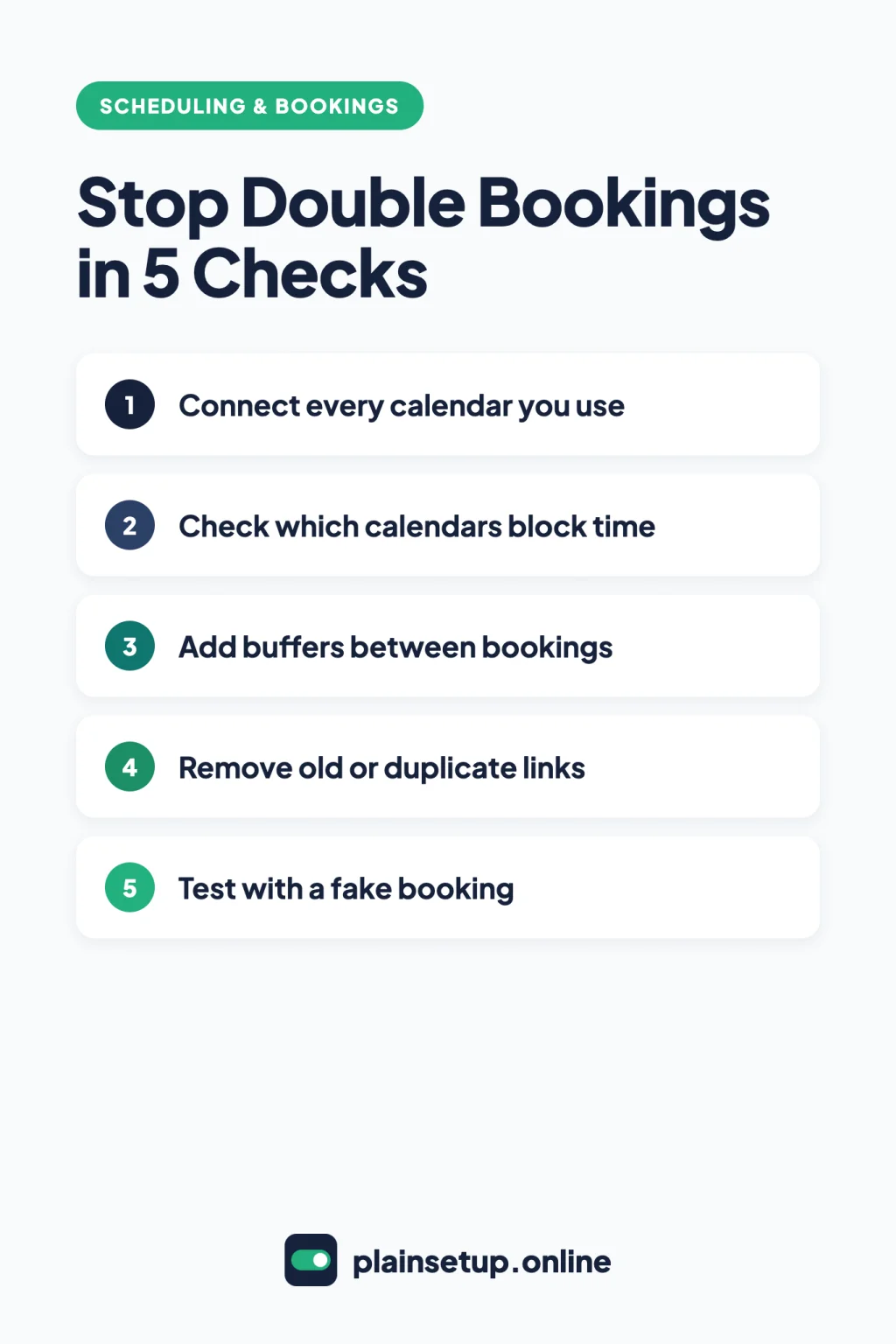
Quick fixes
- Connect every calendar you use, within your plan’s limit.
- Make sure each calendar is set to block time, not just receive bookings.
- Mark personal events as Busy and give all-day events real times if needed.
- Add buffers so bookings can’t sit back to back.
- Turn off old event types and remove duplicate syncs.
- Reconnect any broken calendar, then test with a fake booking.
Check 1: Is every calendar connected?
Booking tools only avoid events they can see. If personal and work events live in different calendars, connect both.
| Tool | Calendars it can check |
|---|---|
| Calendly | 1 on Free; up to 6 per user on paid plans |
| Google appointment schedules | Primary calendar; secondary calendars need an eligible paid plan |
| Acuity Scheduling | One sync per calendar service per user |
| Microsoft Bookings | Each staff member’s Microsoft 365 calendar |
Calendly: per Connect your calendar to Calendly, the Free plan connects one calendar and paid plans up to six per user. On Free, a second calendar account can’t be connected, so its events don’t block you. On the Calendly pricing page, Standard is $10 per seat per month billed yearly.
Prices checked in October 2026. Plans and prices change, so confirm on the official pricing page before you buy.
Google Calendar: the help page on checking availability across calendars says checking secondary calendars needs an eligible Google Workspace or Google One plan. The premium features comparison lists this for plans such as Business Standard, Workspace Individual and Google One Premium. If you’re on a free account, move personal events into your primary calendar.
Acuity: per Syncing your calendar, each user can create one sync with each service (Google, iCloud and the Outlook options).
Microsoft Bookings: per Add team members to Bookings, staff from outside your organization can’t share free/busy information. Bookings can’t see their other appointments.
Check 2: Stop double bookings by choosing which calendars block time
A connected calendar doesn’t always block time. Each tool has a separate switch.
Calendly: go to Settings > Scheduling > Calendars (an older article says Availability > Calendar settings). Under Calendars to check for conflicts, tick every calendar with events that should block you. Calendar to add events to is only where new bookings land. On Outlook, it checks up to 4 sub-calendars (Outlook guide).
Google Calendar: on a computer, click your appointment schedule, then Edit appointment schedule > Calendars. Select the calendars to check and make sure Check calendars for availability is on. When it’s off, Google says “All time blocks appear as open.”
Acuity: per Troubleshooting calendar syncing, click Sync with Other Calendars, open your sync and select block off time from your outside calendar. Add more calendars with the and also block off time from dropdown, then Save.
Microsoft Bookings: open the shared booking page, go to Staff and edit each person. Make sure Events on Microsoft 365 calendar affect availability is selected (the FAQ shortens it to Events on calendar affect availability). Microsoft says it’s on by default and recommends leaving it on “to avoid double-bookings.” Per the Bookings FAQ, each staff member must also share their calendar: in Outlook, Share > Calendar, then set My Organization to Can view when I’m busy.
If your admin turned on Require staff approvals before sharing free/busy information, staff must approve by email first. Tenant changes can take up to four hours to apply (granular controls).
Check 3: Are your events marked Busy?
All four tools read your event’s status, not its title. An event set to Free leaves the slot open.
- Calendly treats Busy events as unavailable. On Outlook it also blocks Tentative, Away / Out of Office and Working Elsewhere by default, which you can change under What’s considered unavailable? (Busy vs. Free settings).
- Google hides times during Busy events. Its help also says unaccepted or tentative events don’t block appointment times (update your availability). Accept the invites that matter, or set them to Busy.
- Acuity skips events marked Free. Google Busy events sync in, as do Outlook events marked Busy, Working Elsewhere, Tentative or Away.
All-day events behave differently in each tool. In Calendly and Google, an all-day event set to Busy blocks the whole day. In Acuity, many all-day events don’t sync at all, so give the event a start and end time instead.
Check 4: Do you have buffers between bookings?
Sometimes the clash is two appointments touching, with no break between them.
- Calendly (all plans): event type > More options > Limits and buffers > + Set buffer time. A 30-minute meeting with 15-minute buffers on each side needs 60 minutes free (how to use buffers). To show buffers in Google Calendar, turn on Include buffers on this calendar.
- Google: Edit appointment schedule > Booked appointment settings > check Buffer time and enter the minutes, then Next > Save.
- Acuity: Appointment types > Edit > Block off time before or after appointment (adding padding). Padding doesn’t sync to your outside calendar, so another tool reading that calendar won’t see it.
- Microsoft Bookings: on the service’s details page, turn on the buffer and set Before and After (service availability).
Check 5: Are old links or duplicate syncs still live?
If you switched tools or rebuilt a page, an old link may still take bookings.
- Calendly: on Scheduling, select the three dots on an old event card and use the On/Off switch. When it’s off, invitees can’t book it (manage event types). Make secret only hides it; the direct link still works.
- Acuity: private appointment types can still be booked by direct link (availability troubleshooting). If appointments appear twice, check whether two of your outside calendars sync with each other, or whether two people set up the same sync. Stop one of them.
- Microsoft Bookings: if someone left, remove them under Bookings > Staff, on every booking calendar you have.
Using two booking tools? To stop double bookings between them, each one must check the calendar the other writes to.
Check 6: Is the connection broken? Test it
Calendly has a built-in diagnosis. Open the event type preview, scroll down and select Troubleshoot, then pick the date (troubleshooting unavailable times). The code NOCAL means Calendly can’t reach your calendar, so reconnect it. CALENDAR means a Busy event is blocking the slot, which shows the connection works.
Acuity: a password change on your outside calendar usually disconnects it. Click Sync with Other Calendars, pick your calendar type and reconnect. A new sync can take about 30 minutes; after more than an hour, check that you connected the right calendars. On a work Outlook account, “Need admin approval” means your admin must allow the Cronofy app.
Microsoft Bookings: the error “This staff member’s calendar can’t be synced” points back to Check 2. Microsoft says other sync errors usually clear up within a few minutes.
Then test. Add a Busy event to your personal calendar, open your booking page in a private browser window and confirm the slot is gone. Book one fake appointment and check where it lands. Our guide to setting up Calendly shows where to preview the page.
When to contact support
Contact the vendor if a slot stays open after every check, or a reconnected calendar keeps dropping. Acuity asks you to include:
- Whether an Acuity appointment isn’t reaching your calendar, or an outside event isn’t reaching Acuity.
- A screenshot of the event, with any visible calendar settings.
- The event’s date and time and the names of all calendars involved.
- Whether you view your calendar in a mobile app, a computer app or a browser.
For Microsoft Bookings, contact support if a sync error persists or keeps coming back. On a company account, ask your IT admin first: approval messages come from your organization’s settings.
Frequently asked questions
Why does Calendly let people book over my events?
Usually the event is marked Free, or its calendar isn’t ticked under Calendars to check for conflicts. The Troubleshoot tool on your event preview shows why each slot is blocked, per Calendly’s help.
Does a Google appointment schedule check my other calendars?
It checks your primary calendar when Check calendars for availability is on. Checking secondary calendars needs an eligible Google Workspace or Google One plan, per Google’s help.
Why do my Acuity appointments show up twice?
Acuity says this happens when you sync to two outside calendars that also sync with each other, or when two people sync the same calendar. Stop one sync, per Troubleshooting calendar syncing.
Can two clients book the same slot at once?
Google says each appointment time on a booking page can be booked only once. The Bookings FAQ says it lets only one person book a time when several try together. Most clashes come from events the tool can’t see.
Sources
- Calendly: How to troubleshoot unavailable times that should be available
- Calendly: Connect your calendar to Calendly
- Calendly: How to connect your Office 365 or Outlook.com calendar
- Calendly: How to manage ‘Busy’ vs. ‘Free’ calendar settings
- Calendly: How to use buffers
- Calendly: How to organize and manage your event types
- Calendly: Pricing
- Google: Check your availability across calendars
- Google: Update your availability for appointments
- Google: Compare premium features for appointment schedules
- Acuity Scheduling: Syncing your calendar
- Acuity Scheduling: Troubleshooting calendar syncing
- Acuity Scheduling: Fix availability issues and missing appointment times
- Acuity Scheduling: Adding padding between appointments
- Microsoft: Add team members to Bookings
- Microsoft: Shared Bookings Frequently Asked Questions
- Microsoft: Manage granular controls for Shared Bookings
- Microsoft: Configure service availability
Your Next Step
Today, open your booking tool’s calendar settings and confirm every calendar you use is set to block time. Then add one Busy test event and check that the slot disappears from your booking page. That quick test helps you stop double bookings before the next client books. For more help, browse our Scheduling & Bookings guides.

Fernando Pompeu is a journalist and digital content writer with more than 8 years of experience in media outlets and news portals. He writes to explain things clearly and without jargon. At PlainSetup, he publishes step-by-step guides to the everyday tools small businesses run on, based on each tool’s official documentation and written for owners without an IT team.