
You have three invoices past their due date. Each one needs a polite nudge, and writing those emails feels awkward every time. Automatic payment reminders take that job off your list: your invoicing tool emails the customer for you, on dates you choose.
FreshBooks, Wave, QuickBooks and Square can all send them, but each has its own limits on timing, wording and plans.
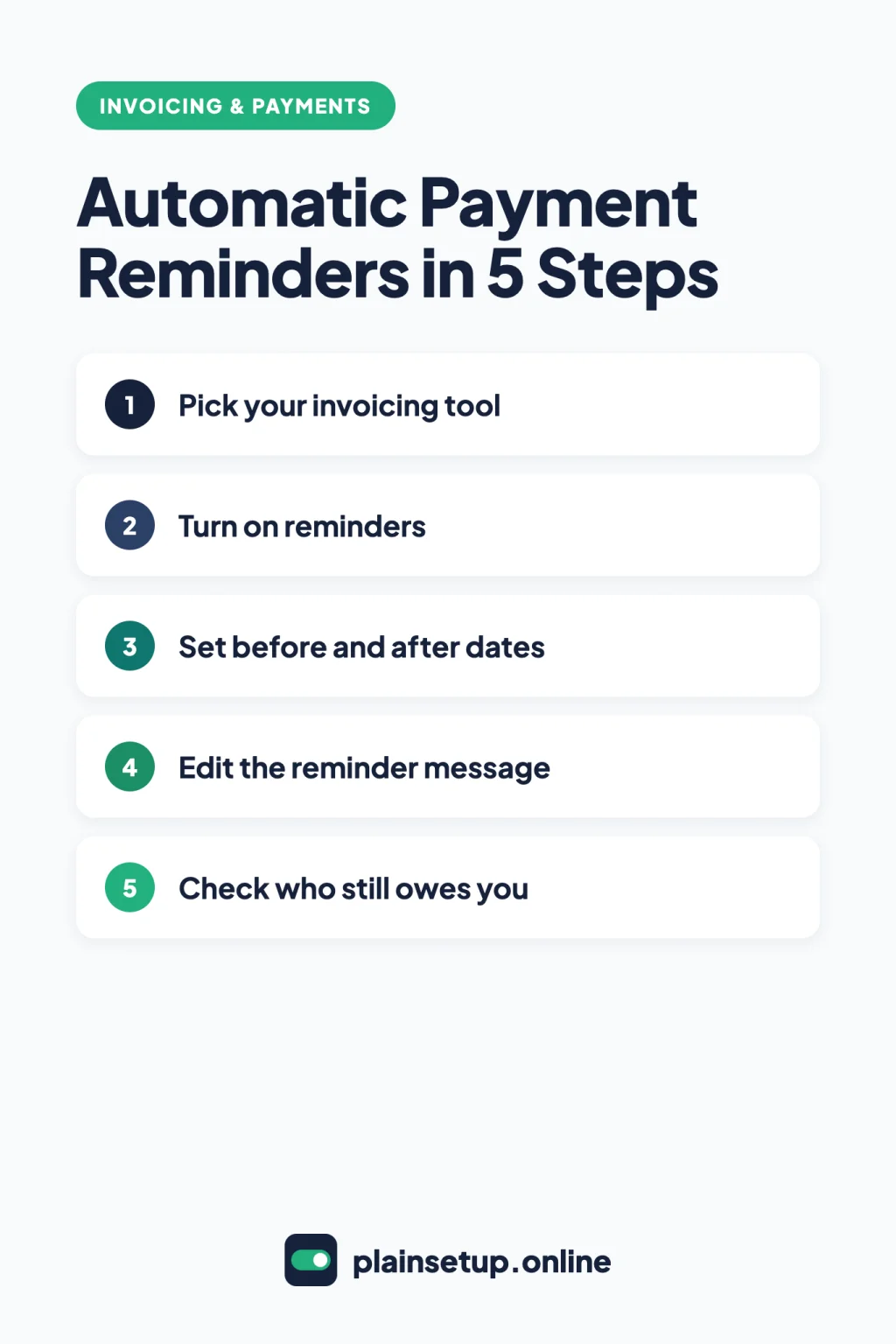
Quick steps
- Pick your invoicing tool and check that your plan includes reminders.
- Make sure invoices have a due date and go to customers by email.
- Turn on reminders in your tool’s settings or on the invoice.
- Set the dates: before, on or after the due date.
- Edit the reminder message so it sounds like you.
- Check who still owes you and follow up on what’s left.
What automatic payment reminders do (and don’t)
A reminder is an email your invoicing software sends about an unpaid invoice, timed from its due date. You set the rules once.
What they don’t do:
- Cover every invoice. QuickBooks only sends reminders for invoices you’ve already emailed, and Square doesn’t support automatic reminders when you send an invoice by text message.
- Add late fees. A late fee is a separate setting in FreshBooks and QuickBooks, and Wave doesn’t add one automatically.
Here’s how the four tools compare:
| Tool | Where to turn it on | Timing options | Edit the message | Automatic late fees | Plan or condition |
|---|---|---|---|---|---|
| FreshBooks | Client Settings > Send Reminders | Up to 3, a number of days before or after the due date | Personal message per client; full template on Premium and Select | Yes, one-time fee | All plans (Lite, Plus, Premium, Select) |
| Wave | Business settings > Invoices and estimates > Reminder settings | 14, 7 or 3 days before; on the due date; 3, 7 or 14 days after | Default message on Pro | No | Starter ($0) with Wave online payments, or Pro ($19 USD/month, billed monthly) |
| QuickBooks | Account and settings > Sales > Reminders | Up to 3, up to 90 days before or after | Yes: subject, greeting and message | Yes | Only for invoices you’ve emailed |
| Square | The invoice’s Communication step | Before, on or after the due date | Not stated | Not confirmed | Square Free ($0/mo. per location), Plus ($49/mo. per location), Premium ($149/mo. per location); email delivery only |
Prices checked in October 2026. Plans and prices change, so confirm on the official pricing page before you buy: FreshBooks, Wave and Square. Still choosing? See our FreshBooks vs Wave vs QuickBooks comparison.
Before you turn them on
- Give every invoice a due date. Reminders are timed from it. Our guide on how to create an invoice for a small business covers payment terms.
- Save each customer’s email address. Wave won’t schedule a reminder without one.
- Send invoices by email through the tool. QuickBooks and Square depend on it.
- Decide on late fees now. FreshBooks adds late fees to new invoices only, and QuickBooks only applies them to invoices that become overdue after you turn the setting on.
Rules on late fees vary by location. QuickBooks’ article to turn on automatic late fees warns there may be limits on the amount and type of fees, so check with an accountant before you add one. This isn’t legal advice.
How to set up reminders in FreshBooks
All four FreshBooks plans include reminders and scheduled late fees. Per What are payment reminders and late fees?, you can set them for one client or one invoice:
- Open the client (Clients > pick a client > Edit) or start an invoice (Invoices > New Invoice).
- Under Client Settings, select Send Reminders.
- Check Automatically send payment reminders for this client’s invoices.
- For Reminder #1, enter the number of days and choose before or after the due date.
- To add your own words, select the slider icon, then Enter a Personal Message, then Done.
- Select + Add Another Reminder for a second and third reminder, then Done.
This covers that client’s existing and new invoices, and reminders go to everyone the invoice was sent to.
On Premium and Select, edit the default reminder for all clients at Settings > Business Profile > Email Customization > Email Templates > Payment Reminder (see the email customization article).
Late fees: under Client Settings, select Charge Late Fees and check the box to add late fees automatically. Choose a percentage of the invoice value, a percentage of the outstanding balance or a flat fee, set the days after the due date in When?, and select Done. It’s a one-time fee.
How to set up reminders in Wave
Wave’s article to schedule invoice payment reminders says you need Wave’s online payments or the Pro Plan. To set a default for new invoices:
- Click your business name at the top right.
- Go to Business settings > Invoices and estimates.
- Scroll to Reminder settings and check the dates you want.
- Click Save all changes.
For a single invoice, go to Sales & Payments > Invoices, open the invoice and check the reminder boxes. Turn off all existing reminders stops every scheduled one. The setting doesn’t apply to recurring invoices.
On Pro, edit the wording at Business Settings > Message templates, per Wave’s guide to customize your email message templates.
Late fees: Wave’s invoicing FAQ says there’s no automatic late fee. Instead, add a line item for the fee and resend the invoice.
How to set up reminders in QuickBooks
QuickBooks’ article to send invoice reminders automatically or manually lists QuickBooks Online Free, Lite, Simple Start, Essentials and Plus among its products:
- Go to Settings > Account and settings and select the Sales tab.
- In the Reminders section, select Edit ✎.
- Turn on Automatic invoice reminders.
- Open the Reminder 1 dropdown, turn on the toggle, and choose the days and before or after the due date.
- Add second and third reminders if you want them.
- Edit the Subject line, Use email greeting and Email message fields, then select Save and Done.
Each reminder can go up to 90 days before or after the due date.
Late fees: go to Settings ⚙ > Account and settings > Sales, then Late fees > Edit ✎. Turn on Default charge applied to overdue invoices, enter the Amount and/or Percent (%), pick a Frequency, add an optional grace period, and select Save. Per QuickBooks’ guide to understand automatic late fees, fees apply for up to six months and must be on for that customer too. QuickBooks doesn’t email the updated invoice, so keep reminders on.
How to set up reminders in Square
Square’s invoices pricing page includes automatic reminders on Square Free, Plus and Premium, sent before, on or after the payment due date. You set them while creating the invoice, per Square’s guide to create and send invoices:
- In Square Dashboard, go to Orders & payments (or Invoices & Payments or Payments) > Invoices and create your invoice.
- At Step 4: Communication, choose email as the delivery method and set automatic reminders.
- In the Square point of sale app, tap Payment reminders, turn on Send payment reminders and choose the reminder dates.
If you pick Text message as the delivery method, automatic reminders aren’t supported. Square’s guide doesn’t list default dates or a maximum number, so review the options on screen.
When to send them: a simple schedule
There’s no single right schedule. The table above shows each tool’s range: Wave has fixed choices, FreshBooks and QuickBooks let you set the days for up to three reminders, and Square offers before, on or after the due date.
Pick dates that match your payment terms. One simple pattern: a heads-up before the due date, one on the day, and one after. In Wave, that could be 3 days before, on the due date and 7 days after. Your automatic payment reminders stop once an invoice is paid in Wave and QuickBooks. For anything still open after the last reminder, follow up personally.
What to write in a reminder
Keep it short, friendly and specific. QuickBooks’ help article recommends keeping the word “reminder” in the subject line. Here’s a sample you can adapt:
Subject: Payment reminder: Invoice [number] due [date]
Hi [first name],
Just a friendly reminder that invoice [number] for [amount] is due on [date]. You can pay online with the link in this email.
If you’ve already paid, thank you, and please ignore this note.
Thanks, [Your name]
After the due date, change “is due on” to “was due on”. QuickBooks variables, Wave Pro dynamic fields and FreshBooks Premium or Select dynamic fields can fill in details like the invoice number and due date for you.
Frequently asked questions
Are automatic payment reminders rude?
Not by design. All four tools include them as a standard billing feature, and QuickBooks presents them as a way to gently remind customers about due dates. The tone comes from your wording and timing, so keep the message short and polite.
Can I add late fees automatically?
In FreshBooks, yes, on every plan: a one-time flat or percentage fee a set number of days after the due date. QuickBooks can add a default late fee with a frequency and grace period. Wave can’t, so you add the fee by hand.
Do reminders work for recurring invoices?
In FreshBooks, yes: a recurring template lets you set the client’s reminders and late fees. Wave’s help page excludes them from its reminder setting. QuickBooks’ and Square’s help pages don’t say, so check the reminder options on a recurring invoice in your account.
Does Wave send payment reminders for free?
On the free Starter plan, only if you accept online payments through Wave. Otherwise you need Pro, listed at $19 USD/month billed monthly on Wave’s pricing page. Editing the default reminder message is a Pro feature either way.
Sources
- FreshBooks: What are payment reminders and late fees?
- FreshBooks: How do I manage my email customization?
- FreshBooks: How do I create a recurring template?
- FreshBooks: Pricing
- Wave: Schedule invoice payment reminders
- Wave: Customize your email message templates
- Wave: Frequently asked questions about invoicing
- Wave: Pricing
- QuickBooks: Send invoice reminders automatically or manually in QuickBooks Online
- QuickBooks: Turn on automatic late fees
- QuickBooks: Understand automatic late fees in QuickBooks Online
- Square: Create and send invoices
- Square: Invoices Pricing & Plans
Your Next Step
Today, open the invoicing tool you already use and turn on automatic payment reminders with two dates: one just before the due date and one a week after. Then read the default message and add one line in your own words. For more help, browse our Invoicing & Payments guides.

Fernando Pompeu is a journalist and digital content writer with more than 8 years of experience in media outlets and news portals. He writes to explain things clearly and without jargon. At PlainSetup, he publishes step-by-step guides to the everyday tools small businesses run on, based on each tool’s official documentation and written for owners without an IT team.