
Your newsletter list has grown for a couple of years. Some addresses now bounce, some people haven’t opened anything in months, and your email tool may still bill you for them. This guide shows how to clean your email list in MailerLite, Mailchimp and Kit: find the people who stopped reading, give them one chance to stay, and remove the rest the right way.
The three tools handle removals differently, and that affects your bill. Menu names come from each vendor’s help center and can change. Still choosing? Read our Mailchimp vs MailerLite vs Kit comparison. If your list is brand new, start with how to start an email newsletter.
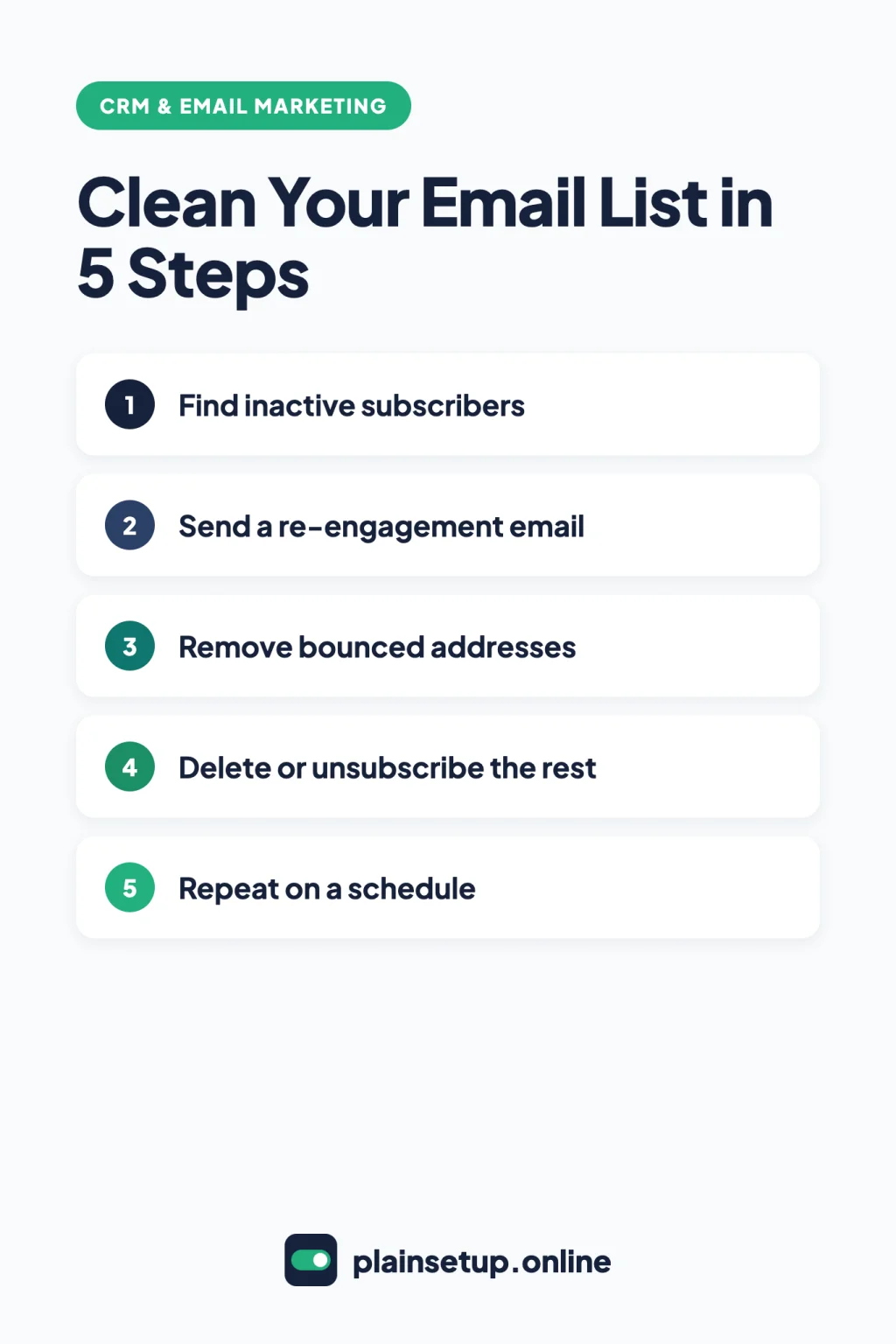
Quick steps
- Build a list or segment of inactive subscribers.
- Send them one or two re-engagement emails.
- Check that bounced and spam-complaint addresses are already out.
- Unsubscribe, archive or delete the people who didn’t respond.
- Move to a lower plan tier if your billed count dropped.
- Keep double opt-in on and repeat every few months.
Why it pays to clean your email list
All three vendors link list quality to delivery. Mailchimp’s page about inactive and stale addresses says old, unused addresses can lead to high bounce rates, spam complaints and unsubscribes, and adds: “A cleaner audience helps improve your deliverability.” MailerLite’s guide to hard and soft bounces says bounces, especially hard ones, damage your sender reputation. Kit’s guide to cleaning and managing your list says a mostly engaged list makes inbox placement more likely.
Then there’s cost. Each tool bills on a different group of contacts:
| Contact type | MailerLite | Mailchimp | Kit |
|---|---|---|---|
| Inactive but still subscribed | Counts | Counts | Counts |
| Unsubscribed | Doesn’t count | Counts | Doesn’t count |
| Bounced | Doesn’t count | Doesn’t count | Doesn’t count (hard bounces) |
| Archived | Not described | Doesn’t count | Not described |
| Deleted | Counts until the cycle resets if it was active during the cycle | Doesn’t count | Not stated (Kit bills confirmed subscribers only) |
Sources: the MailerLite pricing FAQ, Mailchimp’s pricing plans page and Kit’s subscriber statuses. MailerLite’s count resets on your billing anniversary.
Step 1: Find inactive subscribers
MailerLite
Go to the Subscribers page and open the Clean up inactive tab. According to MailerLite’s guide to cleaning up inactive subscribers, the default filter shows people inactive for the last 6 months who were sent more than 10 emails. You can switch to 12 or 24 months, or Never opened. Use the arrow next to Unsubscribe inactive to save them as a segment for Step 2.
Mailchimp
Mailchimp has no fixed definition; you choose the time frame. Its guide to identifying inactive subscribers uses Audience > Segments > Create segment. Set Email subscription status to Subscribed, add a Campaign interaction filter for did not open or did not click, and pick a time frame. Add Email Date added is before a date so new subscribers aren’t caught. Click Review segment, name it and click Use segment. Another Mailchimp article says has not opened, so labels may differ.
Kit
Kit marks subscribers as Cold when they haven’t opened or clicked an email in the last 90 days, or 30 days if they joined less than 90 days ago. On the Subscribers page, choose Cold in the subscriber status dropdown. Cold subscribers are still confirmed, so they count toward your bill.
Step 2: Send a re-engagement email
MailerLite suggests a re-engagement campaign before removing anyone, and Mailchimp’s guide to re-engaging inactive contacts lists tools such as coupons, polls and surveys. Keep it short: ask whether they still want your emails and give one clear link to stay.
- MailerLite: send a campaign to the segment you saved, or use the Win-back automation template, labeled Free. It sends an email, waits, sends a last-chance email, and moves people who still don’t engage to unsubscribed.
- Mailchimp: send a regular email to your inactive segment. The re-engagement guide notes that automation post-send actions can unsubscribe people who don’t open the series.
- Kit (Creator or Creator Pro plan): select your cold subscribers, click Tag and apply Add to Ad Hoc Cold Subscribers Cleaning Automation. The template sends two emails, and anyone who doesn’t click the link within a week (the default) is unsubscribed. These templates use visual automations and email sequences, which the Kit Free plan page lists as paid features.
Step 3: Remove bounced and complained addresses
Most of this is automatic. Check it, and don’t add those addresses back.
| Tool | Hard bounce | Soft bounce | Spam complaint |
|---|---|---|---|
| MailerLite | Removed from your active list automatically | Three in a row count as a hard bounce | Removed from active list, status changes to junk |
| Mailchimp | Cleaned automatically, in most cases immediately | Becomes a hard bounce after 7 soft bounces (no activity) or up to 15 (past activity) | Moved out of your active audience |
| Kit | Status Bounced, unsubscribed automatically | No status change; still counts toward billing | Status Complained, unsubscribed automatically |
Sources: MailerLite’s subscriber statuses, Mailchimp’s bounces and abuse complaints pages, and Kit’s status article. To review bounces in MailerLite, go to Campaigns > Sent > View report > Subscriber activity. In Mailchimp, build a segment where Email subscription status is Cleaned; its page about cleaned contacts recommends archiving them rather than deleting.
Step 4: Unsubscribe, archive or delete the rest
MailerLite
On the Clean up inactive tab, click Unsubscribe inactive, or use the arrow next to it and choose Delete. MailerLite’s guide to deleting or forgetting a subscriber explains three options. Unsubscribe stops newsletters. Delete removes the person but keeps their information in case they subscribe again. Forget, found under Actions on a single profile, erases their data within 30 days and can’t be undone.
Mailchimp
Unsubscribed contacts still count here, so archive to cut the count. From your inactive segment, select the contacts, click Archive, type ARCHIVE and confirm, as Mailchimp’s guide to archiving inactive contacts shows. Archiving is reversible. It won’t lower a peak contact total already recorded this billing period, but it can lower future bills. Deleting is permanent and deleted contacts can’t be imported again, so Mailchimp’s delete contacts page recommends archiving instead. To unsubscribe, use Edit subscription > Email subscription > Unsubscribed, per its guide to unsubscribing people.
Kit
On the Subscribers page, select people, click the three dots and choose Unsubscribe or Delete, as described in Kit’s guide to bulk actions. Kit’s guide to removing subscribers says unsubscribing keeps their history and they stop counting toward your bill, while deleting removes them and their history. It suggests tagging people first so you can review the group later.
Kit moves you up a tier automatically but leaves moving down to you. Its billing page gives an example: dropping from the Creator plan’s 3,000-subscriber tier at $59 per month to the 1,000-subscriber tier at $39 per month. That’s $59 minus $39, or $20 a month. Change your tier in Account & Billing.
Prices checked in October 2026. Plans and prices change, so confirm on the official pricing page before you buy.
If someone asks you to erase their personal data under privacy rules such as the GDPR, use each tool’s official deletion steps; Kit asks EU subscribers’ requests to go through its own form, as its removal guide explains.
Step 5: Keep it clean
Double opt-in asks new subscribers to confirm by email before they join, which keeps typos and fake sign-ups out. Kit’s article on double opt-in says: “Double opt-in protects your list and your deliverability.”
- MailerLite: on by default for new forms. Check the switch on the form’s Overview page (MailerLite’s double opt-in guide).
- Mailchimp: Audience > three dots > Audience settings > Form settings > Edit > Double opt-in > Save opt-in setting. It works only for Mailchimp signup forms (single vs. double opt-in).
- Kit: in each form or landing page, open Settings > Confirmation Email and leave Auto-confirm new subscribers unchecked (The Confirmation Email).
Then repeat Steps 1 to 4. Kit recommends cleaning cold subscribers every few months, and its automatic template (paid plans) checks whether new subscribers open at least one email within 180 days. Set a calendar reminder to clean your email list, and keep sending regularly so addresses don’t go stale.
Frequently asked questions
How often should I clean my email list?
Kit suggests you clean your email list of cold subscribers every few months. MailerLite and Mailchimp set no fixed schedule in the pages we checked; Mailchimp recommends deleting or reconfirming addresses you haven’t emailed in a long time.
Does unsubscribing someone lower my bill?
In MailerLite and Kit, yes: unsubscribed people don’t count, although MailerLite counts anyone active during the current cycle until it resets. In Mailchimp, no. Unsubscribed contacts still count, so archive or delete them instead.
What is the difference between a hard and a soft bounce?
A hard bounce is a permanent delivery failure, such as an address that no longer works. A soft bounce is temporary. All three tools remove hard bounces automatically (Mailchimp says in most cases), and MailerLite and Mailchimp treat repeated soft bounces as hard ones.
Should I archive or delete inactive subscribers?
In Mailchimp, archiving is reversible, stops the contact counting and is recommended over deleting. MailerLite keeps a deleted subscriber’s information, while Forget erases it. Kit deletes the subscriber and their history, so unsubscribe if you want to keep records.
Sources
- MailerLite: How To Clean Up Inactive Subscribers
- MailerLite: How To Delete Or Forget A Subscriber
- MailerLite: Subscriber statuses explained
- MailerLite: The Difference Between Hard Bounce And Soft Bounce
- MailerLite: Win-back Email Automation Workflow Template
- MailerLite: How To Use Double Opt-In When Collecting Subscribers
- MailerLite: Pricing
- Mailchimp: Identify Inactive Subscribers
- Mailchimp: Archive Inactive Contacts
- Mailchimp: Archive or Unarchive Your Contacts
- Mailchimp: Delete Contacts
- Mailchimp: Unsubscribe People from Your Marketing Content
- Mailchimp: About Mailchimp Pricing Plans
- Mailchimp: Soft vs. Hard Bounces
- Mailchimp: About Cleaned Contacts
- Mailchimp: About Abuse Complaints
- Mailchimp: About Inactive and Stale Addresses
- Mailchimp: Re-Engage Inactive Subscribed Contacts
- Mailchimp: Single Opt-in vs. Double Opt-in
- Kit: Cleaning and managing your list
- Kit: The subscriber profile page and status
- Kit: How to remove subscribers from your email list
- Kit: How to use Bulk Actions
- Kit: Billing at Kit
- Kit: The Kit Free plan
- Kit: The all-important double opt-in
- Kit: The Confirmation Email
Your Next Step
Today, open your email tool and find your inactive group: the Clean up inactive tab in MailerLite, a Campaign interaction segment in Mailchimp, or Cold status in Kit. Note how many people are in it and schedule one re-engagement email for this week. That is the first move to clean your email list without losing readers who still care. For more help, browse our CRM & Email Marketing guides.

Fernando Pompeu is a journalist and digital content writer with more than 8 years of experience in media outlets and news portals. He writes to explain things clearly and without jargon. At PlainSetup, he publishes step-by-step guides to the everyday tools small businesses run on, based on each tool’s official documentation and written for owners without an IT team.