
A customer asks when the next batch is coming, and you answer in an Instagram comment that’s buried by Friday. Your real list of regulars lives in a spreadsheet and your phone’s contacts, and you aren’t sure you’re even allowed to email them. If that sounds familiar, it’s a good moment to start an email newsletter.
This guide follows a simple order: decide what the newsletter is for, pick a tool with a free plan, collect subscribers with permission, add a sign-up form, set up a welcome email and send your first issue. Then it summarizes what the official US, UK and Canadian pages say every marketing email must include, with links.
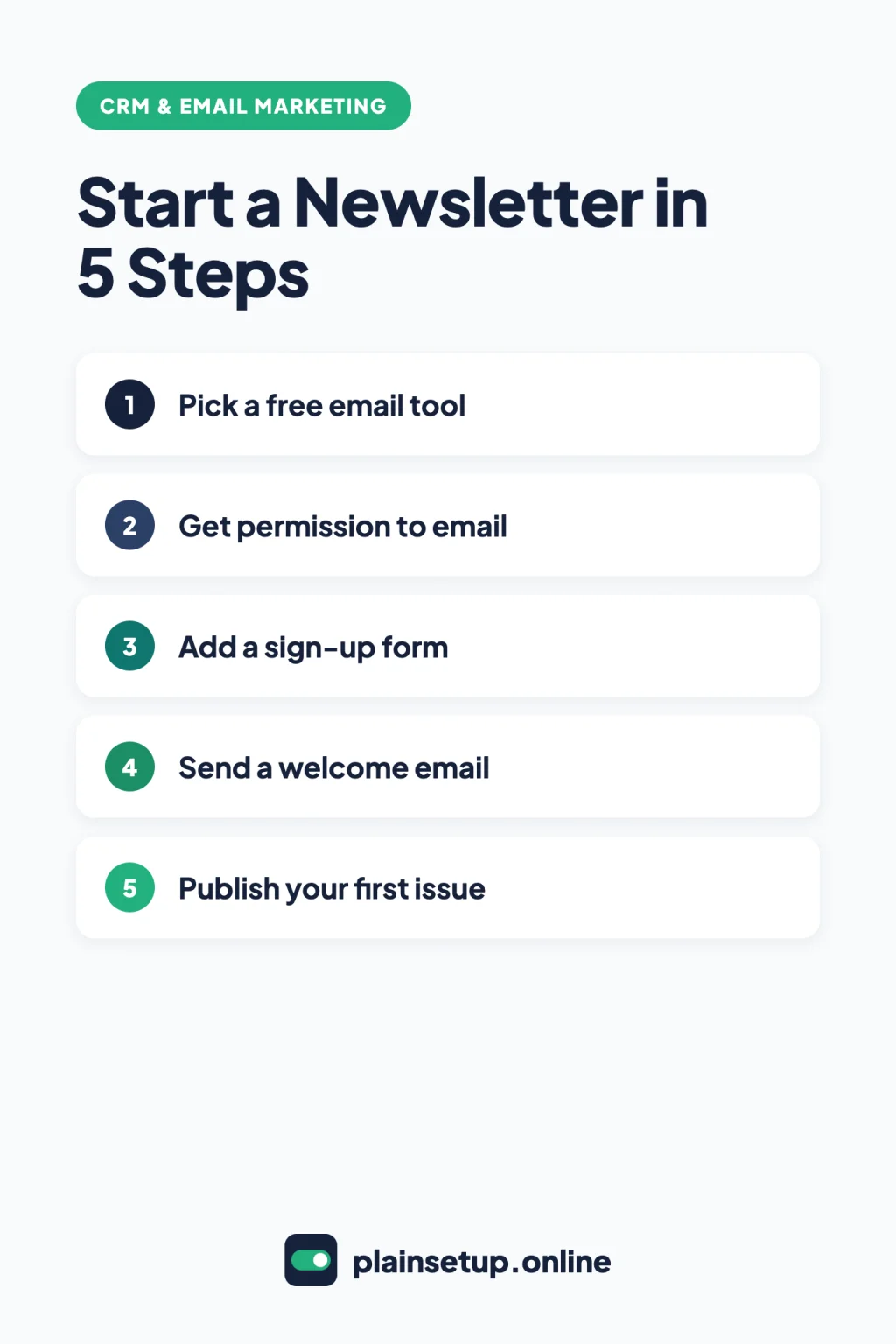
Quick steps
- Decide what your newsletter is for and who it’s for.
- Pick an email marketing tool with a free plan that fits your list.
- Build your list only from people who agreed to hear from you.
- Add a sign-up form to your website.
- Set up an automatic welcome email.
- Write, test and send your first issue.
Step 1: Decide why you want to start an email newsletter
Before you open any tool, finish this sentence: “Subscribers get…” Maybe it’s new products before they reach social media, a monthly class schedule, or seasonal reminders for your service. That sentence shapes your sign-up form, your welcome email and every issue after it.
Keep the promise narrow at first, and choose a pace you can keep alongside the rest of your work.
Step 2: Pick an email marketing tool
A dedicated email marketing tool gives you sign-up forms, automated emails and campaign reports in one place. Mailchimp, MailerLite and Kit all have free plans. Here’s what each includes, according to the official pages:
| Free plan | List limit | Monthly emails | User seats | Also included |
|---|---|---|---|---|
| Mailchimp Free | Up to 250 contacts | 500 sends, with a daily limit of 250 | 1 | 1 audience, limited templates, basic reporting |
| MailerLite Free | Up to 250 subscribers | 2,500 | 2 | 3 automations, 3 signup forms, 1 website and 1 landing page |
| Kit Free | Up to 10,000 email subscribers | Unlimited email broadcasts | Not stated on Kit’s help page | Unlimited forms and landing pages |
- Mailchimp: the pricing page lists removing Mailchimp branding and marketing automation flows as not included on Free. Sending pauses if you exceed the contact or send limit.
- MailerLite: removing the MailerLite logo is a paid feature. Above 250 active subscribers, sending is locked for campaigns and automations.
- Kit: the plan is $0 per month under 10,000 subscribers; above that, you need to upgrade to keep sending.
Prices checked in October 2026. Plans and prices change, so confirm on the official pricing page before you buy: Mailchimp, MailerLite, Kit.
Want an automatic welcome email for free? Pick a plan with automations. Already over 250 people? Kit’s is the only free plan here with room.
Step 3: Build your list with permission
The contacts in your phone or a spreadsheet aren’t automatically a mailing list. The UK and Canadian regulator pages tie marketing email to consent; see the rules section below.
- Ask where people already know you: at checkout, in your shop or in your social bio, with a link to your form.
- Say what they’ll get: use your sentence from Step 1.
- Keep a record of where and when each person signed up. If your customer records live in a simple CRM for your small business, note it there too.
- Skip bought lists: the ICO says its existing-customer exception doesn’t cover new contacts from bought-in lists.
Double opt-in: a confirmation step
Per MailerLite’s guide to using double opt-in, a new subscriber receives a confirmation email and confirms the sign-up. It’s on by default for new forms. MailerLite says it isn’t required by GDPR but recommends it. Editing the confirmation email requires a paid plan.
Step 4: Add a sign-up form
Using MailerLite as the example, here are its steps to create an embedded form:
- Go to the Forms page and open the Embedded forms tab.
- Click Create form, name it and click Save and continue.
- Choose the group new subscribers will join and click Continue. Step 5 uses this group.
- Edit the heading, text, fields and button.
- In the Settings tab, you can add a privacy policy statement and a consent checkbox.
To publish it, MailerLite’s guide to adding a form to your website says to click Overview for your form on the Forms page and copy two JavaScript snippets: the universal tracking snippet goes before the closing </head> tag, and the form code goes in the page body where the form should appear.
No website yet? MailerLite Free includes 1 landing page and Kit Free includes unlimited landing pages, so the form can live there.
Step 5: Set up a welcome email
A welcome email goes out automatically when someone joins. It’s separate from the double opt-in confirmation, which only checks the address. MailerLite’s simple welcome email template is labeled Free:
- Select the Joins group(s) trigger and choose your form’s group.
- Click the Email step, add a subject line and write the email.
- Save the email step and click Activate.
Include a thank-you, your promise from Step 1, when the next issue arrives and one useful link. If you use Mailchimp, remember its Free plan doesn’t include marketing automation flows.
Step 6: Write and send your first issue
- A subject line that matches the content, which the FTC guide requires for US commercial email.
- One main story and one clear link.
- A footer with your business name, postal address and an unsubscribe link. Check it before you send.
Send a test to yourself, open it on your phone and click every link. Then send it and note the date, so the next issue follows your pace.
Send it from a professional email address on your own domain so subscribers recognize who it’s from.
The rules every marketing email must follow
Here’s what each official page says, in summary. Read the full page for every country where your subscribers are; this isn’t legal advice.
United States: the FTC’s CAN-SPAM guide
The FTC’s CAN-SPAM Act compliance guide says the law covers all commercial messages, with no exception for business-to-business email. Its main requirements:
- No false or misleading header information (From, To, Reply-To, routing).
- No deceptive subject lines.
- Disclose clearly and conspicuously that the message is an advertisement.
- Include your valid physical postal address.
- Explain clearly how to opt out, and honor opt-outs within 10 business days.
- Monitor anyone sending on your behalf; you stay responsible.
According to the FTC page, each separate email in violation is subject to penalties of up to $53,088.
United Kingdom: the ICO’s electronic mail marketing guidance
The ICO’s page on electronic mail marketing notes that its guidance is under review because of changes made by the Data (Use and Access) Act, so check it for updates. As it stands, it says:
- Don’t send marketing emails to individuals without their specific consent.
- The soft opt-in exception covers existing customers who bought, or negotiated to buy, a similar product or service from you, if you offered a simple opt-out when collecting their details and in every message.
- Don’t disguise your identity, and give a valid contact address for opting out.
- You can email corporate bodies, but sole traders and some partnerships count as individuals.
Canada: the Government of Canada’s CASL guidance
The Government of Canada’s anti-spam legislation site says CASL focuses on commercial electronic messages. Its page on getting consent to send email says:
- Express consent, given verbally or in writing, has no time limit unless withdrawn.
- Implied consent applies only in certain situations, such as an existing business relationship, and lasts up to 2 years, or 6 months for inquiries or applications.
- Each message must identify your business and anyone you send for, with a mailing address plus a phone number, email or website valid for at least 60 days after sending.
- Include clear unsubscribe instructions and process requests within 10 business days, at no cost to the recipient.
How often to send and what to track
The official pages in this guide don’t set a schedule. When you start an email newsletter, the right frequency is one you can keep, whether monthly or every couple of weeks. Check it against your plan’s monthly email limit before promising it.
After each send, open the report. Per MailerLite’s guide to analyzing reports, go to the Campaigns page, open the Sent tab and click View report. You’ll see:
- Opens: the number and percentage of subscribers who opened.
- Clicks: subscribers who clicked at least one link.
- Click-to-open rate: the share of openers who clicked.
- Unsubscribes, bounces and spam complaints.
Treat open rates with care. MailerLite’s tracking guide explains that Apple Mail Privacy Protection preloads content, including tracking pixels, so an open can register even if nobody opened the email. It may affect reports but not deliverability. Watch trends over several issues, plus unsubscribes and replies.
Frequently asked questions
Do I need permission to email my customers?
In the UK, the ICO requires specific consent for individuals, with a limited exception for existing customers. Canada’s CASL guidance describes express and implied consent, and implied consent is time-limited. The US FTC guide focuses on what each email contains and on honoring opt-outs.
Which email tool is free for a small list?
Mailchimp Free covers up to 250 contacts, MailerLite Free up to 250 subscribers, and Kit Free up to 10,000 subscribers. Email limits and features differ, so compare the Step 2 table with your list size.
How often should a small business send a newsletter?
No official page here requires a schedule. Pick a pace you can sustain and tell subscribers what it is.
What should I put in my first newsletter?
One main story, one clear link and an honest subject line. Make sure the footer shows who you are, how to reach you and how to unsubscribe, since all three regulator pages ask for some version of that.
Sources
- FTC: CAN-SPAM Act: A Compliance Guide for Business
- ICO: Electronic mail marketing
- Government of Canada: Canada’s anti-spam legislation
- Government of Canada: Getting consent to send email
- Mailchimp: Pricing plans
- Mailchimp: About Mailchimp Pricing Plans
- MailerLite: Pricing
- MailerLite: How to use double opt-in when collecting subscribers
- MailerLite: How to create an embedded form
- MailerLite: How to add a form to your website
- MailerLite: Welcome Email Automation Workflow Template
- MailerLite: How to analyze and export reports
- MailerLite: How to enable and disable tracking options
- Kit: The Kit Free plan
Your Next Step
Today, write your one-sentence promise from Step 1, open a free account with the tool that fits your list size and build your sign-up form. It’s a practical way to start an email newsletter you’ll keep sending. For more help, browse our CRM & Email Marketing guides.

Fernando Pompeu is a journalist and digital content writer with more than 8 years of experience in media outlets and news portals. He writes to explain things clearly and without jargon. At PlainSetup, he publishes step-by-step guides to the everyday tools small businesses run on, based on each tool’s official documentation and written for owners without an IT team.