
A new lead fills in your contact form, but nothing shows up in your CRM. Or the welcome email you automated last month quietly stopped going out. Zap not working, or not triggering at all? Most fixes come down to a handful of checks, and Zapier’s own help pages explain each one.
This guide goes through those checks from quickest to slowest and marks fixes that need a paid Zapier plan. Menu names come from Zapier’s Help Center and can change.
Haven’t built a Zap yet? Start with our guide to building your first Zap. Still choosing a tool? Read our Zapier vs Make comparison.
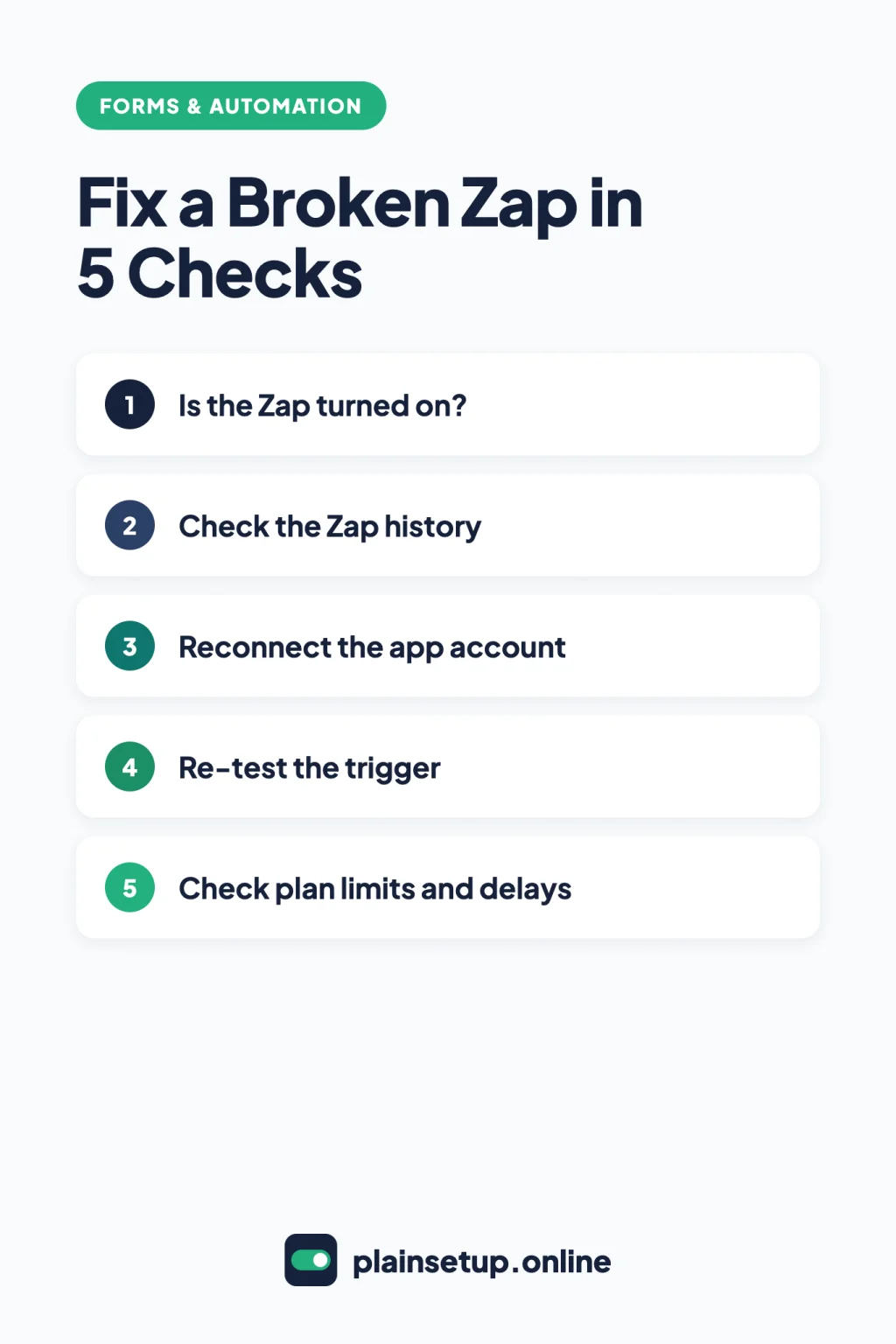
Quick fixes
- Make sure the Zap’s switch is on.
- Open Zap history and read the run status.
- Reconnect any expired app connection.
- Re-test the trigger with a brand-new item.
- Fill empty required fields and remap broken ones.
- Check your task limit, plan and polling delay.
- Replay the missed runs once it’s fixed.
Check 1: Zap not working at all? Make sure it’s turned on
A Zap can’t run while it’s off. Open it in the Zap editor and check the toggle switch in the top menu (editor guide). If it’s off, switch it on, then submit your form once to test it.
If it won’t turn on, Zapier’s page on why you can’t turn on or publish a Zap lists the usual blockers:
- Incomplete steps: a warning icon marks steps with missing required fields.
- A disconnected account: see Check 3.
- Free plan limits: on Free, you can’t turn on a Zap that uses a premium app or has more than one action step.
If it was on and switched itself off, the Zap is not running page explains why. Zapier turns a Zap off when it errors 95% of the time it runs and has run more than 20 times in the past 7 days. Team accounts get an email and a 24-hour grace period first; Enterprise accounts get 72 hours. Fix the errors in Check 2, then switch the Zap back on.
Check 2: Read the run status in Zap history
The Zap history page logs every Zap run. Filter by Zap name or status, then click a run to see each step. In the editor, the Zap runs icon in the left sidebar shows the same runs.
These are the statuses you’ll see most, from Zapier’s guide to run statuses:
| Status | What it means | What to do |
|---|---|---|
| Successful | Every step ran without issues | If data looks wrong, see Check 5 |
| Filtered | A Filter step’s conditions weren’t met | Review the filter rules |
| Errored | A step hit a problem and didn’t finish | Open the step and fix the cause |
| Safely halted | Stopped on purpose, usually a search found nothing | Check the search step |
| On hold | Waiting for a fix, such as a reconnect or more tasks | Fix the cause (Checks 3 and 6), then replay |
| Scheduled | Errored, and autoreplay will retry it | Wait for the retry |
For an Errored run, click the errored step and open the Troubleshoot tab for AI-written fix instructions, or the Logs tab for the error code. Zapier’s guide to troubleshooting errors explains the common codes:
- 401 Unauthorized: the connection expired or you changed your password. Reconnect (Check 3).
- 403 Forbidden: the app account lacks permission.
- 400 or 422: a required field is empty or in the wrong format (Check 5).
- 500: if it happened once or twice, replay it. If it’s every run, check the Zapier Status page and the app’s own status page.
Check 3: Reconnect the app account
Connections expire, often after a password change or a new security rule at your organization, per Zapier’s page on app connections. To reconnect one:
- Go to the App Connections page.
- Find the connection with the expired icon.
- Click Reconnect, then Reconnect again in the dialog.
- Sign in to the app in the new tab or window.
This fixes every Zap that uses that connection. You can only reconnect connections you own. To check one, click the three-dot menu and choose Test connection.
Inside a Zap, a warning on the step’s account field (on the Setup tab; older pages say Account tab) means the same thing: click the three dots and choose Reconnect. If nothing happens, Zapier suggests turning off your browser’s pop-up blocker. If the sign-in window shows an error, try an incognito window or another browser.
Check 4: Zap not triggering? Re-test the trigger
No new runs at all means the trigger isn’t firing. Zapier’s Zap isn’t triggering page lists the usual reasons:
- The item already existed. A Zap only picks up data created after it was turned on.
- Wrong trigger event. For example, “New Contacts” when you’re adding leads.
- Trigger options don’t match. The Configure tab points to a different list or form than the one you use.
- Connection or permission problems (Check 3).
To re-test the trigger, create a new item in your app, open the trigger step, go to the Test tab and click Find new records. Instant triggers (marked with a lightning bolt) search for new data for only 3 minutes. So prepare the item in another tab without submitting it, click Test trigger, then submit the item. If it still finds nothing, turn the Zap off and on again to refresh the connection.
Check 5: Fill empty fields and remap broken ones
Zapier’s page on “Required field is empty” errors is blunt: “If a required field is empty, your Zap will error.” This often happens when an optional answer, like a phone number some people skip, is mapped into a required field.
A run can also be Successful but send blank data. Zapier’s Zap is not sending data page blames blank answers, data arriving in a different field, or fields that no longer exist, like a deleted form question or a renamed CRM field.
To find it, open the run from Zap history, click the step and check Data In and Data Out in Run details. On the Configure tab, a mapped field with an exclamation symbol and a yellow border had no data or no longer exists. To fix it, test the step to load new records, then remap the field or type a fixed value. On paid plans, a Formatter step can set a default value for empty data.
Check 6: Check plan limits and delays
Some causes put runs on hold instead of failing them, per Zapier’s guide to held runs:
- Task limit reached: Zapier holds new runs for all your Zaps. Its Zap limits page says: “Your Zap runs will be held, not lost.” Wait for your billing cycle to reset, upgrade, or turn on pay-per-task billing, then replay. Free includes 100 tasks per month.
- Trial ended or plan changed: runs that use paid features, such as more than one action or premium apps, are held after the 14-day trial (Free plan page). Upgrade or remove the feature.
- Payment issue: update your payment method, then replay.
Most triggers poll for new data on a timer set by your plan (How Zap triggers work):
| Plan | Polling interval |
|---|---|
| Free | 15 minutes |
| Professional | 2 minutes |
| Team | 1 minute |
| Enterprise | 1 minute |
Instant triggers get data from the app as each event happens instead.
Check 7: Replay missed runs and turn on alerts
Once it’s fixed, replay the runs. The Zap must be on. In Zap history, select the runs, click Play X, then Replay. In the editor, open Zap runs, select the runs, click Replay X runs and choose Errored steps. Replay retries only the failed steps, not the trigger.
- Free plan: manual replay works only for Errored runs. Replaying On hold runs needs a paid plan.
- Autoreplay (paid plans): turn on the Autoreplay switch in the Zap Runs tab of Zap History. Zapier retries up to 5 times and sends no error email until the last try fails (What is replay?).
- Limits: replay within 60 days, with enough tasks left.
Error emails go to your Zapier account email. To change how often, open Notifications > My notification settings > Default notification > Edit and pick a Frequency: Immediately (default), Immediately, then hourly summary, Hourly summary or Never, then Save (notifications guide).
When to contact support
Contact Zapier when the same error shows up on every run and the Status page is clear, or when your plan changed and you didn’t change it. Zapier’s help and support page says email support through the contact form is for paid plans, plus 30 days after your 14-day trial ends. On Free, you can use the Help Center, its Virtual Assistant chat and the Zapier Community.
| Plan | Email support target | Live chat |
|---|---|---|
| Professional | 8 hours, Monday to Friday | Only with 2,000 tasks or more |
| Team | First reply 1 hour, follow-up 4 hours, weekends included | Yes |
| Enterprise | First reply 30 minutes, follow-up 1 hour | Yes |
These are Zapier’s targets, not guarantees.
Frequently asked questions
Why did Zapier turn off my Zap?
Usually because it kept failing: 95% errors over more than 20 runs in 7 days, per Zapier’s Zap is not running page. Fix the error first, then switch it back on.
Why is my Zap not working when Zap history shows nothing?
The trigger hasn’t fired. Zapier’s run statuses guide says a polling check that finds nothing new doesn’t appear in Zap runs. Items created before the Zap was turned on are ignored, and Free only polls every 15 minutes.
Do failed runs use tasks?
No. Zapier’s task usage guide says action steps that error or halt don’t count.
Can I replay runs on the Free plan?
Yes, but only runs with an Errored status, and only by hand. Replaying On hold runs and autoreplay need a paid plan, per Zapier’s replay guide.
Sources
- Zapier: Zap is not working
- Zapier: Review run statuses in Zap workflows
- Zapier: Zap is not running
- Zapier: How to troubleshoot errors in Zap workflows
- Zapier: Manage your app connections
- Zapier: Zap isn’t triggering
- Zapier: Zap trigger test fails
- Zapier: Fix “Required field is empty” errors in Zap workflows
- Zapier: How to troubleshoot held Zap or step runs
- Zapier: How Zap triggers work
- Zapier: Replay Zap runs
- Zapier: Manage notifications when errors occur in Zap workflows
- Zapier: Get help and support with Zapier
- Zapier: Zapier Status
Your Next Step
Open your Zap history now, filter by Errored and On hold, and fix the newest run using the checks above. Then replay it and set your error emails to Immediately, so the next time you find a Zap not working, you hear about it first. For more help, browse our Forms & Automation guides.

Fernando Pompeu is a journalist and digital content writer with more than 8 years of experience in media outlets and news portals. He writes to explain things clearly and without jargon. At PlainSetup, he publishes step-by-step guides to the everyday tools small businesses run on, based on each tool’s official documentation and written for owners without an IT team.