
A client wants to call you back, scrolls through your last email and finds no phone number, no website and no last name. A few lines at the bottom of every message fix that. This guide shows how to add an email signature in Gmail and Outlook, on your computer and on your phone, with a logo and links.
We start with the text, set it up in each app, then cover the company-wide footer admins can add. Menu names come from Google’s and Microsoft’s help pages, linked as we go, and can change.
If you still send from a personal address, read our guide on how to get a professional email address first, so your signature matches the address clients see.
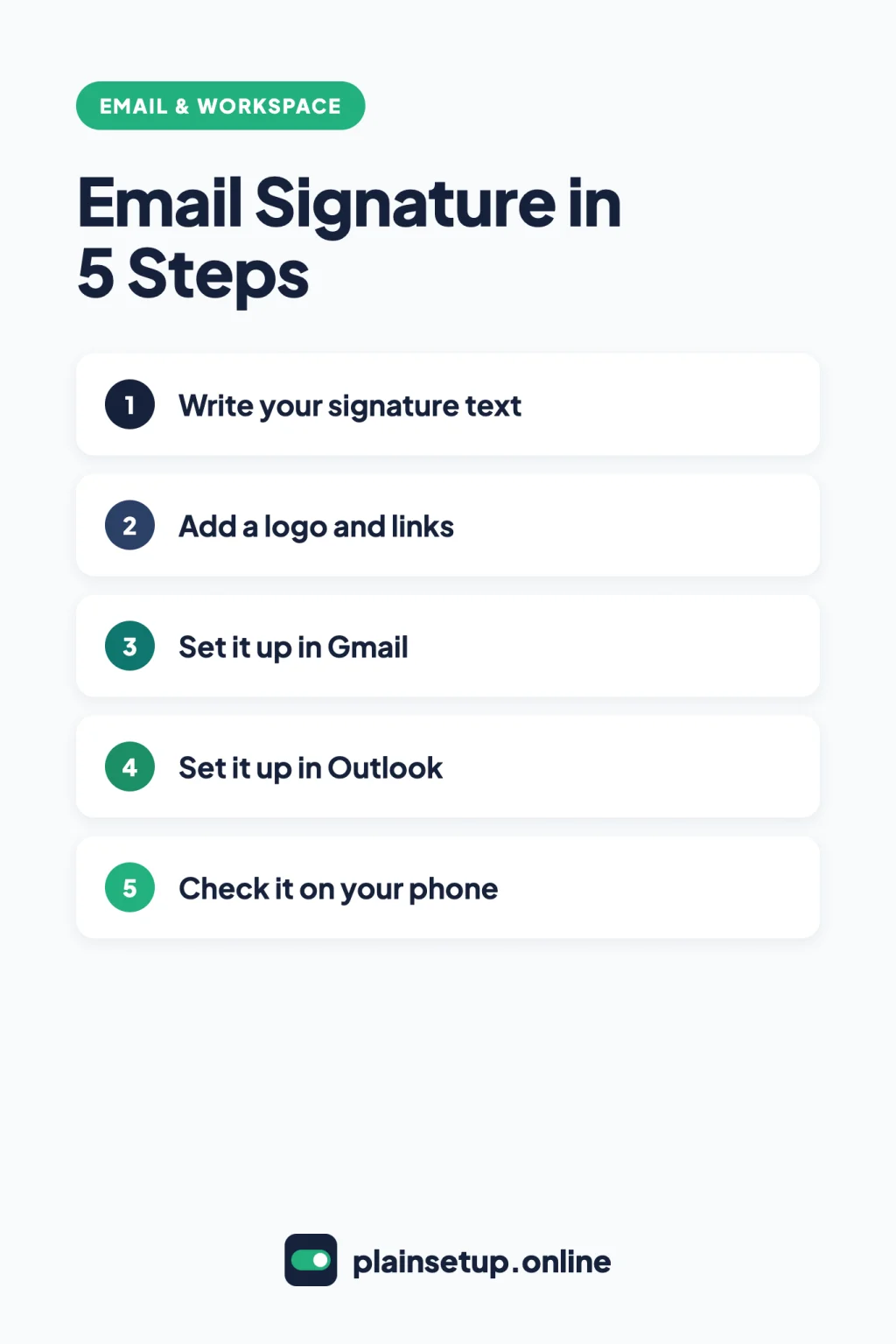
Quick steps
- Write four or five lines: name, role, business, phone and website.
- Prepare a small logo image and the links you want to include.
- In Gmail on a computer, open Settings > See all settings and fill in Signature.
- In new Outlook or Outlook on the web, open Settings > Accounts > Signatures.
- Add a mobile signature in the Gmail or Outlook app.
- If you manage the company account, set a footer for everyone (optional).
- Send yourself a test email and check it on your computer and phone.
Step 1: Write your signature text
Keep it short enough to read at a glance. Google describes a signature as text “like your contact information or a favorite quote” added at the end of your messages. A simple business version looks like this:
Jordan Lee
Owner, Lee Garden Design
(555) 010-0000
www.example.com
Save it in a note to paste into each app. Gmail allows up to 10,000 characters, and an image counts toward that limit, per Google’s guide to creating a Gmail signature.
Step 2: Add a logo and links
Microsoft’s guide to adding and changing an email signature in Outlook says a signature can include “text, links, pictures, and images.”
Size the logo before you upload it. Google’s page on troubleshooting Gmail signatures recommends an image 70 to 100 pixels high by 300 to 400 pixels wide, with a maximum of 100 pixels high by 1,000 pixels wide. Gmail gives you three ways to add it:
- Web Address (URL): an image that is publicly available on the web.
- My Drive: an image in Google Drive, shared publicly.
- Upload: a file from your computer, phone or tablet.
A Drive image only shows if its sharing is changed with Change to anyone with the link and Viewer, and it disappears if you delete the file. On a work account where you can only add images by URL, Google says to ask your administrator. After uploading, select the image and pick Small, Medium, Large or Original size.
Step 3: How to add an email signature in Gmail
On your computer, Google’s steps are:
- Open Gmail. At the top right, click Settings > See all settings.
- In the Signature section, type or paste your text in the box. Use the toolbar to format it or insert your image.
- At the bottom of the page, click Save Changes.
You can create more than one signature, for example a full one for new emails and a shorter one for replies. Google says you can set a default for new emails and for replies, and pick a different one for each message. While writing, click Insert signature at the bottom of the window to switch.
If you send from more than one address with Gmail’s “Send mail as” feature, use the drop-down above the signature box to give each address its own signature. If you don’t see it, check the “Send mail as” section on the Accounts and Import settings page.
Step 4: Set it up in Outlook
Microsoft says the steps are the same for new Outlook for Windows, Outlook on the web and Outlook.com. With a Microsoft 365 business account, you can reach Outlook on the web by signing in at Microsoft365.com.
- Select Settings, then Accounts > Signatures.
- If you have more than one account, choose the one this signature is for.
- Select Add signature and give it a name.
- Type your signature and format it with the font, color and style tools.
- Use the checkboxes to add it to new messages and to replies and forwards, or leave them blank to add it by hand.
- Select Save.
To add it by hand, open a new message and select Signature on the Message tab. Microsoft adds that if you use both Outlook and Outlook on the web with a Microsoft account, you need to create the signature in both.
Classic Outlook for Windows
If these steps don’t match your screen, you may have classic Outlook. Open a new message and go to Signature > Signatures. Choose the account in the E-mail account drop-down, select New, name it and type it under Edit signature. Under Choose default signature, set New messages and Replies/forwards, then select OK.
For a logo, select the Image button there, pick your file and select Insert. Classic Outlook stores signatures on that device only.
Just moved your business email to Microsoft? Our guide to setting up Microsoft 365 business email covers adding your account to Outlook first.
Step 5: Add a signature on your phone
The mobile apps keep their own signature, so set it up there too.
- Gmail for Android: tap Menu at the top left, scroll down and tap Settings, choose your account, tap Mobile signature, enter your text and tap OK.
- Gmail for iPhone and iPad: tap Menu > Settings. Under “Compose and Reply,” tap Signature settings, turn on Mobile Signature, edit it and tap Back to save. Repeat for each account in the app.
- Outlook for iOS and Android: open Settings, tap Signature under Mail and enter your text. Turn on Per Account Signature to use a different one for each account, per Microsoft’s page Can I change my email signature?
Google’s Android and iPhone steps add a useful detail: if you don’t create a signature in the Gmail app, new messages use the one you set up on your computer.
Step 6: Set a company-wide footer (admins)
If you manage a paid Google Workspace or Microsoft 365 account, you can add the same block to everyone’s outgoing email from the admin console.
| Detail | Google Workspace | Microsoft 365 |
|---|---|---|
| Where | Admin console, Gmail Compliance settings | Exchange admin center, mail flow rules |
| Setting name | Append footer | Apply disclaimers |
| Who gets it by default | Recipients outside your organization | Incoming and outgoing mail, unless you add a condition |
| Images | From a public web address, not Google Drive | Can’t embed; a hosted image can be linked |
Google Workspace: Append footer
Per Google’s guide to adding a standard footer to outgoing emails, go to Menu > Apps > Google Workspace > Gmail > Compliance. Select an organization, point to Append footer and click Configure. Enter up to 10,000 characters; the editor doesn’t accept HTML. Tick the box if internal messages should get it too, then click Save. Changes can take up to 24 hours.
Google’s page on Workspace user signatures notes that people don’t see the footer while writing and can’t change or remove it.
Microsoft 365: a disclaimer rule
Microsoft calls organization-wide signatures disclaimers. Per its guide to creating organization-wide signatures and disclaimers, open the Exchange admin center and go to Mail flow > Rules > + Add a rule > Apply disclaimers. Name the rule, choose who it applies to, select append a disclaimer, click Enter text and pick a fallback option. Choose Enforce or a test mode, then Finish.
Microsoft’s Exchange Online disclaimer guide suggests The recipient > is external/internal > Outside the organization for outgoing mail only, plus an Except if exception with words from your text so threads don’t repeat it. Tokens like %%DisplayName%% fill in each sender’s details. The text can’t sit right under the latest reply and doesn’t appear in Sent Items.
Step 7: Test it and check it on your phone
Email an address outside your business from each app, then open it on your computer and phone. Check the links and the logo. Fixes from Google’s troubleshooting page:
- Signature looks wrong: select it in settings and click Remove formatting. An oversized image can also cause this.
- Signature seems missing: in a sent message, click Show trimmed content at the bottom.
- Can’t format text: in a new message, open More options and uncheck Plain text mode.
For an admin footer, Microsoft suggests testing with both a plain text and an HTML email.
Frequently asked questions
Why isn’t the image in my Gmail signature showing?
A Drive image must be shared publicly. Google also suggests re-adding the image, trying another upload method or resizing it, per its signature troubleshooting page.
Can I use different signatures for different email addresses?
Yes. Gmail lets you set one per “Send mail as” address, and Outlook lets you pick the account for each signature. The Outlook app has Per Account Signature.
Can I add an email signature for my whole team at once?
Admins can. Google Workspace uses the Append footer setting, and Microsoft 365 uses a mail flow rule with Apply disclaimers. Google says users can’t change or remove that footer.
Does my computer signature appear when I email from my phone?
In Gmail, yes, unless you create a mobile signature in the app. The Outlook app has its own signature under Settings.
Sources
- Gmail Help: Create a Gmail signature (Computer)
- Gmail Help: Create a Gmail signature (Android phone & tablet)
- Gmail Help: Create a Gmail signature (iPhone & iPad)
- Gmail Help: Troubleshoot issues with Gmail signatures
- Google Workspace Help: Set up Google Workspace user signatures in Gmail
- Google Workspace Help: Add a standard footer to outgoing emails
- Microsoft Support: How to add and change an email signature in Outlook
- Microsoft Support: Can I change my email signature?
- Microsoft Support: How to sign in to Outlook on the web
- Microsoft Learn: Create organization-wide email signatures and disclaimers
- Microsoft Learn: Organization-wide message disclaimers, signatures, footers, or headers in Exchange Online
Your Next Step
Open the email app you use most today, add an email signature with your name, business, phone and website, and send a test message to a friend’s address. Then repeat it in your phone’s app. For more help, browse our Email & Workspace guides.

Fernando Pompeu is a journalist and digital content writer with more than 8 years of experience in media outlets and news portals. He writes to explain things clearly and without jargon. At PlainSetup, he publishes step-by-step guides to the everyday tools small businesses run on, based on each tool’s official documentation and written for owners without an IT team.