
Your business started in a personal Gmail account. Years of client threads, quotes and contacts live there, and now you want an address on your own domain that belongs to the business. This guide shows how to move from Gmail to Google Workspace and bring your email, contacts, calendar and files with you.
Google treats your Workspace account as a new, separate account. Your Gmail account stays where it is, and Google’s own tools copy your data into the new one.
Still choosing how to get an address on your domain? Start with our guide to getting a professional email address.
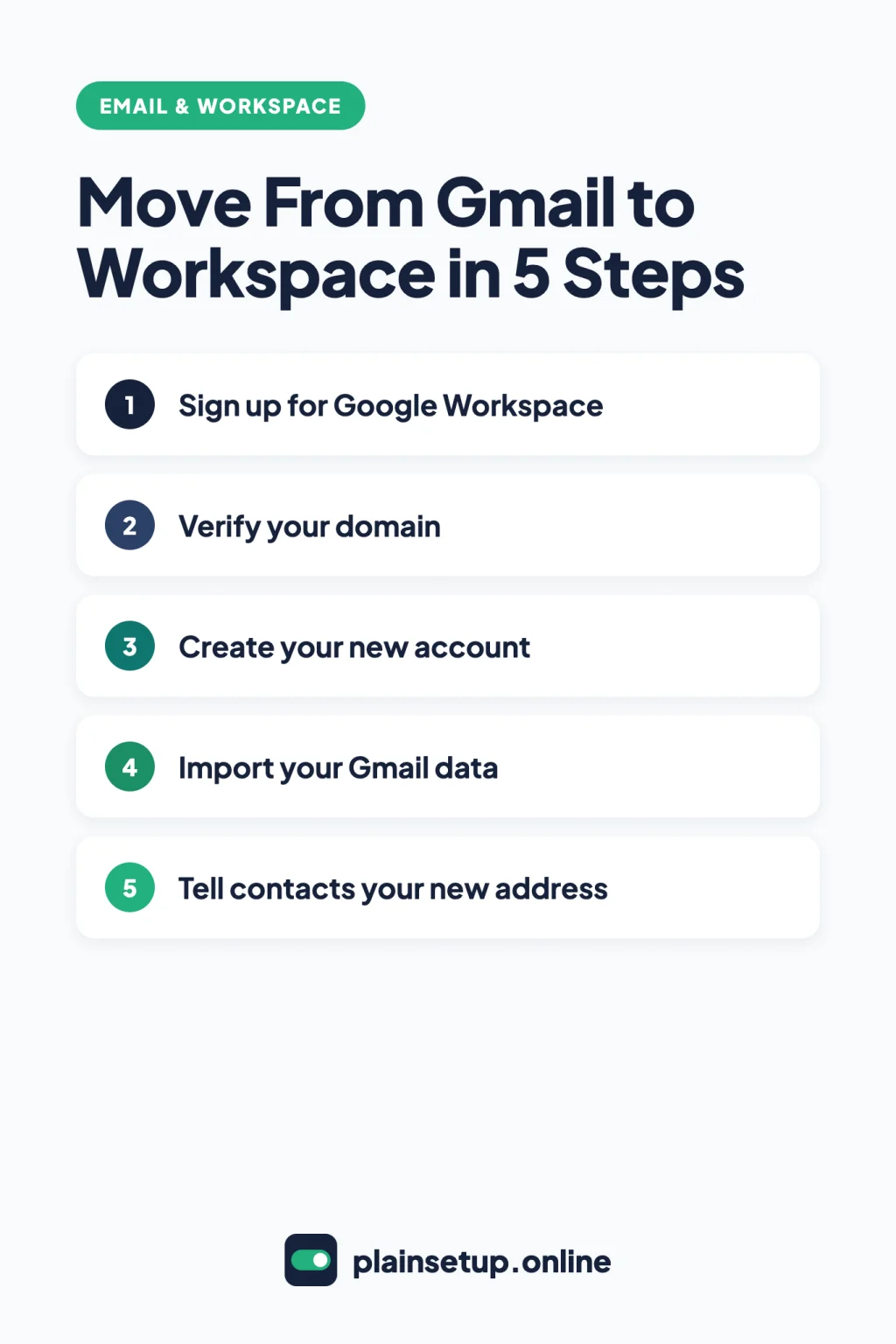
Quick steps
- Sign up for Google Workspace and verify your domain.
- Create the Workspace account that will receive your data.
- Import your Gmail messages with the data import tool.
- Export and import your contacts and filters.
- Share or download your Drive files, then export and import your calendar.
- Point your domain’s MX records to Google and forward your old Gmail.
- Tell your contacts about your new address.
Before you move from Gmail to Google Workspace: what moves and what doesn’t
Google’s guide to copying data between accounts uses a different method for each kind of data:
| Data | How it moves | What to know |
|---|---|---|
| Admin data import tool | Messages, drafts, sent mail, labels, stars and read status | |
| Contacts | Export a file, then import it | Split files over 3,000 contacts |
| Gmail filters | Export a file, then import it | Exported as an .xml file |
| Drive files | Share them, or download and upload | Ownership can’t move to a work account |
| Calendar | Export an .ics file, then import it | Guests and conference data aren’t imported |
| Your @gmail.com address | Stays with the old account | Forward its new mail instead |
Per Google’s data import tool overview, attachments don’t come across when the message plus attachment tops 25 MB or Gmail blocks the file type.
Gmail settings also have an Import mail and contacts option, but its Gmail Help page notes that Google is changing Gmailify and POP support. Google’s admin help names the data import tool for a personal Gmail account. It uses the Gmail API, so you don’t need to turn on IMAP.
Step 1: Sign up and verify your domain
Google’s Workspace FAQ says you need a domain, and its cost is separate from Workspace. On the Google Workspace pricing page, Business Starter is $7 per user per month with a 1-year commitment, or $8.40 per user per month on the Flexible plan. All plans are billed monthly.
Prices checked in October 2026. Plans and prices change, so confirm on the official pricing page before you buy.
The free trial lasts 14 days for up to 10 users. You set up payment first, but aren’t charged until it ends. If the trial ends without billing, the account is suspended; without billing and a verified domain, it’s deleted.
Then verify your domain with the setup tool in the Admin console. Our guide to setting up Google Workspace for a small business walks through the TXT record.
Step 2: Create your new Workspace account
The data import tool only copies into users that already exist, each with a Workspace license and Gmail turned on. It doesn’t create accounts. To add an account for a new user, go to Menu > Directory > Users, click Add new user, enter a name and email, and click Add New User.
New services can take up to 24 hours to become available.
Step 3: Import email and contacts from your old Gmail
Follow Google’s steps to import email from a Gmail account. You need to be signed in as a super administrator, and each Gmail import covers one account.
- In the Admin console, go to Menu > Data > Data import & export > Data import.
- For Gmail, click Import. Enter your Gmail address under Source email address and click Request authorization.
- Approve the request. If it’s your account, you can approve it from the Admin console. Otherwise, the owner gets an email and has 24 hours to respond.
- Under Target account, enter your new Workspace address and click Save.
- Optionally, set a Start date (the default imports everything from January 1, 2000), tick Import deleted emails or Import spam emails, and click Save.
- Click Start import. Google emails you the statistics when it finishes.
Approving from the Gmail side means clicking View authorization request, then Authorize, ticking View your email messages and settings and clicking Continue. Google’s page for allowing an administrator to import your Gmail messages says the admin can’t read, delete or alter your messages. Turn off Advanced Protection on the Gmail account if you use it.
Contacts aren’t part of the Gmail import. In your old account, export your contacts as a Google CSV file. Then sign in to Google Contacts with your new account and import them: click Import > Select file, choose the file and click Import. Google warns of problems above 3,000 contacts per file and at its 25,000-contact limit.
Filters can come too. Per Gmail’s page on filters, go to Settings > See all settings > Filters and Blocked Addresses, tick your filters and click Export. In the new account, use Import filters, choose the file and click Create filters.
Step 4: Move your Drive files and calendar
Drive. Google’s ownership help page says you can’t transfer a file from a personal account to a work account. That leaves two options:
- Share folders with your new address (Share, enter the address, Send). Google says sharing is faster than migrating, and you can open the files from either account. The old account stays the owner.
- Download and upload for copies your new account owns. Google Takeout builds an archive of your data and doesn’t delete anything. Then, in the new Drive, click New > Folder Upload (upload guide).
Calendar. Your primary calendar can’t be transferred; Google says to import events instead. On a computer, export your calendar from the old account: Settings > Import & export, then Export. Open the .zip file to get one .ics file per calendar.
In the new account, follow Google’s steps to import events: Settings > Import & Export > Select file from your computer, choose the calendar and click Import. Imported events don’t stay in sync between accounts. If you’d rather keep one calendar live, share it with your new address instead.
Step 5: Switch over
Point your email to Google. Google’s MX tips say to create every user first and change MX records when email volume is low. Use the values in Google’s MX setup guide (our Workspace setup guide shows them), then click Activate Gmail. New records can take up to 72 hours to be recognized, and until then, mail keeps going to your previous provider. Google says any downtime should be brief, and some messages might need to be resent.
Forward your old Gmail. In the old account, follow Gmail’s steps to forward messages:
- Go to Settings > See all settings > Forwarding and POP/IMAP.
- Click Add a forwarding address, enter your Workspace address and confirm.
- Click the verification link Gmail sends to your new inbox.
- Refresh, select Forward a copy of incoming mail to, keep Keep Gmail’s copy in the Inbox and click Save Changes.
Spam isn’t forwarded. To catch anything that arrived during the switch, run a delta import from the data import tool. When you’re done, click Exit import > Exit and delete import, which removes the tool’s access to your Gmail.
Tell your contacts. Google suggests telling key contacts the date and time of the change, how to resend bounced messages and how to reach you urgently. You can also turn on a vacation responder in the old Gmail (Settings > See all settings > General) that shares your new address.
Common problems
- Request expired: the Gmail owner didn’t approve within 24 hours. Click Refresh request.
- Authorization failed with only profile access: restart and tick View your email messages and settings before Continue.
- Calendar won’t export: exports work only on a computer, with Make changes and manage sharing permission.
Frequently asked questions
Will moving to Google Workspace delete my Gmail?
No. The data import tool copies messages and can’t delete them, per Google’s authorization page. Downloading with Takeout doesn’t delete data from Google’s servers either.
Can I move from Gmail to Google Workspace without a domain?
Not for an address like you@yourbusiness.com. Google’s FAQ says you need a domain, which you can buy from Google for an additional fee.
Will I lose emails during the switch?
Google says mail keeps going to your previous provider until the new MX records are active, and some messages might need to be resent. For mail sent to your old @gmail.com address, forwarding and a delta import help you catch what arrives after the first import.
Can I transfer my Drive files to my Workspace account?
Not as an ownership transfer. Google’s Drive help rules out personal-to-work transfers, so share the files or download and upload them.
Sources
- Google: Pricing plans
- Google: What is Google Workspace & other FAQs
- Google: About your Google Workspace free trial
- Google: Verify your domain for Google Workspace
- Google: Add an account for a new user
- Google: Copy data between Google Workspace accounts
- Google: About importing email with the data import tool
- Google: Import email from a Gmail account
- Google: Allow an administrator to import your Gmail messages
- Google: Add another email account on your computer
- Google: Create rules to filter your emails
- Google: Export, back up, or restore contacts
- Google: Import your contacts into Google Contacts
- Google: Make someone else the owner of your file
- Google: Share files from Google Drive
- Google: How to download your Google data
- Google: Upload files & folders to Google Drive
- Google: Transfer calendars or events in Google Calendar
- Google: Export events from your Google Calendar
- Google: Import events to Google Calendar
- Google: Share your calendar
- Google: Avoid issues when changing MX records
- Google: Set up MX records for Google Workspace
- Google: Automatically forward Gmail messages to another account
- Google: Send an automatic reply when you’re out of office
Your Next Step
Today, open your old Gmail and write down what you need to bring: the labels you use, how many contacts you have, and which Drive folders and calendars matter. That list is your checklist when you move from Gmail to Google Workspace. For more help, browse our Email & Workspace guides.

Fernando Pompeu is a journalist and digital content writer with more than 8 years of experience in media outlets and news portals. He writes to explain things clearly and without jargon. At PlainSetup, he publishes step-by-step guides to the everyday tools small businesses run on, based on each tool’s official documentation and written for owners without an IT team.