
You finish a job, the client says thanks, and you never hear from them again. Was it great, fine or a near miss? A short customer feedback survey sent after each job gives you the answer in writing, while the work is still fresh in their mind.
This guide uses Google Forms, with notes on Tally. It also covers sending the link automatically with Zapier and sharing your Google review link the way Google’s rules allow.
New to Google Forms? Our guide to building a Google Forms contact form covers the basics. Menu names come from each vendor’s help pages, linked as we go, and can change.
Quick steps
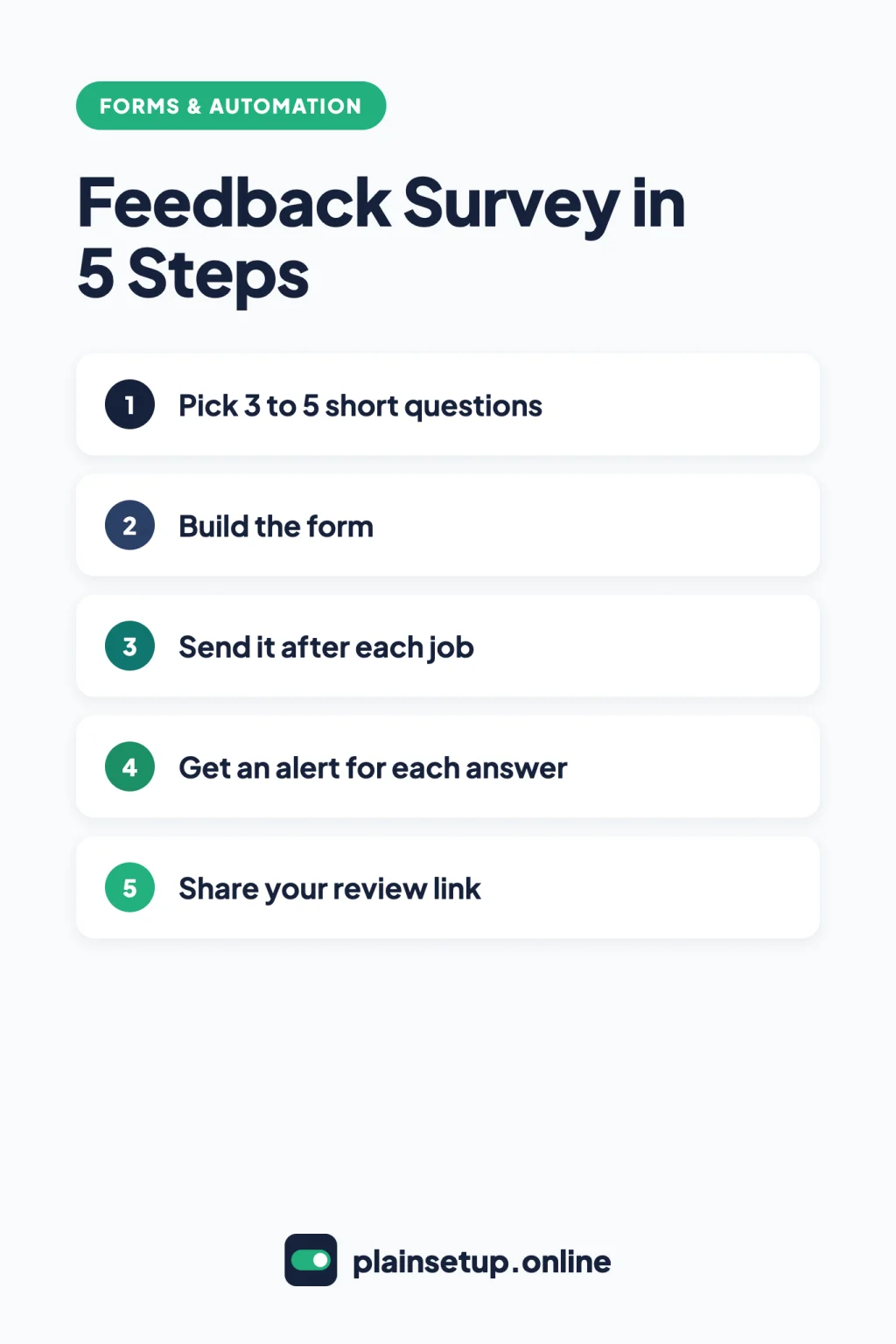
- Pick 3 to 5 short questions.
- Build the form in Google Forms or Tally.
- Turn on email alerts and link answers to a spreadsheet.
- Save an email template with the survey link and send it after each job.
- Optional: send it automatically when a calendar job ends.
- Share your Google review link with every customer.
Step 1: Pick 3 to 5 short questions
A survey people finish is better than a long one they abandon. Keep only questions whose answers you will act on. Here is a simple starting set, matched to Google’s question types:
| Question | Question type |
|---|---|
| Overall, how happy are you with the job? | Rating (stars) or Linear scale |
| Which service did we do for you? | Multiple choice or Dropdown |
| What did we do well? | Paragraph |
| What could we do better next time? | Paragraph |
| May we contact you about your answers? | Multiple choice (Yes / No) |
Make the score question required and leave the open questions optional. A client with nothing to add can still finish in a few seconds.
Step 2: Build your customer feedback survey in Google Forms
Following Google’s guide on how to use Google Forms, go to forms.google.com, click Blank form and name it, for example “How did we do?” The form is saved in your Google Drive.
For each question, click Add, then choose the type to the right of the question title. Turn on Required for the score question. Two types fit a score:
- Linear scale: starts at 0 or 1 and ends on a whole number from 2 to 10. You can label each end.
- Rating: shows stars, hearts or thumbs up, from 3 to 10 symbols.
Next, decide how you will know who answered. Under Settings, click the arrow next to Responses and, under “Collect email addresses,” choose Verified or Responder input, per Google’s guide to managing responses. If you would rather not ask for an email, add a short answer question for the client’s name instead.
Then write a thank-you under Settings > Presentation > “Confirmation message” > Edit, and click Save. In the same section, leave View results summary off, or every respondent can see a summary of all answers, per Google’s publishing guide.
To publish, click Publish at the top right, then Manage. Under General access, you can let anyone with the link respond. Click Done > Publish. On a work or school account, forms are open only to people in your organization unless you change this, says Google’s page on form permissions. Finally, click Published > Copy responder link and tick “Shorten URL” if you like.
Prefer Tally?
Tally’s pricing page lists unlimited forms and submissions on the free plan, within its fair use guidelines. In the editor, type /rating for a star rating or /linear for a scale, per Tally’s list of input blocks. Tally’s Insights tab is free and gives 5-star rating questions an automatic CSAT score. For a full comparison, see our Google Forms vs Jotform vs Tally comparison.
Step 3: Get an alert for each answer
A low score deserves a quick reply. Per Google’s guide to managing responses:
- Open the form and click Responses.
- Click More.
- Click Get email notifications for new responses.
Then click Responses > Link to Sheets at the top right. You can also choose More > Select destination for responses to pick an existing spreadsheet, per Google’s guide to saving form responses. Each answer becomes a row you can sort by score.
In Tally, open the form settings, scroll to Email notifications and turn on Self email notifications. Tally’s notifications page says this is free for all users.
Step 4: Send the survey after each job
The simplest system is one saved email you send after each job. In Gmail on a computer, Google’s guide to creating a template works like this:
- Click Settings > See all settings > Advanced.
- Next to “Templates,” click Enable, then Save Changes.
- Click Compose and write the message, with your survey link.
- Click More options > Templates > Save draft as template > Save as new template.
After each job, open Compose > More options > Templates and pick it under “Insert template.” Keep it short: a thank-you, one line about the survey and the link.
Send the link rather than the form itself. Google’s publishing guide says a form with a rating question can’t be embedded in an email. To save clients typing, use More > Pre-fill form, enter their name or the job, then Get link.
Step 5: Automate it when a job ends (optional)
If every job is an event in Google Calendar, Zapier can send the email for you. Zapier lists a ready-made template, “Send Gmail emails for ended events in Google Calendar,” on its Google Calendar and Gmail integration page.
- Trigger: Google Calendar Event Ended, which runs when an event ends, per Zapier’s Google Calendar guide. Pick the calendar that holds client jobs, so personal events don’t send surveys.
- Action: Gmail Send Email, per Zapier’s Gmail guide. Subject and Body are required. Paste your survey link in the body.
For the To field, click the plus sign icon and map the client’s email from the trigger step, as Zapier’s guide to mapping fields describes. Fields come from your test event, so this works only if you add clients as guests on their job events. Test with an event where you are the only guest, because Zapier warns that testing “is live and may result in changes made in your app.” Then click Publish.
This two-step Zap fits Zapier’s Free plan, which includes one trigger and one action, 100 tasks per month and a 15-minute polling interval. Event Ended is a polling trigger, so the email may arrive up to about 15 minutes after the event ends. Zapier’s guide to task usage counts each successful action as a task, and triggers never use tasks, so 100 tasks cover up to 100 survey emails a month.
Step 6: Share your Google review link with every customer
Your survey stays private. Google says public reviews can help your business stand out to potential customers, and its guide to requesting reviews suggests putting your review link in thank-you emails and on receipts. To get it:
- Go to your Business Profile.
- Select Read Reviews > Get more reviews.
- Select Copy to copy the link, or right-click the QR code and choose Save image as…
Google says review QR codes can only be made in a computer browser. Customers must be signed in to a Google Account to leave a review, per Google’s tips to get more reviews.
Now the rules. Google’s Maps content policy does not allow businesses to offer payment, discounts or free goods or services for reviews. It also bans discouraging negative reviews or choosing to “selectively solicit positive reviews from customers.” In practice:
- Put the review link in the same email to every customer, not only to those who scored you high.
- Don’t use form logic to send only high scores to Google. Tally’s conditional logic can redirect people by answer, but using it that way would mean asking only happy clients.
- Don’t offer anything for a review, or suggest what to write or which rating to give.
If a survey answer is negative, contact that client directly. Google’s review tips also recommend replying to reviews, good and bad.
Frequently asked questions
How many questions should a customer feedback survey have?
No official rule sets a number. We suggest 3 to 5, with only the score question marked Required, as Google’s edit guide shows.
Do clients need a Google account to answer a Google Form?
Some settings require it. Google’s publishing guide says Limit to 1 response makes users sign in, and Verified email collection uses the responder’s Google Account. Leave both off, use Responder input if you need emails, and test the link in a private browser window.
Can I offer a discount for a Google review?
No. Google’s review request guide calls incentives like free or discounted goods or services fake engagement and says they are strictly prohibited. That includes asking someone to change or remove a negative review.
Where do I see the average score?
In Google Forms, open Responses > Summary to see answers by question, or sort the linked sheet. In Tally, the Insights tab calculates a CSAT score for 5-star rating questions.
Sources
- Google Docs Editors Help: How to use Google Forms
- Google Docs Editors Help: Choose a type of question for your form
- Google Docs Editors Help: Edit your form
- Google Docs Editors Help: View & manage form responses
- Google Docs Editors Help: Choose where to save form responses
- Google Docs Editors Help: Publish & share your form with responders
- Google Docs Editors Help: Get permission to open a Google Form
- Tally: Pricing
- Tally: Every Form Input Block Type
- Tally: Form Performance Insights
- Tally: Self email notifications
- Tally: Conditional logic
- Gmail Help: Create a template in Gmail
- Zapier: Gmail Google Calendar Integration
- Zapier: How to get started with Google Calendar on Zapier
- Zapier: How to get started with Gmail on Zapier
- Zapier: Send data between steps by mapping fields
- Zapier: Set up your Zap action
- Zapier: How is task usage measured in Zapier?
- Zapier: What’s included in Zapier’s Free plan?
- Google Business Profile Help: Create a Google link or QR code to request reviews
- Google Business Profile Help: Tips to get more reviews
- Maps User Generated Content Policy Help: Prohibited & restricted content
Your Next Step
Today, build a customer feedback survey in Google Forms with one required score question and two optional open questions, turn on email notifications and submit a test answer yourself. Then save the Gmail template with the survey link and your Google review link, and send it after your next job. For more help, browse our Forms & Automation guides.

Fernando Pompeu is a journalist and digital content writer with more than 8 years of experience in media outlets and news portals. He writes to explain things clearly and without jargon. At PlainSetup, he publishes step-by-step guides to the everyday tools small businesses run on, based on each tool’s official documentation and written for owners without an IT team.