
You send your monthly newsletter, and a few days later a customer mentions they only found it in their spam folder. Then a second one says the same. Newsletter going to spam? The usual causes are a sending domain that isn’t authenticated, a free @gmail.com sender address, an old list, or too many people clicking “Report spam”.
Gmail and Yahoo both publish sender rules, and Mailchimp, MailerLite and Kit each explain how to meet them inside their tools. This guide goes through the checks in order. Menu names come from each tool’s help center and can change.
Quick fixes
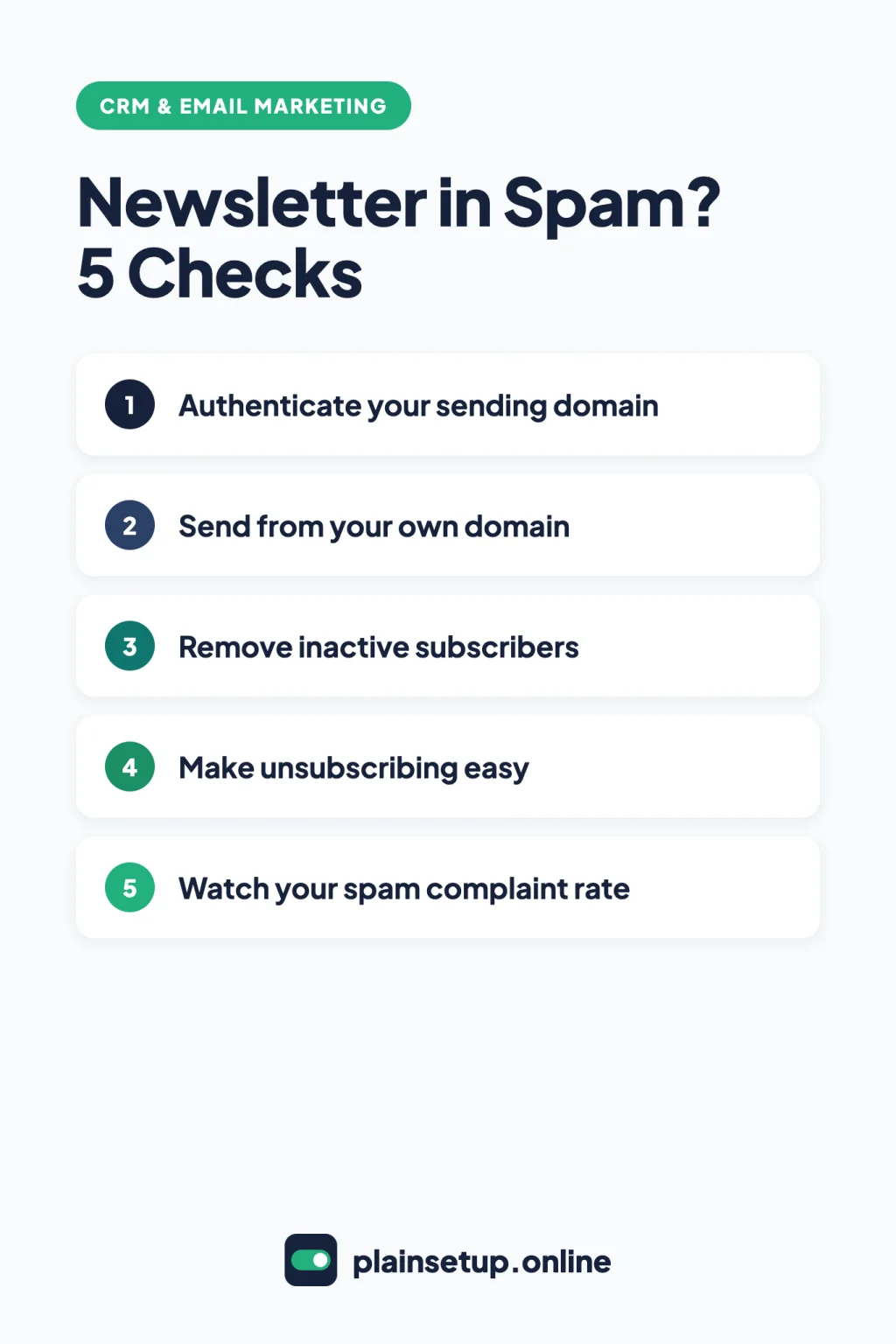
- Authenticate your sending domain in your email tool.
- Send from an address on your own domain, not @gmail.com.
- Remove inactive subscribers and bounced addresses.
- Keep the unsubscribe link and the one-click unsubscribe header.
- Keep your spam complaint rate under Gmail’s and Yahoo’s limits.
- Send a test to Gmail and read the authentication results.
Check 1: Newsletter going to spam? Authenticate your sending domain
Authentication tells inbox providers that your email tool is allowed to send for your domain. Google’s email sender guidelines say every sender to personal Gmail accounts needs SPF or DKIM. Senders of more than 5,000 messages a day need SPF, DKIM and DMARC, and the DMARC policy can be set to none. Google’s FAQ adds that once you reach that volume, you’re permanently treated as a bulk sender.
Each tool gives you the exact records to copy into your DNS settings, usually at the company where you bought your domain. Here’s what each help center asks for:
| Tool | Records it asks for | Time stated |
|---|---|---|
| Mailchimp | 2 CNAME records (DKIM) and 1 TXT record with host _dmarc (DMARC) | A few minutes, up to 48 hours |
| MailerLite | 1 CNAME (DKIM), 1 TXT (SPF) and 1 TXT (domain verification) | Up to 24 hours |
| Kit | CNAME records for the Verified Sending Domain, plus a DMARC TXT record | A few minutes; DMARC 24 to 48 hours |
Mailchimp
Verify your domain first. Then click your profile icon, choose Account & billing > Domains tab, and click Start authentication next to the domain. Pick your DNS provider and click Next. You can log in to your DNS provider through Mailchimp, or click Or manually authenticate your domain to copy the records yourself. Mailchimp’s domain authentication guide recommends DMARC for all senders.
MailerLite
Go to Account settings > Domains tab > Add domain, enter your sending email address and click Save. Click Authenticate, add the records at your DNS host, then click Check DNS Records. MailerLite’s domain authentication page says records can’t be edited in MailerLite, so copy them exactly. Its Google and Yahoo checklist calls DMARC a must at around 5,000 emails or more.
Kit
Go to Settings > Email and, under Verified Sending Domains, click Set up your Verified Sending Domain. Enter the domain, click Next, then choose Set this up for me or copy the records by hand, and finish with Validate (Kit’s guide). Kit then shows a DMARC TXT record in the same section. Its DMARC article asks you not to remove it once it’s added.
If your domain email runs on Google Workspace, our guide to setting up DMARC, SPF and DKIM for Google Workspace covers the records for your everyday mail.
Check 2: Send from your own domain, not @gmail.com
A free address like you@gmail.com can’t be authenticated by your email tool, because you don’t own the domain. Kit puts it plainly: “All marketing emails should be sent from a domain you own.” Its page on why emails go to spam lists a free sending domain first, saying those emails will likely land in spam.
Mailchimp and MailerLite try to soften the problem by rewriting your From address:
- Mailchimp changes it to a subdomain of send.mailchimpapp.com or mail.mailchimpapp.com, and replies still reach you. Its page on free email addresses says this “can’t fix all delivery issues”.
- MailerLite assigns a subdomain such as john.yahoo.com@send.mailerlite.eu, and says this may not fix every problem either. Accounts with more than 50,000 subscribers must use a custom domain (MailerLite’s free domain page).
The fix is an address like hello@yourbusiness.com, authenticated as in Check 1.
Check 3: Remove inactive subscribers
MailerLite says bounces damage your sender reputation, and Kit’s spam troubleshooting page tells you to clean cold subscribers regularly and use double opt-in. All three tools let you find inactive people, try to re-engage them, then unsubscribe or archive the rest. Follow our step-by-step guide to clean your email list and remove inactive subscribers in each tool.
Check 4: Make unsubscribing easy
When unsubscribing is hard, people press “Report spam” instead, and that hurts you more. Gmail asks senders of more than 5,000 messages a day to support one-click unsubscribe in marketing email and to show a clearly visible unsubscribe link in the body. Yahoo’s sender best practices ask bulk senders to honor unsubscribes within 2 days, and Google’s FAQ recommends 48 hours.
The good news: each tool handles most of this for you.
- Mailchimp builds the link with the
*|UNSUB|*merge tag and adds an extra footer if it’s missing (Add an Unsubscribe Link). Mailchimp’s announcement on the new rules says one-click unsubscribe happens automatically. - MailerLite adds an unsubscribe link to the footer and includes one-click unsubscribe by default, according to its checklist.
- Kit adds the one-click headers to every send, and they can’t be turned off (Gmail’s one-click unsubscribe). Kit also says every email needs an unsubscribe link in the footer (Kit’s opt-out guide).
Check 5: Watch your spam complaint rate
Gmail and Yahoo both set limits on how many recipients mark your email as spam:
| Provider | What the official page says | Where to check |
|---|---|---|
| Gmail | Keep it below 0.10% and never reach 0.30% or higher | Google Postmaster Tools |
| Yahoo | Keep it below 0.3% | Yahoo Complaint Feedback Loop |
To see your Gmail numbers, set up Google Postmaster Tools: on the Manage Domains page click Add new domain, enter your sending domain and click Create. Then open More options > Verify domain, add the TXT or CNAME record to your DNS and click Verify. Google notes that low daily volume can leave some data missing, so a small list may not show much.
Your email tool also counts complaints. In Mailchimp, go to Analytics > Reports > View Report, open the Activity drop-down and choose Complained (View Abuse Complaints). All three tools take people who complain off your active list (MailerLite, Kit). Kit’s deliverability guide notes that complaints rise when people are added without signing up.
Check 6: Send a test and read the results
After the DNS changes have had time to work, send a campaign to a personal Gmail account that isn’t your sending address. Open it, click More (three dots) > Show original, and look for SPF, DKIM and DMARC results marked pass. Google’s DKIM guide notes you can’t confirm DKIM by sending a test to yourself. Kit adds that Gmail won’t show its unsubscribe link on emails you send to yourself, so use a different inbox.
On the same screen, Kit says to look for the List-Unsubscribe and List-Unsubscribe-Post headers. If everything passes and mail still lands in spam, go back to Checks 3 and 5.
When to contact support
Contact your email tool when a record still shows as failed after the time its help page gives, or when your account gets a complaint warning or a sending hold. Mailchimp’s abuse complaints page says a send far above its threshold can lead to a suspension notice.
| Tool | Support stated on the official page |
|---|---|
| Mailchimp | Free: email support for the first 30 days. Essentials and Standard: 24/7 email and chat. Premium: phone and priority support. |
| MailerLite | Paid plans: contact Support from your account. Free: the Customer Self-Service Center. |
| Kit | Support on every plan; Free requests answered in order within 24 hours. |
Google’s FAQ adds that bulk senders above a 0.3% spam rate can’t get delivery mitigation until they stay below 0.3% for 7 consecutive days.
Frequently asked questions
Why is my newsletter going to spam in Gmail?
The most common reasons are a sending domain your email tool hasn’t authenticated, a free @gmail.com sender address, or a high spam complaint rate. Google’s sender guidelines require SPF or DKIM for every sender and a spam rate below 0.3%, while recommending you stay below 0.10%. Work through Checks 1, 2 and 5 first.
Do Gmail’s bulk sender rules apply to a small newsletter?
The DMARC and one-click unsubscribe rules apply to senders of close to 5,000 messages or more a day to personal Gmail accounts. The rules for all senders, like SPF or DKIM and the spam rate limit, apply to everyone. Mailchimp recommends DMARC for all senders anyway.
Can I send my newsletter from a Gmail address?
Mailchimp and MailerLite let you, but they rewrite the From address and say this may not fix delivery. Kit says to send from a domain you own.
How long does domain authentication take to work?
Mailchimp says most records update within minutes but can take up to 48 hours. MailerLite says up to 24 hours, and Kit says its DMARC record may take 24 to 48 hours.
Sources
- Google: Email sender guidelines
- Google: Email sender guidelines FAQ
- Google: Set up Postmaster Tools
- Google: Set up DKIM
- Yahoo: Sender Best Practices
- Mailchimp: Set Up Email Domain Authentication
- Mailchimp: Limitations of Free Email Addresses
- Mailchimp: Add an Unsubscribe Link
- Mailchimp: How Intuit Mailchimp Customers Can Prepare for Gmail and Yahoo’s New Sender Requirements
- Mailchimp: About Abuse Complaints
- Mailchimp: View Abuse Complaints
- Mailchimp: Pricing plans
- MailerLite: Domain authentication
- MailerLite: The Limitations Of Using A Free Domain
- MailerLite: The Difference Between Hard Bounce And Soft Bounce
- MailerLite: Subscriber statuses explained
- MailerLite: Google & Yahoo policy changes: Checklist
- Kit: Verify your domain to optimize your deliverability
- Kit: How to add a DMARC record to your verified sending domain
- Kit: Gmail’s one-click unsubscribe
- Kit: How to let subscribers opt out of specific emails
- Kit: Why are my emails going to spam?
- Kit: Why do I need my own domain to send email?
- Kit: The subscriber profile page and status
- Kit: Getting Started with Deliverability Success
- Kit: The Kit Free plan
Your Next Step
Open the domain settings in your email tool today and check whether your sending domain shows as authenticated. If it doesn’t, add the records from Check 1, wait the time your tool gives, and send a test to a Gmail inbox. That one fix solves many cases of a newsletter going to spam. For more help, browse our CRM & Email Marketing guides.

Fernando Pompeu is a journalist and digital content writer with more than 8 years of experience in media outlets and news portals. He writes to explain things clearly and without jargon. At PlainSetup, he publishes step-by-step guides to the everyday tools small businesses run on, based on each tool’s official documentation and written for owners without an IT team.