
A client books your longest service for Saturday morning, you turn away two other requests for that slot, and on Friday night they cancel. A deposit paid at booking gives clients a reason to keep the appointment or tell you early. This guide shows how to take deposits for appointments when clients book online in Square Appointments, Acuity Scheduling and Calendly.
Before you take deposits for appointments, know that the three tools differ. Square and Acuity have a real deposit setting, while Calendly charges one set amount per meeting type. Paid-plan steps are marked, and menu names come from each vendor’s help center.
Still choosing a booking tool? Read our Calendly vs Acuity Scheduling comparison first.
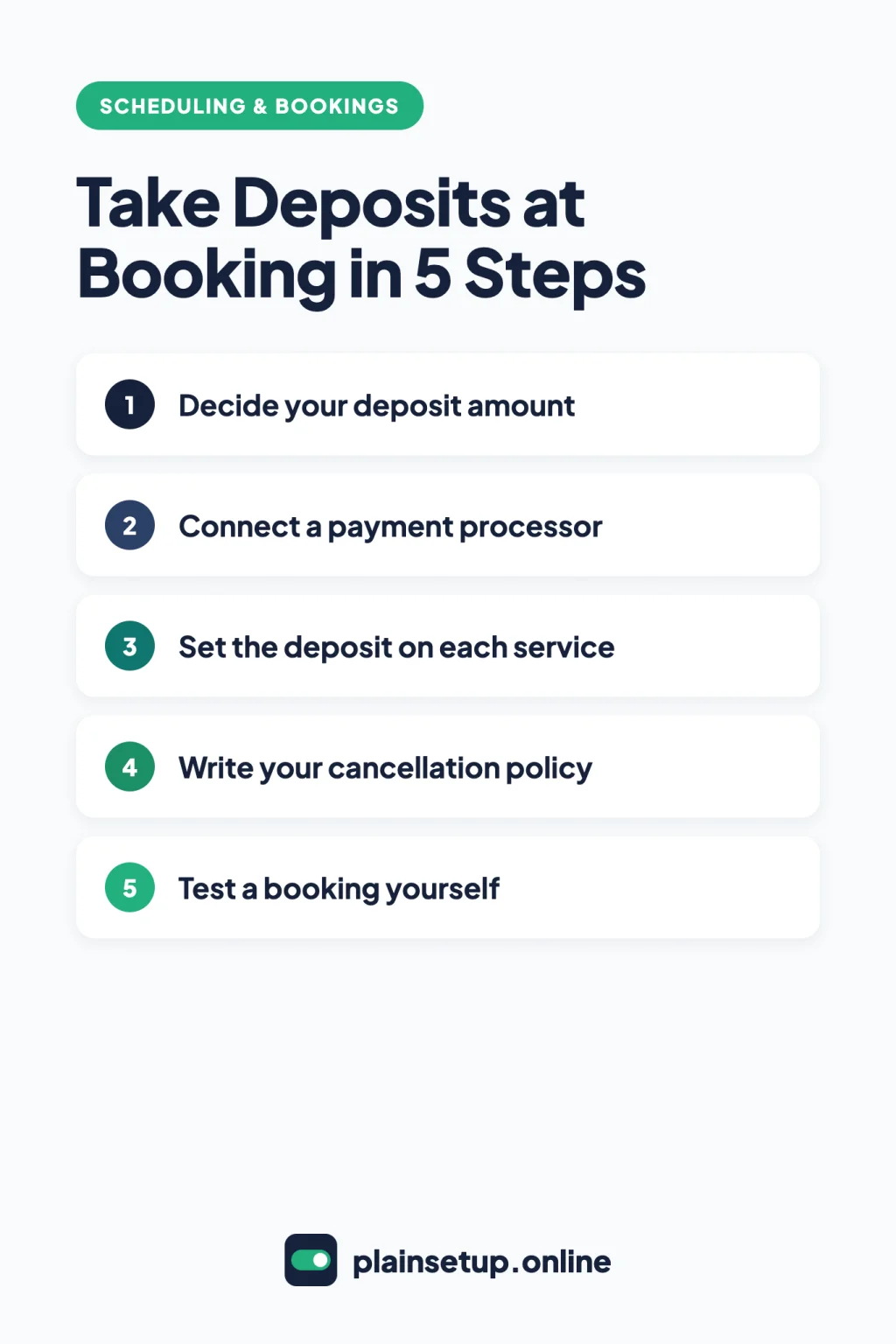
Quick steps
- Pick deposit, full payment or a card on file.
- Decide a fixed amount or a percentage for each service.
- Connect a payment processor to your booking tool.
- Turn on the deposit for each service.
- Write a short cancellation and refund policy.
- Book a test appointment and check the payment.
Before you start: deposit, full payment or card on file
There are three ways to secure a booking with money:
- Deposit: the client pays part of the price to book, and you collect the rest later.
- Full payment: the client pays the whole price to book.
- Card on file: the client enters a card but isn’t charged at booking, so you can charge it later under your policy.
Each tool needs a payment processor, the company that moves the money. Here’s what each help center confirms:
| Option | Square Appointments | Acuity Scheduling | Calendly |
|---|---|---|---|
| Partial deposit at booking | Yes, all plans | Yes, all plans | Not described in the help center |
| Full payment at booking | Plus or Premium | Yes, all plans | Standard and up |
| Card saved to charge later | Plus or Premium (held for no-shows) | Stripe or Square only | Not described in the help center |
| Payment processor | Square | Stripe, Square or PayPal | Stripe or PayPal |
On the Square Appointments pricing page, Square Free is $0 per month per location, Square Plus is $49 per month per location and Square Premium is $149 per month per location. The online card fee is 3.3% + 30¢ on Free and 2.9% + 30¢ on Plus and Premium. On the Acuity pricing page, the Starter plan is $16 per month paid annually or $20 paid monthly, and every plan lists deposits. Acuity says it generally adds no fee of its own, so you pay your processor’s fees. On the Calendly pricing page, payments start on Standard: $10 per seat per month billed yearly, or $12 billed monthly.
Prices checked in October 2026. Plans and prices change, so confirm on the official pricing page before you buy.
Step 1: Decide the deposit amount
For each service, write down two things.
- Fixed amount or percentage. Square and Acuity both let you charge a set amount or a percentage of the service price.
- Which services need one. Square lets you apply a deposit to All services or only Specific services, each with its own amount. Acuity lets you turn off Use the same method for all appointment types and choose a payment option per appointment type.
The right amount depends on your prices and costs, so this guide doesn’t suggest one. Your processor charges a fee on each deposit and again on the balance.
Step 2: Connect a payment processor
- Square Appointments: payments run through your Square account, so there’s nothing extra to connect. Deposits paid online land in your Square balance and go to your linked bank account.
- Acuity Scheduling: first create a Stripe, Square or PayPal account. Then, in Acuity, click Payments, find your processor in the Payment Processors section and click Connect. You can pair PayPal with Stripe or Square, but not Stripe and Square together. If you want to save cards, use Stripe or Square on its own.
- Calendly (Standard and up): go to Automations > Integrations & apps and select Stripe or PayPal. PayPal needs a Business account, and Stripe must be in live mode to take real payments. Calendly doesn’t hold the money.
Step 3: How to take deposits for appointments in each tool
Square Appointments (all plans)
- In Square Dashboard, go to Appointments > Settings > Payments & cancellations.
- Under Payments, click your current policy and select Require a deposit.
- Choose a fixed amount or a percentage, then choose All services or Specific services.
- Add a deposit policy and say whether deposits are refundable. Clients see it at checkout.
On a phone, the same setting is under More > Settings > Appointments > Payments & cancellations. Square’s deposits guide notes that deposits are only taken when clients book online, not when you book for them.
Acuity Scheduling (all plans)
- Click Payments, then Payment at Booking.
- Leave Use the same method for all appointment types on, or turn it off and expand each appointment type.
- Select Collect deposits or full payment.
- From Type of payment, choose Deposit amount ($) or Deposit amount (%) and enter the amount.
- If you like, turn on Clients can pay the full amount in advance, then click Save.
To collect the balance later, open the appointment in Calendar and click Make Payment, which needs Stripe or Square. Acuity’s guide on saving card details says a deposit paid through Stripe or Square saves the client’s card.
Calendly (Standard and up)
Open the event type on the Scheduling page, select More options > Payment, and turn on Require payment to book this meeting (Stripe) or Accept payments with PayPal. Enter the amount and currency, add your payment terms, and select Save changes.
Calendly’s help describes one amount per event type, charged when the client books. It doesn’t describe a deposit or percentage option, so whatever you enter is what the client pays at booking. To collect a balance, Calendly’s payment links (Stripe only) can be used for deposits and post-meeting payments, but they aren’t tied to a booking. Check that Payments appears in your account, because one help article still calls the feature a private beta.
Step 4: Write and show your cancellation policy
Keep it short: how much notice you need and what happens to the deposit before and after that point.
- Square: the deposit policy from Step 3 shows at checkout. Set a cut-off under Cancellation Policy > Edit, from one hour to two weeks. Square says that after paying a deposit, clients can reschedule before your cut-off but can’t cancel on their own; you cancel for them.
- Acuity: set how close to the start clients can cancel in Availability > Global Scheduling Limits. Then add a required Checkbox question on an intake form (Intake Form Question > New custom form) so clients agree to the policy before they finish booking.
- Calendly (paid plans): add the policy to the payment terms in Step 3, and to the Cancellation policy section of your confirmation. Calendly says it “doesn’t restrict cancellations or reschedules based on the policy.”
Square’s cancellation guide leaves enforcement and refunds to you, and rules on deposits and fees vary by location, so check what applies before you publish.
For reminders and other ways to cut missed appointments, see our guide to reduce no-shows with reminders and a cancellation policy.
Step 5: Test a booking yourself
Open your booking page in a private browser window and book a service as a client would. Then check:
- The deposit amount and your policy appear before the client pays.
- The payment shows in your processor account and the appointment shows as booked.
- The confirmation email reads clearly.
Square only takes deposits on online bookings, so test from your booking site, not your calendar. In Calendly, a booking isn’t completed if the payment fails. Afterwards, cancel the test and refund it as described below.
Refunds when a client cancels
- Square: if the appointment hasn’t been checked out, cancel it or mark it as a no-show and Square offers a refund during that action. Otherwise, open the payment in Transactions and select Issue refund. Square says refunds for cancellations more than 60 days after booking must be issued outside Square.
- Acuity: “It’s not possible to issue a refund through Acuity.” When a paid appointment is cancelled, Acuity emails you a link to the client’s payment so you can refund it in Stripe, Square or PayPal. Those refunds don’t show in Acuity’s reports.
- Calendly: you refund through Stripe or PayPal, not in Calendly.
Frequently asked questions
Can I take a deposit on Square’s free plan?
Yes. Square’s deposits guide lists Square Appointments Free, Plus and Premium, and the pricing page shows appointment deposits on all three. Holding a card for no-shows and charging cancellation fees need Plus or Premium.
Does Calendly support partial payments or deposits?
Calendly’s help center describes a single amount per event type, charged in full at booking through Stripe or PayPal. It doesn’t describe a deposit setting. Payment links on Standard and up can collect other amounts, but separately from the booking.
Can Acuity charge the rest of the price automatically?
Acuity’s help doesn’t describe an automatic charge for the balance. You collect it yourself, for example with Make Payment on a saved card (Stripe or Square), an invoice, a payment link or a recorded cash payment, as its guide to collecting payment after booking lists.
Can clients pay the deposit with PayPal?
In Acuity, yes: deposits work with Stripe, Square and PayPal, but PayPal can’t save cards. Calendly’s PayPal option collects the event’s set amount at booking. Square Appointments takes payments through Square.
Sources
- Square: Set up and accept deposits with Square Appointments
- Square: Manage booking cancellations and prepayment policies
- Square: Appointments Pricing & Plans
- Acuity Scheduling: Choosing how clients pay for appointments
- Acuity Scheduling: Choose a payment processor
- Acuity Scheduling: Connecting and disconnecting payment processors
- Acuity Scheduling: Accepting payments
- Acuity Scheduling: Saving card details
- Acuity Scheduling: Collect payment for appointments after booking
- Acuity Scheduling: Handling refunds and price adjustments
- Acuity Scheduling: Limit when clients can book, edit, or cancel their appointments
- Acuity Scheduling: Create custom intake forms and manage client responses
- Acuity Scheduling: Pricing Plans & Features
- Calendly: Pricing
- Calendly: Calendly + Stripe
- Calendly: Calendly + PayPal
- Calendly: Frequently asked questions about Calendly Payments
- Calendly: How to sell services using meeting packages and payment links
- Calendly: How to add a cancellation policy
Your Next Step
Today, list your services with a deposit amount or percentage next to each, and write a two-line cancellation policy. Then turn on the setting for one service and book it yourself before you take deposits for appointments on every service. For more help, browse our Scheduling & Bookings guides.

Fernando Pompeu is a journalist and digital content writer with more than 8 years of experience in media outlets and news portals. He writes to explain things clearly and without jargon. At PlainSetup, he publishes step-by-step guides to the everyday tools small businesses run on, based on each tool’s official documentation and written for owners without an IT team.