
You bill the same client the same amount on the first of every month. Each month you copy last month’s invoice, change the date, send it, and hope you didn’t forget anyone. This guide shows how to set up recurring invoices in FreshBooks, Wave, QuickBooks Online or Stripe, so the tool creates and sends that invoice for you.
The steps follow the same order in every tool. Menu names come from each vendor’s help pages and can change.
Still choosing a tool? Our FreshBooks vs Wave vs QuickBooks comparison covers plans and prices, so this guide doesn’t repeat them.
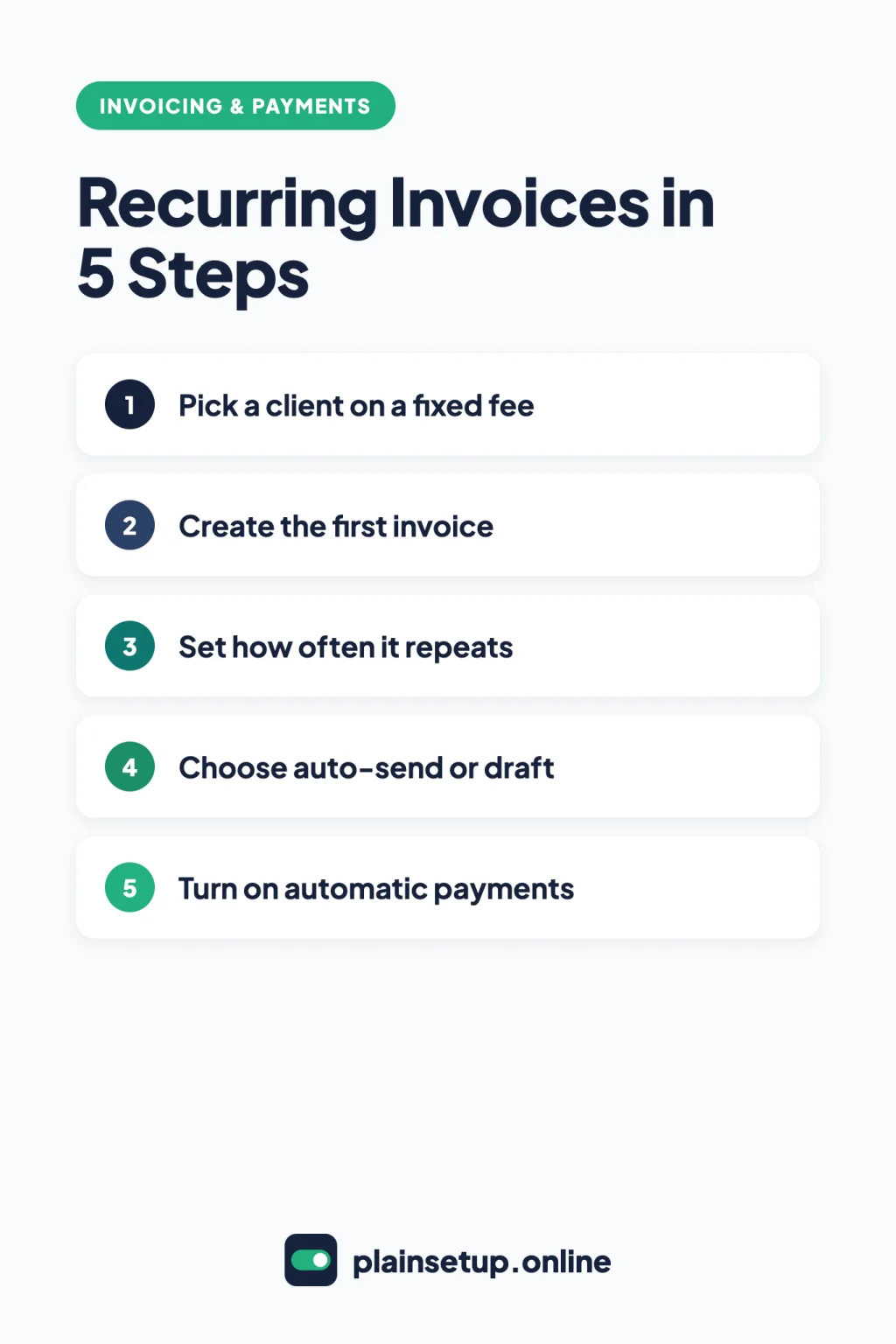
Quick steps
- Pick a client on a fixed monthly fee.
- Create the recurring template, profile or subscription.
- Set how often it repeats, when it starts and when it ends.
- Choose to send it automatically or save it as a draft.
- Turn on automatic payments where your tool offers them.
- Know where to edit, pause or stop it.
Before you set up recurring invoices: what each tool needs
A recurring invoice is a template with a schedule. On each date, the tool copies the template into a new invoice. Each tool calls it something different:
| Tool | Feature name | What you need | Automatic payments |
|---|---|---|---|
| FreshBooks | Recurring Templates | Listed on all four plans | AutoPay on all plans; requiring it needs the Advanced Payments add-on |
| Wave | Recurring Invoices | Sending through Wave needs online payments or the Pro Plan | Needs approved online payments |
| QuickBooks Online | Recurring transactions | An active QuickBooks Online subscription | Autopay needs QuickBooks Payments |
| Stripe | Subscriptions | Stripe Billing | Charge a saved payment method, or email an invoice |
FreshBooks lists “Automated Recurring Invoices” on Lite, Plus, Premium and Select on its pricing page. Wave’s invoicing page ties recurring billing to the Pro Plan or online payments. QuickBooks’ recurring article is tagged for Simple Start, Essentials, Plus, Advanced and Solopreneur, not Free or Lite.
Stripe’s docs describe no recurring option in the one-off invoice editor. Repeat invoices come from a subscription instead. On the US Stripe Billing pricing page, pay as you go is 0.7% of Billing volume. Card payments are priced separately, at 2.9% + 30¢ per successful card charge. Prices checked in October 2026. Plans and prices change, so confirm on the official pricing page before you buy.
Step 1: Pick the client and the fixed amount
Recurring invoices work best when the client, items and amount stay the same each period, like a monthly retainer. Before you start, note:
- The client’s billing email, so the invoice reaches the right person.
- The line items and the amount per period.
- The date the first invoice should go out, and whether the work has an end date.
It helps to save the client and the service as records first, so the template only needs a few clicks. If the amount changes every month, QuickBooks’ Reminder type (Step 2) or FreshBooks’ draft option (Step 4) gives you a chance to edit before anything is sent.
Step 2: Create the recurring template
FreshBooks
Go to Invoices > Recurring Templates > New Recurring Template. You can also start from the Dashboard (Create New… > Recurring Template) or from a client’s Recurring Templates tab. Fill it in like any invoice, with Add a Line for each item. FreshBooks’ recurring template guide notes that Make Recurring only works on a brand-new invoice. For a saved one, Duplicate it first.
Wave
In a web browser, go to Sales & Payments > Recurring Invoices > Create a recurring invoice. Add the customer, items, taxes, due date and notes, then click Save and Continue. To convert an existing invoice, open it and choose More Actions > Make Recurring.
QuickBooks Online
Go to All apps > Accounting > Recurring transactions > New, choose Invoice, then OK. Enter a Template name and pick a Type:
- Scheduled: created on the schedule you set.
- Reminder: QuickBooks reminds you, and you edit and send it yourself.
- Unscheduled: a saved copy you use by hand.
From an open invoice, select Manage > Scheduling and turn on Make invoice recurring. Some QuickBooks articles put the list under Settings instead.
Stripe
In the Dashboard, open the Subscriptions page and click +Create subscription. Find or add the customer, then add the product and its recurring price. Stripe’s subscriptions guide lists the steps that follow.
Step 3: Set frequency, start and end
- FreshBooks: under Recurring Schedule, set How Often? (Weekly, Monthly, Yearly or Custom), the Next Issue Date, and Number of Invoices (Infinite or a specific number). Invoices dated the first of the month may generate later, because of a larger queue.
- Wave: choose the frequency, start date, end date and your customer’s time zone. The scheduler also offers Custom for bi-weekly, quarterly or semi-annual billing.
- QuickBooks: set the Interval and the start and end dates. Days in advance to create makes the invoice a set number of days before its date. A template starting today begins on the next cycle.
- Stripe: set the subscription’s start and end date and the billing cycle start date, which “defines when the next invoice is generated.”
Step 4: Choose auto-send or save as draft
- FreshBooks: in Delivery Options, pick Send invoices automatically or Create draft invoices and send manually. Save an auto-send template with Save… to choose recipients and the email.
- Wave: choose automatic or manual sending. Both need online payments or the Pro Plan. If you choose automatic payments, sending is automatic too. On Starter without payments, open View created invoices and use Copy link or Download PDF.
- QuickBooks: the template has an option to send emails automatically. The help article also says each recurring invoice is saved as a draft, so check your first invoice. If it didn’t go out, QuickBooks’ fix is to check Send later on the template and Save and send.
- Stripe: email an invoice instead of charging a card. In the subscription’s details, Billing method should read Send invoice. Then, in Settings > Billing > Subscriptions and emails, turn on Send finalized invoices to customers. Stripe finalizes each subscription invoice about an hour after creating it.
Overdue reminders are a separate setting in each tool. Our guide to automatic payment reminders covers them. One example: Wave’s scheduled reminders don’t apply to recurring invoices.
Step 5: Turn on automatic payments where available
Automatic payments mean the client’s card or bank account is charged each time an invoice is created. Set up the tool’s payment service first.
- FreshBooks: FreshBooks Payments is for businesses in the US and Canada; other countries use Stripe Standard. Set Accept Online Payments to Yes on the template. The client opts into AutoPay when paying the first invoice. With the paid Advanced Payments add-on, check Require credit card for automatic payments under Payment Options, or add a card you hold with Add credit card.
- Wave: apply for online payments under Sales & Payments > Payments Setup; Wave reviews applications within 3 business days. Then, in the payment method step, choose automatic recurring payments. Pick a saved card, enter one, or click Request Credit Card. Automatic bank payments only work when the customer connects through Plaid. For an existing invoice: Get Paid > Edit > Switch to automatic payments.
- QuickBooks: Autopay needs QuickBooks Payments and works on pay-enabled recurring invoices of $5,000 or less, not daily ones. The customer opens the invoice and selects Set up autopay. Look for Autopay Scheduled in the invoice’s activity tracker.
- Stripe: choose to charge the customer’s saved payment method; Billing method then shows Charge default payment method.
Step 6: Edit, pause or stop a recurring invoice
| Tool | Edit | Pause | Stop for good |
|---|---|---|---|
| FreshBooks | Pencil icon in Recurring Templates | More Actions > Pause Recurring (undo with Restart Recurring) | More Actions > Delete |
| Wave | Dropdown arrow > Edit | Not offered | Dropdown arrow > End |
| QuickBooks | Edit in the Action column | Pause in the Action column | Delete in the Action column |
| Stripe | Overflow menu > Update subscription | Pause payment collection | Cancel subscription |
Side effects to watch:
- In Wave, edits only affect future invoices, and an ended recurring invoice can’t be reactivated. Use Duplicate to start a new one.
- In QuickBooks, changing the total, frequency, terms, payment options, email or customer name cancels the customer’s Autopay.
- In FreshBooks, changing the amount or number of invoices removes a saved bank payment, so the client has to opt in again. Saved cards aren’t affected.
- In Stripe, a canceled subscription can’t be restarted.
Frequently asked questions
Can I set up recurring invoices for free?
Wave’s Starter plan is free, but sending recurring invoices through Wave needs online payments or the Pro Plan. QuickBooks’ recurring article requires an active QuickBooks Online subscription, and FreshBooks lists the feature on its paid plans.
What happens if an automatic payment fails?
FreshBooks emails the client, retries within 24 hours, retries once more, then marks the invoice Declined. In Wave, the customer pays that invoice manually and Wave tries the card again next time. QuickBooks emails the customer to update their payment details.
Can my client turn off automatic payments?
In QuickBooks, yes: Manage payment in the Autopay email, then Cancel autopay. In FreshBooks, clients can remove their own saved details unless you entered the card or require AutoPay.
Can I delete a recurring invoice?
FreshBooks and QuickBooks let you delete templates. Wave doesn’t let you delete recurring invoices, only end them. Stripe doesn’t let you delete a subscription, only cancel it or pause payment collection.
Sources
- FreshBooks: How do I create a recurring template?
- FreshBooks: How do recurring payments work?
- FreshBooks: What are Advanced Payments?
- FreshBooks: As a client, how do I pay my invoices automatically?
- FreshBooks: Pricing
- Wave: Set up a recurring invoice
- Wave: Understanding the recurring invoice scheduler
- Wave: Enable automatic payments on an existing recurring invoice
- Wave: Edit a recurring invoice
- Wave: End a recurring invoice
- Wave: Create a recurring invoice from a single invoice
- Wave: Send a recurring invoice manually
- Wave: Invoicing
- QuickBooks: Create recurring invoices and other transactions in QuickBooks Online
- QuickBooks: Edit a recurring template
- QuickBooks: Schedule recurring transactions created with a template
- QuickBooks: Recurring transaction doesn’t send automatically
- QuickBooks: Set up Autopay for recurring invoices
- Stripe: Create subscriptions
- Stripe: Billing collection methods
- Stripe: Subscription invoices
- Stripe: Send customer emails
- Stripe: Pause payment collection
- Stripe: Cancel subscriptions
- Stripe: Stripe Billing pricing
Your Next Step
Pick one client you bill the same amount every month and set up recurring invoices for them today, starting with drafts so you can check the first one before it goes out. For more help, browse our Invoicing & Payments guides.

Fernando Pompeu is a journalist and digital content writer with more than 8 years of experience in media outlets and news portals. He writes to explain things clearly and without jargon. At PlainSetup, he publishes step-by-step guides to the everyday tools small businesses run on, based on each tool’s official documentation and written for owners without an IT team.