
Orders arrive by text, DM and email, and then you chase each person for payment. An online order form fixes both problems at once: customers pick what they want, see the total and pay before they hit Submit.
This guide uses Jotform and Tally, two form builders that connect to a payment provider. Each step says what the free plans include and where you need a paid one. It also covers what Google Forms can and can’t do for orders. Menu names come from each tool’s help center and can change.
Still choosing a form tool for other jobs too? Our Google Forms vs Jotform vs Tally comparison covers the full picture.
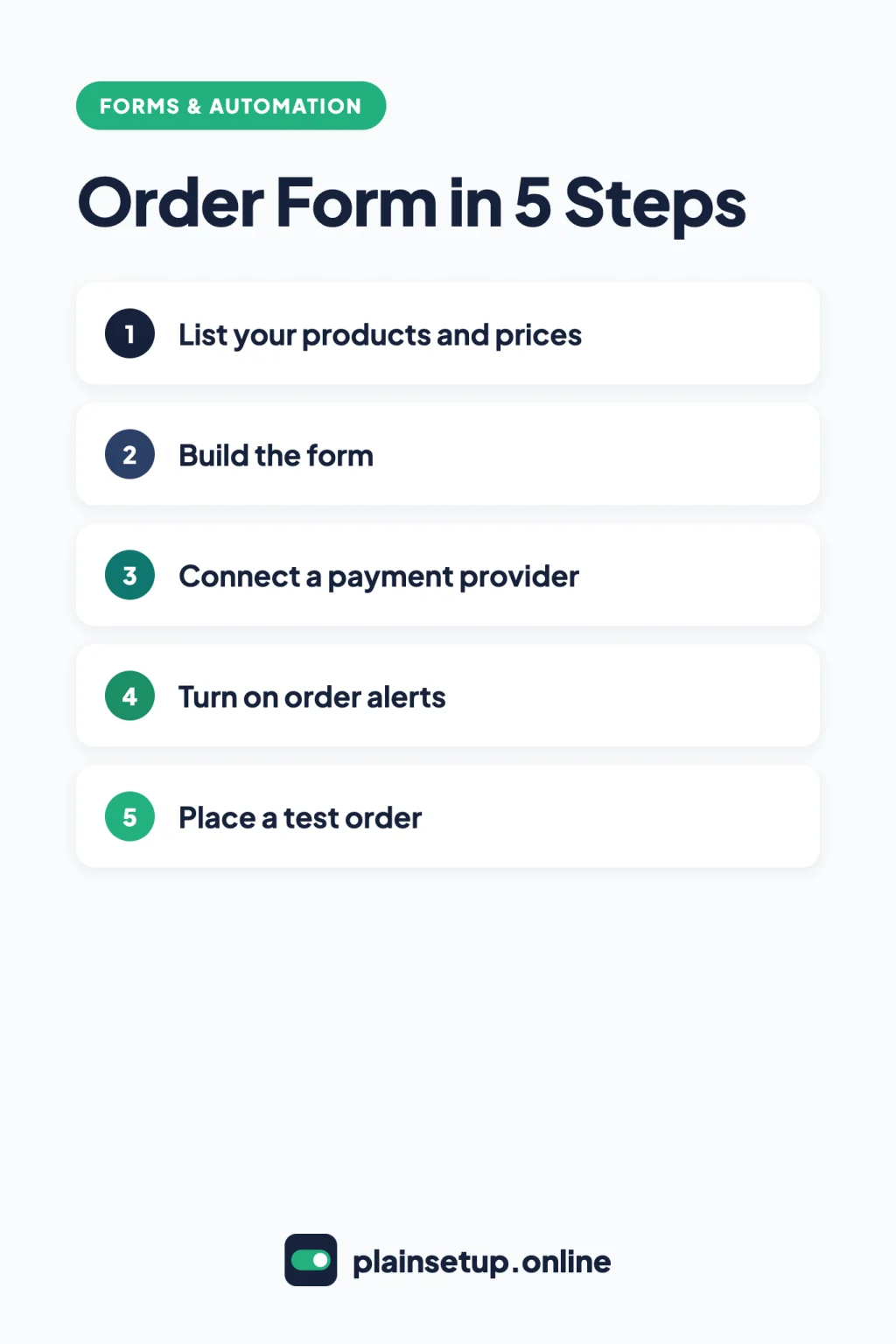
Quick steps
- List your products, prices and options in one place.
- Build the form in Jotform or Tally.
- Connect Stripe (or, in Jotform, Square or PayPal).
- Turn on an email alert for each new order.
- Place a test order, then share the link.
Which tool fits your online order form
Both tools take card payments on their free plans. The differences are in limits and testing.
| What you need | Jotform | Tally |
|---|---|---|
| Payment providers | 40+, including Stripe, Square and PayPal | Stripe |
| Extra fee from the form tool | None | None |
| Paid orders on the free plan | 10 per month | Unlimited, within fair use |
| Product list with quantities | Built in | Built with calculated fields |
| Test payments | Test Mode | Not with Stripe test cards yet |
| New order email to you | Free (one recipient) | Free |
On the Jotform payments page, the company says it “never charges extra transaction fees” for payments through your forms. Tally’s payment forms guide says the same for both its free and Pro plans: “We do not add any extra fees on top of Stripe’s pricing.”
The Jotform pricing page counts each valid payment as a payment submission. The free Starter plan allows 10 per month. Bronze allows 100 and costs $34 per month billed annually, or $39 billed monthly. Silver allows 250 ($39 per month billed annually, $49 monthly), and Gold allows 1,000 ($99 per month billed annually, $129 monthly).
Tally’s free plan includes unlimited forms and submissions, with payments included, per the Tally pricing page. Tally Pro removes Tally branding and costs $29 per month or $290 per year, according to the Tally Pro help page.
Prices checked in October 2026. Plans and prices change, so confirm on the official pricing page (Jotform, Tally) before you buy.
Step 1: List your products and prices
Before you open any form builder, write down every item you sell through the form. For each one, note:
- The name customers will recognize.
- The price and currency.
- Options such as size or color, and whether an option changes the price.
- Whether customers can order more than one.
- Any flat shipping charge you add to each order.
Keep the list short to start: fewer items means less to build and check.
Step 2: Build the form
In Jotform
The fastest start is a template. Jotform’s order form templates include a Product Order Form and a Merchandise Order Form. Select Use Template, then replace the sample products with yours.
To start from a blank form, follow the reusable payment connections guide: in the Form Builder, select Add Element, then the Basic tab, then Product List.
To add items, Jotform’s guide to setting up your first order form uses the Products tab and Create New Product. Fill in the name, price, description and image, then select Save. That guide was last updated in 2024, so a label may differ slightly.
For quantities, the product options guide says to select your Product List field, then the Shopping Cart icon. Hover over a product, select the Pencil icon, open the Options tab and select Add next to Add a Quantity Selector. In the same tab you can add sizes or colors.
For delivery costs, the shipping costs guide uses the Shipping tab: set Enable Shipping to Yes and choose a flat rate per order or a cost per item.
In Tally
Tally’s payment block charges one price, so the trick is to calculate it first. Add your product questions (for example, a question per item with a quantity), then follow Tally’s guide to calculated fields:
- Type /calculated field near the top of the form and name it, for example “Total”.
- Type /logic and choose the Calculate action to add each item’s price to the total based on the answers.
- Type /payment where customers should pay, and pick your calculated field from the Price dropdown.
Calculated fields are free on all Tally plans, and the total updates as customers change products or quantities.
Step 3: Connect a payment provider
Jotform with Stripe, Square or PayPal
Jotform’s guide to integrating your form with Stripe describes the steps. Select Add Element, open the Payments tab and select Stripe. With the newer connection method, select the Plug icon in Payment Properties, choose Test Mode or Live Mode, select Connect with Stripe and sign in. Then select Save and Use.
Set Payment Type to Sell Products (the default) and pick your currency. Under Additional Gateway Settings, you can turn on Send Email to Customer so Stripe emails a receipt. Show Total Price on the Form is on by default.
Square and PayPal sit in the same Payments tab. Jotform’s order form guide says its steps apply to all its payment tools; mainly the account connection differs.
Tally with Stripe
In your payment block, select Connect with Stripe. If you’re new to Stripe, Tally’s guide says you’ll create a free Stripe account first. The payment goes through when the customer selects Next or Submit, and you’ll see it in Tally’s Submissions and Summary tabs and in Stripe.
What the payment provider charges
Your provider takes a fee on each payment. On Stripe’s US pricing page, the standard rate is 2.9% + 30¢ per successful transaction for domestic cards. Stripe adds 0.5% for manually entered cards, 1.5% for international cards and 1% if currency conversion is needed. It lists no setup or monthly fees.
As an example with those numbers, a $40 order with a domestic card costs 2.9% × $40 = $1.16, plus $0.30, for a fee of $1.46.
If you connect Square or PayPal in Jotform, check their fee pages: Square fees and PayPal business fees. Both list several online rates, so check which one applies to your account.
Step 4: Turn on order alerts
Jotform: a notification email is created automatically once the form has a field, per the email notifications guide. To check or edit it, go to Settings > Emails. The free Starter plan is limited to one notification email and one recipient per form. Paid plans allow up to 10 recipients.
Tally: go to your form settings, scroll to Email notifications and turn on Self email notifications (Tally guide). This is free. Customizing the email fields needs Tally Pro. For the customer, Tally says Stripe automatically sends a receipt to the email address they enter.
Step 5: Place a test order
Test your online order form the way a customer will, on your phone and your computer.
- Jotform: keep the payment field in Test Mode, which Jotform says makes no actual charges. Submit an order, check the total, the order email and the entry in your submissions. Then switch to Live Mode before you share the link.
- Tally: Tally’s FAQ says you can’t use Stripe’s test cards yet. One option is a real order for your cheapest item with your own card, refunded afterward. In the Stripe Dashboard, find the payment on the Payments page, open the overflow menu and select Refund payment (Stripe refunds guide). Stripe’s pricing FAQ says the original transaction’s processing fees aren’t returned.
Check the total, the customer’s receipt and your order alert.
What about Google Forms?
Google Forms can collect orders you’ll invoice later, but not the payment. Google’s list of question types has no payment question, and the Forms Help pages don’t describe collecting payments.
If you already use Google Forms, collect the order there and turn on alerts under Responses > More > Get email notifications for new responses (Google guide). Then send the customer a payment link. Stripe lists Payment Links, no-code links for selling without a website, on its pricing page. The catch is that you have to match each payment to an order yourself.
Frequently asked questions
Can Google Forms take payments?
Google’s official list of question types has no payment option, and the Forms Help pages don’t cover payments. A common workaround is to collect the order in Google Forms and send a separate payment link.
Does Jotform or Tally take a cut of each order?
No. Jotform says it never charges extra transaction fees, and Tally says it adds no fees on top of Stripe’s pricing, on both its free and Pro plans. You still pay your payment provider’s fee on each payment.
How many paid orders can I take on Jotform’s free plan?
Ten payment submissions per month on the Starter plan, per the Jotform pricing page. Bronze raises that to 100, Silver to 250 and Gold to 1,000.
Can customers pay later instead of at checkout?
In Jotform’s Stripe settings, turning off Charge Customer Immediately lets you charge later, as long as Create Stripe Customer Record stays on, per the Stripe integration guide. Tally’s payment block charges when the customer moves past it.
Sources
- Jotform: Order Forms
- Jotform: Setting Up Your First Order Form
- Jotform: How to Integrate Your Form With Stripe
- Jotform: How to Add and Manage Reusable Payment Connections
- Jotform: How to Add Options to Payment Form Products
- Jotform: How to Add Shipping Costs to Payment Forms
- Jotform: How to Set Up Email Notifications
- Jotform: Free Form Builder with Payment Integration
- Jotform: Features and Pricing
- Tally: Payment forms
- Tally: Calculated fields
- Tally: Self email notifications
- Tally: Pricing
- Tally: Tally Pro features and pricing
- Google: Choose a type of question for your form
- Google: View & manage form responses
- Stripe: Pricing & Fees
- Stripe: Refund and cancel payments
- Square: Understanding Our Fees
- PayPal: Merchant and Business Fees
Your Next Step
Pick your three best-selling items and build an online order form for just those today, with a payment connection and an order alert. Place one test order before you share the link. If you also take on new clients for services, our guide to a client intake form covers that side. For more help, browse our Forms & Automation guides.

Fernando Pompeu is a journalist and digital content writer with more than 8 years of experience in media outlets and news portals. He writes to explain things clearly and without jargon. At PlainSetup, he publishes step-by-step guides to the everyday tools small businesses run on, based on each tool’s official documentation and written for owners without an IT team.