
You teach a Saturday yoga class with twelve mats. People sign up by text, two cancel by email, and someone shows up because nobody told them it was full. Moving group class bookings online fixes that: clients pick a class, take a seat, and the time slot closes when every spot is gone.
This guide shows how to set it up in Calendly, Acuity Scheduling or Microsoft Bookings. Each step gives the menu for each tool and says when you need a paid plan. Menu names come from each vendor’s help center and can change.
If you’re still choosing between the two most common options, our Calendly vs Acuity Scheduling comparison covers prices, payments and reminders in depth. For the wider picture, read how to set up an online booking system for a small business.
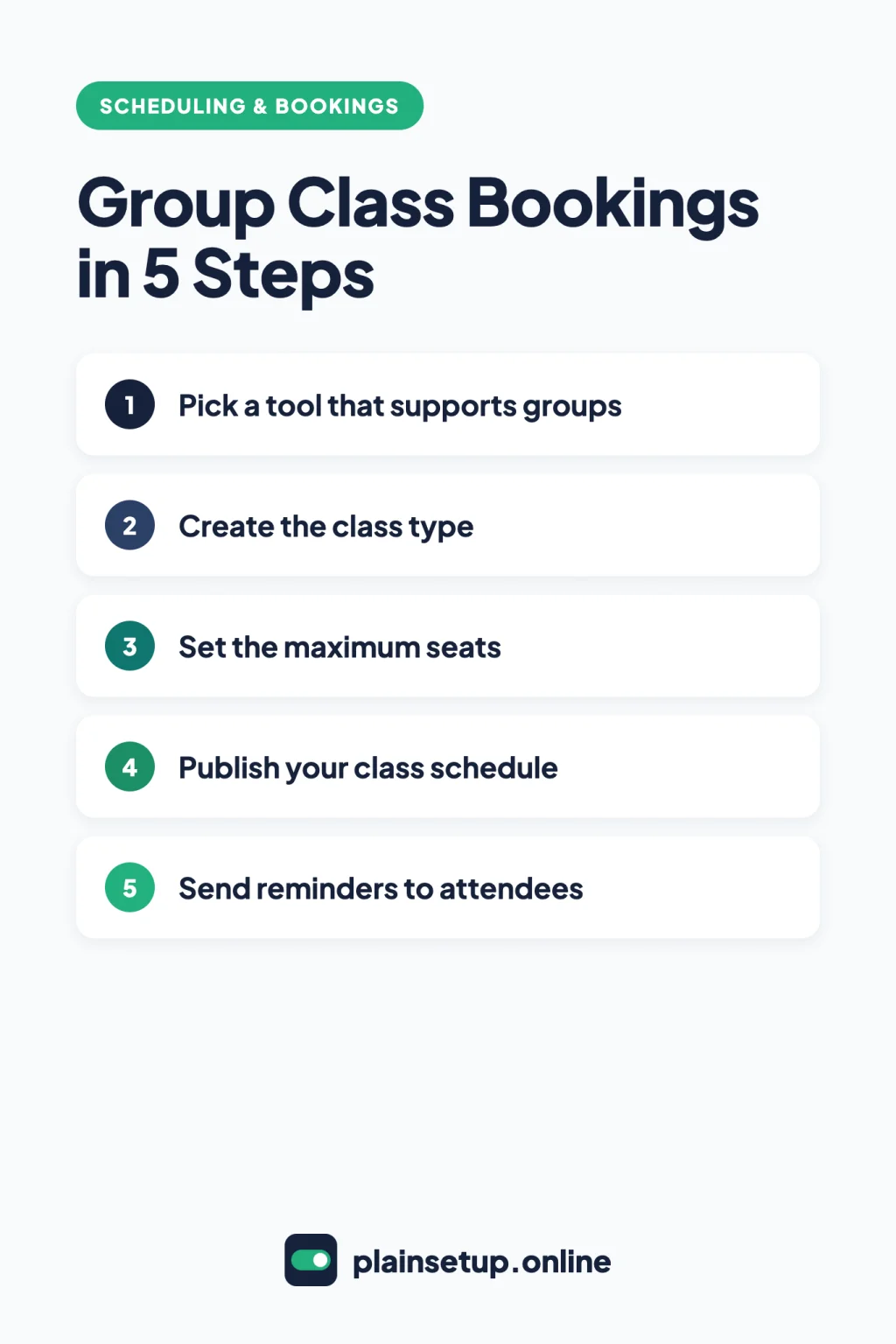
Quick steps
- Pick a tool that supports groups.
- Create the class type.
- Set the maximum number of seats.
- Publish your class schedule.
- Share the booking link and book a test seat.
- Send reminders and manage attendees.
Which tool fits your group class bookings?
All three tools let several people book the same time slot. They differ in how they handle class times, payments and full classes.
| Calendly | Acuity Scheduling | Microsoft Bookings | |
|---|---|---|---|
| What you create | Group event type | Group class | Service with more than one attendee |
| Seat limit | Invitee limit, 2 to 9,999 | Max number of people, 8 by default | Maximum attendees per event |
| Class times | Your availability schedule | Dates and times you offer each class | Service availability |
| Spots left shown | Optional checkbox | Shown by default, can be hidden | Not described in Microsoft’s help |
| Payment at booking | Stripe or PayPal | Stripe, Square or PayPal | No payment support |
| Plan needed | Standard or higher | No free plan; class help page names no plan | Microsoft 365 Business Basic and up |
- Calendly suits you if you already book calls there and add a workshop or info session now and then. Group events start on Standard, per Calendly’s event types overview.
- Acuity Scheduling suits a business built around classes: recurring sessions, multi-week series, waitlists and class packs.
- Microsoft Bookings suits you if you already pay for Microsoft 365 and your classes are free or paid some other way. Microsoft’s Bookings FAQ is plain: “No, there’s no payment support in Bookings.”
Prices as listed: Calendly Standard is $10 per seat per month billed yearly, or $12 billed monthly. Acuity Starter is $16 per month paid annually, or $20 paid monthly, with a 7-day free trial. Bookings comes with Microsoft 365 Business Basic at $7.00 per user per month, paid yearly.
Prices checked in October 2026. Plans and prices change, so confirm on the official pricing pages for Calendly, Acuity Scheduling and Microsoft 365 before you buy.
Step 1: Create the class type
Calendly (Standard plan or higher). Per the guide to setting up an event type, go to Scheduling, select + Create and choose Group. Fill in Event name, Duration, Location, Availability and Host(s), then select Save changes. Get the duration and location right now: once someone books, Calendly locks the language, location and duration of that group event.
Acuity Scheduling. Following Creating and editing group classes, click Appointment types > New Type of Group Class. Enter the name, duration and price (blank or zero makes it free), then choose public or private under Access. For a course people must take in full, such as a six-week pottery class, check Clients must sign up for all the times this is offered. The price you set is then the total for the whole series. Note that you can’t turn an existing appointment type into a class.
Microsoft Bookings. Per Define your services, open your shared booking page, select Services > Add new service, and fill in Service name, Description, Location and Duration on Basic details. Work in the Bookings web app: Microsoft warns that editing a group service in the Teams app or mobile app resets attendees to 1.
Step 2: Set the maximum number of seats
Calendly. Calendly’s group event type overview gives the path: Scheduling > three dots on the event > Edit > Invitee limit. Enter a number from 2 to 9,999, tick Display remaining spots if you want clients to see the count, and select Save changes. A new limit only applies to future bookings. For a class that’s already booked, go to Calendar, open the meeting and select Edit invitee limit > Apply.
Acuity Scheduling. Enter your capacity in Max number of people (eight by default), then click Create Appointment Type. Leaving it blank or at 0 turns the class back into a regular appointment. To let one client book seats for friends, go to Scheduling Page > Settings > Booking behavior and switch on Classes: Book multiple spots (multiple spots guide).
Microsoft Bookings. On the same Basic details page, set Maximum attendees per event above 1. Microsoft’s example is a fitness class: the slot stays bookable until that number is reached. Another Microsoft page calls this field Maximum number of attendees, so the label may vary. Select Save changes.
Step 3: Publish your class schedule
Calendly. A group event is offered during the hours in its availability schedule. To keep it to your class times, open the event type, go to Availability > Schedule: > Custom schedule, set hours only when the class runs and select Save changes (availability guide). Use Date-specific hours for one-off dates.
Acuity Scheduling. In Acuity, group classes happen at specific times you choose. Click Appointment types, select the class, then Offer Class. Pick the date and time (and the calendar, if you have several), use Recurring… to repeat it weekly, and click Save class. A few rules from Acuity’s help page:
- While a class is on a calendar, clients can’t book other appointments at that time on that calendar.
- Blocked time doesn’t stop a class from being booked, so only offer times you’re truly free.
- Duplicating a class type doesn’t copy its times; offer them again.
Microsoft Bookings. Open the service and go to Availability options. Choose Custom hours to give the class its own weekly schedule, and add a different date range set to Not bookable for holidays (service availability).
Step 4: Share the booking link and book a test seat
- Calendly: on the Scheduling page, hover over the event card and select Copy link (sharing guide).
- Acuity: Scheduling Page > Link, then pick All classes in the Direct links & embedding dropdown for a link to your class list (direct links). If all your public appointment types are classes, you can also choose Classes under Settings > Template (scheduler templates).
- Microsoft Bookings: Services > Service details shows a Service booking page link for that class only. You can also share or embed the whole booking page.
Before you post the link, test your group class bookings: book one seat with a second email address and check that the spot count and confirmation look right.
Step 5: Send reminders and manage attendees
Calendly. Group events send email confirmations, not calendar invites. Reminders need a paid plan, which you already have for groups: open the event and go to More options > Notifications and automations (basic notifications). Text reminders only work for group events with 100 or fewer invitees.
Acuity Scheduling. Class attendees get the same reminders as any other appointment. With a video integration, every attendee receives the same meeting link, created once the first client signs up (booking group classes). To cancel one session, open it from Calendar and click Delete Class. This cancels every attendee’s booking and can’t be undone.
Microsoft Bookings. On the service’s Notifications page, set Email confirmation, Email reminders and Email follow-up. To change the list, open the group meeting in your Bookings calendar, choose Edit, then Add customer or Remove customer (manage group attendees).
Frequently asked questions
Can clients see how many spots are left in a class?
In Calendly, yes, if you tick Display remaining spots under Invitee limit. Acuity shows spots left by default; to hide them, go to Scheduling Page > Settings > Display options and switch off Classes: Spots left (hide spots left). Microsoft’s Bookings help doesn’t describe a spots-left display.
Can I offer a waitlist when a class is full?
Acuity can, on the Standard and Premium plans: Scheduling Page > Class waitlist, then switch the toggle on and click Save. When a spot opens, waiting clients get a text with a booking link; waitlists don’t work for a class series (Offer a waitlist). The Calendly and Microsoft help pages we checked don’t describe a class waitlist.
Can clients buy a class pack?
Acuity sells packages on the Standard and Premium plans (packages overview). Calendly’s meeting packages cover one-on-one or group meetings on Standard and up, with Stripe only (meeting packages), so check that the feature appears in your account. Bookings has no payment support.
Sources
- Calendly: Pricing
- Calendly: Group event type overview
- Calendly: Event types overview
- Calendly: How to set up an event type
- Calendly: How to set your availability
- Calendly: How to share your scheduling link
- Calendly: How to set up basic notifications
- Calendly: How to send text messages with Automations
- Calendly: How to sell services using meeting packages and payment links
- Acuity: Pricing Plans & Features
- Acuity: Creating and editing group classes
- Acuity: Booking group classes
- Acuity: Let clients book multiple spots
- Acuity: Hide the number of spots left
- Acuity: Find direct links to specific scheduling pages
- Acuity: Choosing scheduler templates
- Acuity: Canceling group classes
- Acuity: Offer a waitlist
- Acuity: Packages, gift certificates, and subscriptions overview
- Microsoft: Define your services in Shared Bookings
- Microsoft: Manage group attendees in Bookings
- Microsoft: Configure service availability
- Microsoft: Shared Bookings Frequently Asked Questions
- Microsoft: Customize and publish your booking page
- Microsoft: Microsoft 365 Pricing for Business
Your Next Step
Today, write down your next four weeks of classes: day, time and maximum seats. Then create one class in the tool you picked, publish those times and book a test seat with a second email address. That’s all your group class bookings need to go live. For more help, browse our Scheduling & Bookings guides.

Fernando Pompeu is a journalist and digital content writer with more than 8 years of experience in media outlets and news portals. He writes to explain things clearly and without jargon. At PlainSetup, he publishes step-by-step guides to the everyday tools small businesses run on, based on each tool’s official documentation and written for owners without an IT team.