
You blocked an hour for a client, set up the room, and waited. Ten minutes later you checked your email: nothing. If that keeps happening, the fix is usually not a better calendar but better messages around each booking. This guide shows how to reduce no-shows with clear confirmations, automatic reminders, easy rescheduling and a simple cancellation policy.
Each step below helps reduce no-shows in four tools: Calendly, Acuity Scheduling, Google Calendar appointment schedules and Microsoft Bookings. Steps that need a paid plan are marked. Menu names come from each vendor’s help center and can change.
Don’t have a booking page yet? Start with how to set up an online booking system for a small business, or follow our step-by-step guide to set up Calendly for client appointments.
Quick steps
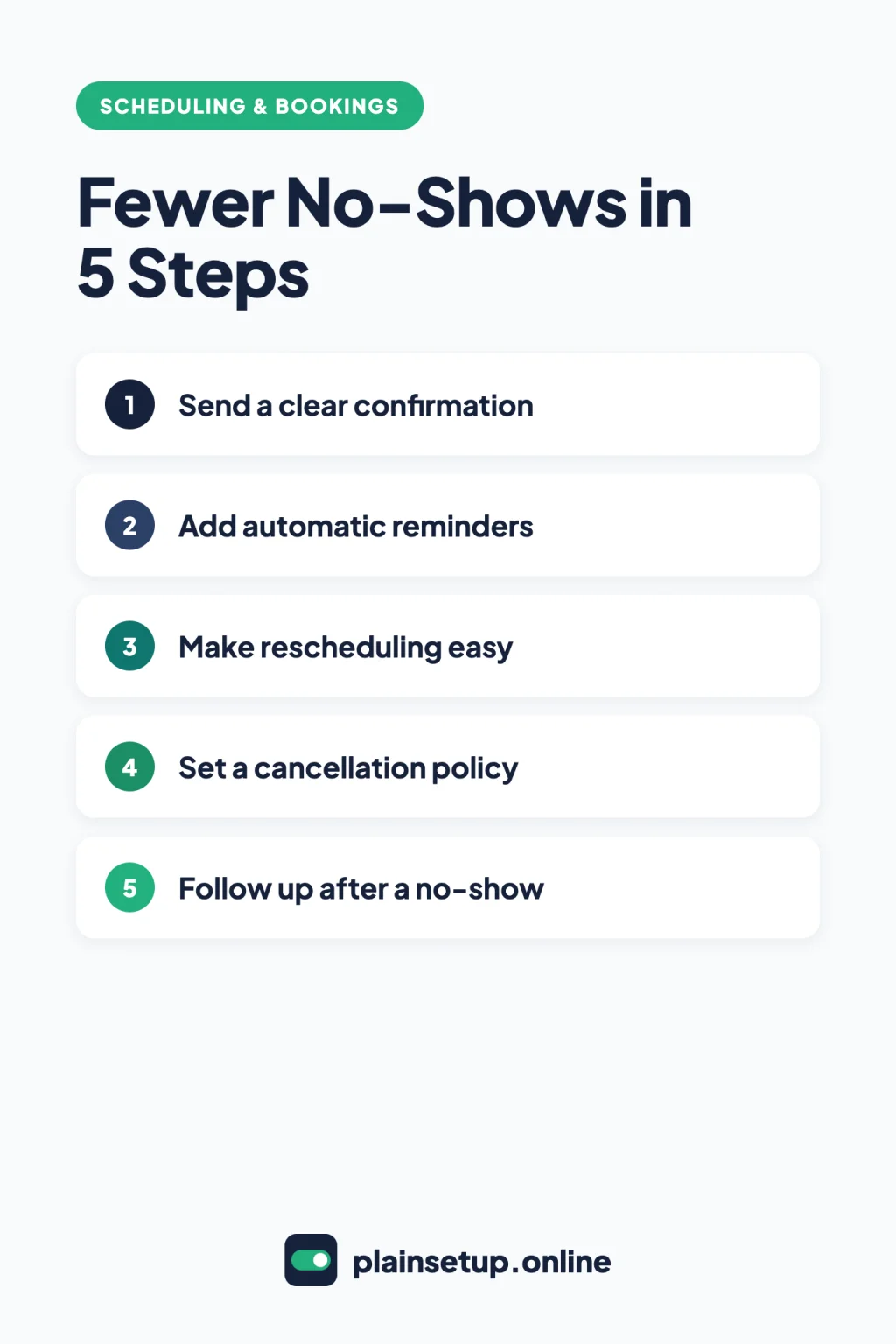
- Check what your plan includes for reminders and texts.
- Make the confirmation email clear and complete.
- Turn on one or more automatic reminders.
- Let clients reschedule or cancel from the email.
- Write a cancellation policy and show it at booking.
- Mark no-shows and send a rebooking message.
What scheduling tools do to reduce no-shows
The vendors’ own help pages point to the same few fixes: remind people, ask them to confirm, make changing the time easy, and set expectations about cancelling. Acuity’s page on limiting no-show appointments lists a cancellation policy, saved payment details and reminders. What you can turn on depends on the tool and the plan:
| Feature | Calendly | Acuity Scheduling | Google appointment schedules | Microsoft Bookings |
|---|---|---|---|---|
| Booking confirmation | All plans | All plans | All accounts | Included |
| Email reminders | Paid plans | All plans, up to 3 | Premium only, up to 5 | Included, multiple |
| Text reminders | Paid plans, not in trial | Standard and Premium, 1 per appointment | Not in Google’s help | Extra Teams Premium license |
| Client cancels or reschedules | Links in emails | Buttons in emails | Cancel from confirmation email | Manage booking button |
| Mark a no-show | All plans | Yes, when cancelling | Not in Google’s help | Not in Microsoft’s help |
On the Calendly pricing page, reminders start on Standard: $10 per seat per month billed yearly, or $12 billed monthly. On the Acuity pricing page, text reminders start on Standard: $27 per month paid annually, or $34 paid monthly. Google lists email reminders as premium for Google One Premium or AI plans, Workspace Individual, and Business Standard or higher. Bookings comes with Microsoft 365 Business Basic, Business Standard and Business Premium, among other plans.
Prices checked in October 2026. Plans and prices change, so confirm on the official pricing page before you buy.
Step 1: Send a clear confirmation
A good confirmation answers three questions: when, where, and how to change it. All four tools send one.
- Calendly sends either a Calendar invitation or an Email confirmation, explained in its scheduling notifications guide. Only calendar invitations update the client’s calendar if you later change the time or location.
- Acuity shows a confirmation page and sends a confirmation email. The default template includes Cancel and Reschedule buttons.
- Google Calendar emails you, your co-hosts and the person who booked, including on free accounts.
- Microsoft Bookings sends an email confirmation with a calendar file. On the service’s notifications settings, the Additional information for Email Confirmation field lets you add what to bring or how to reschedule.
Step 2: Add automatic reminders
Several vendors tie reminders directly to missed appointments. Acuity’s pricing page, for example, describes text reminders as a way to reduce no-shows.
Calendly (paid plans)
For a simple reminder, open your event type and go to More options > Notifications and automations, then switch the reminder on, as Calendly’s basic notifications guide shows. For more control, open Automations and pick a template. The Email invitee to reconfirm template adds a Yes, I’m attending button, and confirmed meetings show Invitee confirmed on your Calendar page.
Text reminders also run through Automations. They can’t be sent during the trial, and invitees must opt in. Non-Enterprise plans get 250 SMS credits per seat per month; a text costs 0 credits in the US and Canada and 1 credit in the UK.
Acuity Scheduling
Go to Client Emails > Reminders. One reminder is on by default; click Add extra email reminder for up to three, and set the timing in Send this reminder. For texts (Standard or Premium), open the Client Text Messages panel, click Start Verification, then Turn On. Acuity sends one text per appointment, only to clients who tick the opt-in box, and charges no extra fee.
Google Calendar appointment schedules (premium)
Edit your schedule and open Booking confirmations and reminders. Click Add reminder for up to five. You can’t edit the reminder text, and Google’s help doesn’t mention text messages.
Microsoft Bookings
On a shared booking page, open a service under Services and use the notifications settings to add Email reminders for customers, staff or both. On your personal page, open the meeting type and go to Advanced Settings > Email Reminders > Add an email reminder, from 15 minutes to two weeks before. Text messages need an extra Teams Premium license and a US, Canada or UK phone number.
Step 3: Make rescheduling and cancelling easy
When moving a booking is easy, clients can tell you about a change instead of just not turning up, and the freed slot can go to someone else.
- Calendly: in the event type, open Notifications and automations, select the three dots next to your confirmation, choose Edit, and check Include cancel and reschedule links in email invitations and reminders. Text reminders don’t include these links unless you add them.
- Acuity: go to Availability > Global Scheduling Limits. On the General tab, keep Reschedule Appointments and Cancel Appointments checked and set the minimum hours before the start time.
- Google Calendar: clients can cancel from the confirmation email, and the time shows as available again. Google’s help doesn’t describe clients rescheduling on their own.
- Microsoft Bookings: customers who book on your page get a Manage booking button in the confirmation email. For bookings your staff make, turn on Let customers manage their appointment when it was booked by you or your staff on their behalf in the service’s Basic details.
Step 4: Set a cancellation policy and show it at booking
Keep your policy short: how much notice you need and what happens after that point.
- Calendly (paid plans): add the text in the Cancellation policy section of the same confirmation editor. Calendly’s cancellation policy guide says it “doesn’t restrict cancellations or reschedules based on the policy.”
- Acuity: set the cancellation limit from Step 3, then add a required Checkbox question to an intake form (Intake Form Question > New custom form) so clients agree to the policy before they finish booking.
- Google Calendar: the optional policy sits under Payments & cancellation policy, which needs Stripe and an eligible Workspace subscription. It appears on the booking form and in reminders, and Google notes “it’s your responsibility to carry out your cancellation and refund policies.”
- Microsoft Bookings: under Booking page > Scheduling policy, Lead time in hours sets how far ahead customers must book or cancel. You can change it per service.
Some businesses also take money up front: Acuity can require a deposit, Calendly (Standard and up) and Google (eligible Workspace plans) can require payment at booking, and Microsoft says Bookings has no payment support.
Step 5: Follow up after a no-show
Recording no-shows keeps your follow-up emails accurate and shows you which clients miss often.
- Calendly (all plans): on the Calendar page, open the meeting’s Details and select Mark no-show. The option appears only after the start time, and you can undo it. On Standard or higher, an Automation with the No-show marked trigger can email the client to book a new time.
- Acuity: go to Calendar, click the appointment, click Cancel, check Mark as no-show, then Cancel Appointment. Upcoming follow-up emails stop, package credit used for the booking is lost, and you can filter reports for no-shows.
- Google Calendar and Microsoft Bookings: their help pages don’t describe a no-show marker. Send a short personal email with your booking link instead.
Frequently asked questions
Does Google Calendar send appointment reminders for free?
Free accounts get confirmation and update emails. Google’s premium features chart lists automatic email reminders for Google One Premium or AI plans, Workspace Individual, and Business Standard or higher.
Can Calendly send text reminders on the free plan?
No. Text reminders run through Automations, which need a paid plan, and Calendly says you can’t send them during the trial. When your monthly SMS credits run out, Calendly sends emails instead.
How many reminders can I send?
Acuity allows up to three reminder emails and one text per appointment. Google appointment schedules allow up to five reminder emails on premium accounts. Microsoft Bookings lets you add multiple reminders per service, and Calendly allows up to 50 Automations per user or team.
Can I stop clients from cancelling at the last minute?
Acuity and Microsoft Bookings can block cancellations inside a set number of hours. Calendly shows your policy but doesn’t enforce it, so the text sets expectations only.
Sources
- Calendly: Pricing
- Calendly: Calendly scheduling notifications
- Calendly: How to set up basic notifications
- Calendly: Automations overview
- Calendly: How to reconfirm meetings with Automations
- Calendly: How to send text messages with Automations
- Calendly: SMS credit limits
- Calendly: How to include cancel and reschedule links for invitees
- Calendly: How to add a cancellation policy
- Calendly: How to mark no-shows for meetings
- Acuity Scheduling: Pricing Plans & Features
- Acuity Scheduling: Limiting no-show appointments
- Acuity Scheduling: Appointment information for clients
- Acuity Scheduling: Sending reminder emails
- Acuity Scheduling: Sending appointment reminders via text
- Acuity Scheduling: Limit when clients can book, edit, or cancel their appointments
- Acuity Scheduling: Create custom intake forms and manage client responses
- Acuity Scheduling: Marking appointments as no-shows
- Acuity Scheduling: Choosing how clients pay for appointments
- Google: Create an appointment schedule
- Google: Compare premium features for appointment schedules
- Google: Edit your appointment schedule
- Google: Cancel appointments on your calendar
- Google: Require payments for appointments
- Microsoft: Microsoft Bookings
- Microsoft: Define your services in Shared Bookings
- Microsoft: Configure SMS text notifications and reminders in Microsoft Bookings
- Microsoft: How to let customers manage their booking
- Microsoft: Set Bookings scheduling policies
- Microsoft: Shared Bookings Frequently Asked Questions
- Microsoft: Add email reminders and follow-up
Your Next Step
Today, open your booking tool and add one reminder the day before each appointment, with a cancel or reschedule link in it. That single change is the quickest way to reduce no-shows this week. For more help, browse our Scheduling & Bookings guides.

Fernando Pompeu is a journalist and digital content writer with more than 8 years of experience in media outlets and news portals. He writes to explain things clearly and without jargon. At PlainSetup, he publishes step-by-step guides to the everyday tools small businesses run on, based on each tool’s official documentation and written for owners without an IT team.