
You send a quote to a new client and it lands in their spam folder. Or someone gets an email “from” your domain that you never sent. Both come down to one question mail servers ask: did this really come from you? This guide shows how to set up DMARC for Google Workspace, along with the SPF and DKIM records it depends on.
The order matters. Google says DMARC needs SPF or DKIM in place first, and recommends starting with a policy that changes nothing, then tightening it slowly. Every value and menu name below comes from Google’s help pages.
Still setting up your account? Start with our guide to setting up Google Workspace for a small business, then come back.
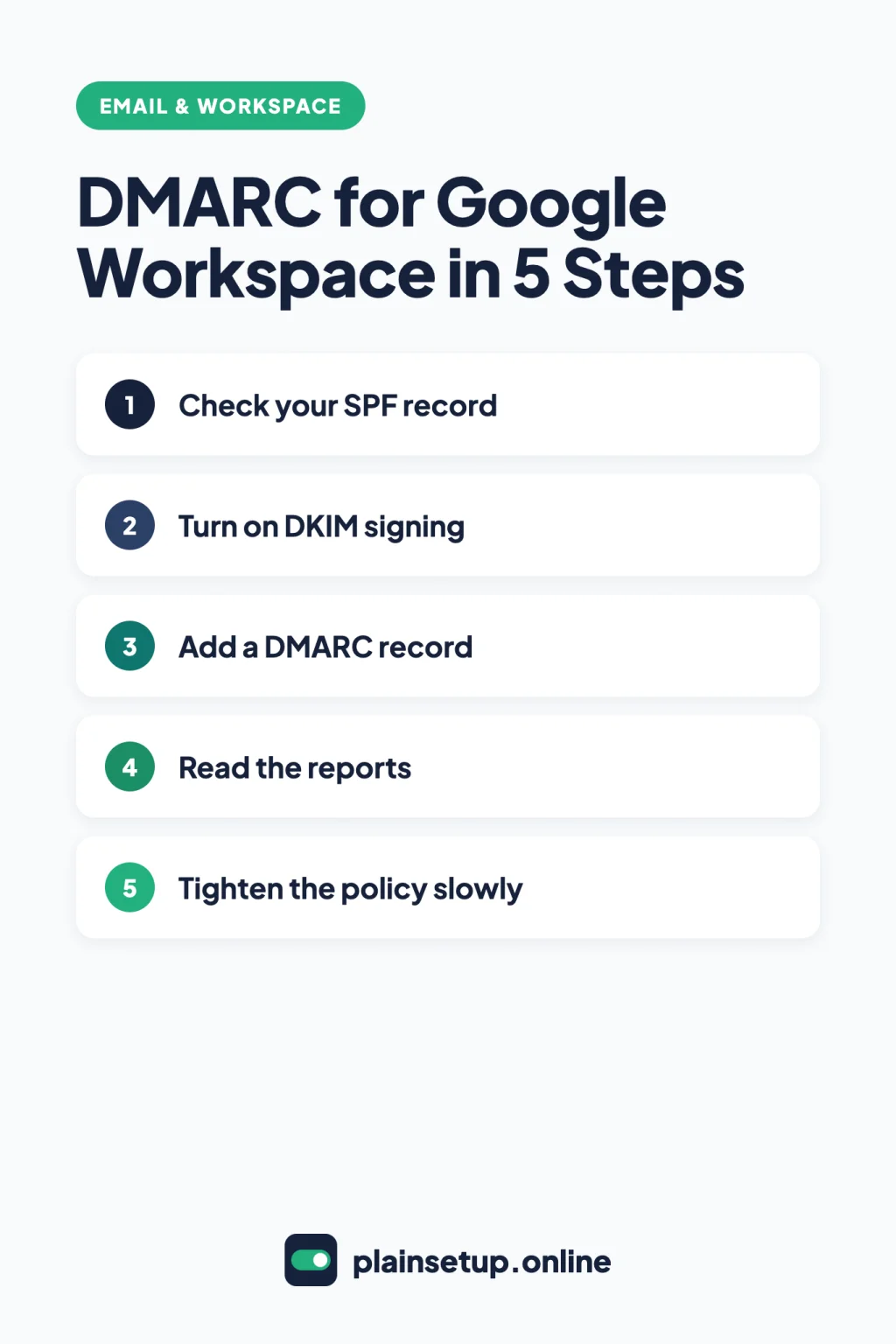
Quick steps
- Make sure your domain has one SPF record that lists every service sending your email.
- Turn on DKIM in the Google Admin console and add its TXT record.
- Wait 48 hours, then add a DMARC record with p=none and a report address.
- Send a test message and check that SPF, DKIM and DMARC pass.
- Read the daily reports for at least a week.
- Move to quarantine for a small percentage, then raise it to 100%.
Before you set up DMARC for Google Workspace
Three DNS records work together, per Google’s overview of email authentication methods:
- SPF lists the servers allowed to send email for your domain.
- DKIM adds a digital signature so receivers can tell the message wasn’t changed on the way.
- DMARC tells receiving servers what to do with messages that fail SPF or DKIM, and sends you reports about them.
You’ll need:
- A super administrator account, which Google requires for DKIM.
- Access to your domain’s DNS settings, usually where you bought the domain. Google’s guide to identifying your domain registrar helps if you’re unsure.
- A list of every service that sends email as your domain, such as a newsletter tool, online store or website contact form.
Is it required? Google’s email sender guidelines say everyone sending to personal Gmail accounts needs SPF or DKIM, and senders of more than 5,000 messages a day also need DMARC. Still, Google recommends you “always set up SPF, DKIM, and DMARC for your domains.” DMARC itself needs nothing in the Admin console: it’s one TXT record at your domain host.
Step 1: Check your SPF record
Google’s guide to set up SPF says your record should include every server that sends email for your domain. If you send only through Google Workspace, it looks like this:
Type:  TXT
Host:  @
Value: v=spf1 include:_spf.google.com ~all- One SPF record per domain. Google’s guide to troubleshoot SPF issues says multiple SPF records can send your email to spam. If you find two, merge them into a single record.
- Every sender goes in that one record. Add each extra service with its own include: tag before ~all. Google’s own example for Workspace plus Mailchimp is
v=spf1 include:_spf.google.com include:servers.mcsv.net ~all. Get the exact value for your tool from that tool’s help pages.
Keep ~all at the end, as Google recommends. Google’s guide about SPF records allows no more than 10 lookups (references to other domains or servers), so remove services you no longer use. SPF can take up to 48 hours to start working.
Step 2: Turn on DKIM in the Admin console
Following Google’s guide to set up DKIM, sign in as a super administrator. If you just turned on Gmail, wait 24 to 72 hours first, or the key may fail to generate.
- Go to Menu > Apps > Google Workspace > Gmail and click Authenticate email.
- In Selected domain, choose your domain, then click Generate New Record.
- Choose 2048 as the key length if your domain host supports it (otherwise 1024), keep the default prefix selector google and click Generate.
- Copy the DNS Host name (TXT record name) and the TXT record value. Don’t click Start authentication yet.
- At your domain host, add a TXT record with that name (such as google._domainkey) and value (it starts with v=DKIM1).
- Once the record is live, return to Authenticate email and click Start authentication. When it works, the status reads Authenticating email with DKIM.
DKIM can take up to 48 hours to start working. Meanwhile the Admin console may still ask you to update your DNS records; if you added the key correctly, Google says you can ignore it.
Step 3: Add a DMARC record
Google’s guide to set up DMARC asks you to allow 48 hours after setting up SPF and DKIM. Use that time for two jobs:
- Create a place for reports. You can receive many reports a day, so Google recommends a group or dedicated mailbox, not your own inbox. Use an address on the same domain; a different domain needs an extra DNS record there.
- Check your other senders. Third-party services sending as your domain must pass SPF and DKIM too. If unsure, ask the provider.
Then add this record at your domain host:
Type:  TXT
Host:  _dmarc.yourdomain.com
Value: v=DMARC1; p=none; rua=mailto:dmarc-reports@yourdomain.com
Some domain hosts add your domain name automatically, so check the host name after saving. Each domain you own needs its own DMARC record.
What each part means
| Tag | What it does | Google’s guidance |
|---|---|---|
| v=DMARC1 | Version | Required, always first |
| p | Policy: none, quarantine or reject | Required, right after v; start with none |
| rua | Where reports go (must start with mailto:) | Optional, but always include it |
| pct | Percentage of failing messages the policy applies to | Optional; default is 100; useful when tightening |
| adkim, aspf | Strict (s) or relaxed (r) alignment | Optional; relaxed is the default |
With p=none, failing messages are delivered as usual and logged in reports. Google says “Relaxed alignment typically provides sufficient spoofing protection,” while strict alignment can push subdomain mail to spam. Gmail doesn’t support the ruf tag, so leave it out.
Step 4: Check that it works
Send a message from your Workspace address to a Gmail account, such as your personal one. Google notes that a test sent to yourself won’t confirm DKIM.
- Open the message in Gmail in a browser. Next to Reply, click More > Show original, as Google’s guide to trace an email with its full header describes.
- Look for the Authentication-Results line. SPF, DKIM and DMARC should each show a pass.
- For a clearer view, click Copy to clipboard, paste the header into Google’s Messageheader tool and click Analyze the header above.
To check the records themselves, Google’s page to troubleshoot DMARC issues points to Check MX in the Google Admin Toolbox: enter your domain to verify SPF, the DKIM key and DMARC.
Read the reports
According to Google’s page about DMARC reports, every mail server you send to sends a report, usually once a day, as an XML file. They show which servers send mail for your domain, what share passes DMARC and who fails. If a service you use, like your newsletter tool, fails, fix its SPF or DKIM before tightening anything. Raw XML is hard to read, so Google recommends a third-party DMARC service.
Step 5: Tighten the policy
Google’s recommended DMARC rollout is gradual. Edit your existing _dmarc record at each stage:
- One week on none. Review reports daily. Google says a week is usually enough for the reports to cover all your mail streams.
- Quarantine a small share. With no issues, send failing messages to spam. You choose the percentage; Google’s example is 10% for a small organization:
v=DMARC1; p=quarantine; pct=10; rua=mailto:dmarc-reports@yourdomain.com - Raise it to 100%. Increase pct over time, still checking reports.
- Reject, if needed. You can use reject instead of quarantine, but Google warns rejected messages are never delivered.
Common problems
Two SPF records. Merge them into one, then allow 24 to 48 hours for the fix to take effect.
DKIM says “Not authenticating.” Google’s guide to troubleshoot DKIM issues says to click Start authentication. Most DKIM TXT records hold up to 255 characters, so a 2048-bit key can get cut off; compare it with the Admin console value.
Bounces with error 5.7.26. Your DMARC policy rejected the message. Check SPF, DKIM and alignment, and use the reports to find the failing service.
Changes not showing yet. Google says SPF and DKIM can each take up to 48 hours to start working. It gives no separate time for the DMARC record.
Frequently asked questions
Do I need to set up DMARC for Google Workspace if I send only a little email?
Google requires DMARC only from senders of more than 5,000 messages a day to Gmail accounts, and even then the policy can be none. Google still recommends it for every domain.
Which DMARC policy should I start with?
Start with p=none. Google says messages are delivered normally under none, with no risk of rejection. Move to quarantine, then possibly reject, once reports show your real mail passes.
Will DMARC block my newsletter emails?
Not while your policy is none. Under quarantine or reject, messages from a tool that fails SPF and DKIM for your domain could go to spam or bounce. Google says to verify that your email provider authenticates your domain’s email with SPF and DKIM.
Sources
- Google Workspace Admin Help: Set up DMARC
- Google Workspace Admin Help: Recommended DMARC rollout
- Google Workspace Admin Help: About DMARC reports
- Google Workspace Admin Help: Troubleshoot DMARC issues
- Google Workspace Admin Help: Set up SPF
- Google Workspace Admin Help: About SPF records
- Google Workspace Admin Help: Troubleshoot SPF issues
- Google Workspace Admin Help: Set up DKIM
- Google Workspace Admin Help: Troubleshoot DKIM issues
- Google Workspace Admin Help: About authentication methods
- Google Workspace Admin Help: Identify your domain registrar
- Gmail Help: Email sender guidelines
- Gmail Help: Trace an email with its full header
- Google Admin Toolbox: Check MX
- Google Admin Toolbox: Messageheader
Your Next Step
Today, run Check MX on your domain and confirm you have one SPF record and a DKIM key. Then list every service that sends email as your domain and create a group for reports. You’re then ready to set up DMARC for Google Workspace with p=none. Still choosing addresses? See our guide to a professional email address. For more help, browse our Email & Workspace guides.

Fernando Pompeu is a journalist and digital content writer with more than 8 years of experience in media outlets and news portals. He writes to explain things clearly and without jargon. At PlainSetup, he publishes step-by-step guides to the everyday tools small businesses run on, based on each tool’s official documentation and written for owners without an IT team.