
You quoted a client $2,400 to repaint their office, and this morning they replied “Looks good, let’s go.” Now you need a bill, and typing every line again invites mistakes. This guide shows how to turn an estimate into an invoice in Wave, QuickBooks Online, FreshBooks and Square, so the items, prices and customer details carry over.
All four tools follow the same pattern: send the estimate, record the client’s approval, convert it, check the new invoice and send it with a way to pay. Steps that need a paid plan are marked, and menu names come from each vendor’s help center.
If you haven’t billed anyone in Wave yet, start with how to create an invoice in Wave, step by step. Still choosing software? Read our FreshBooks vs Wave vs QuickBooks comparison first.
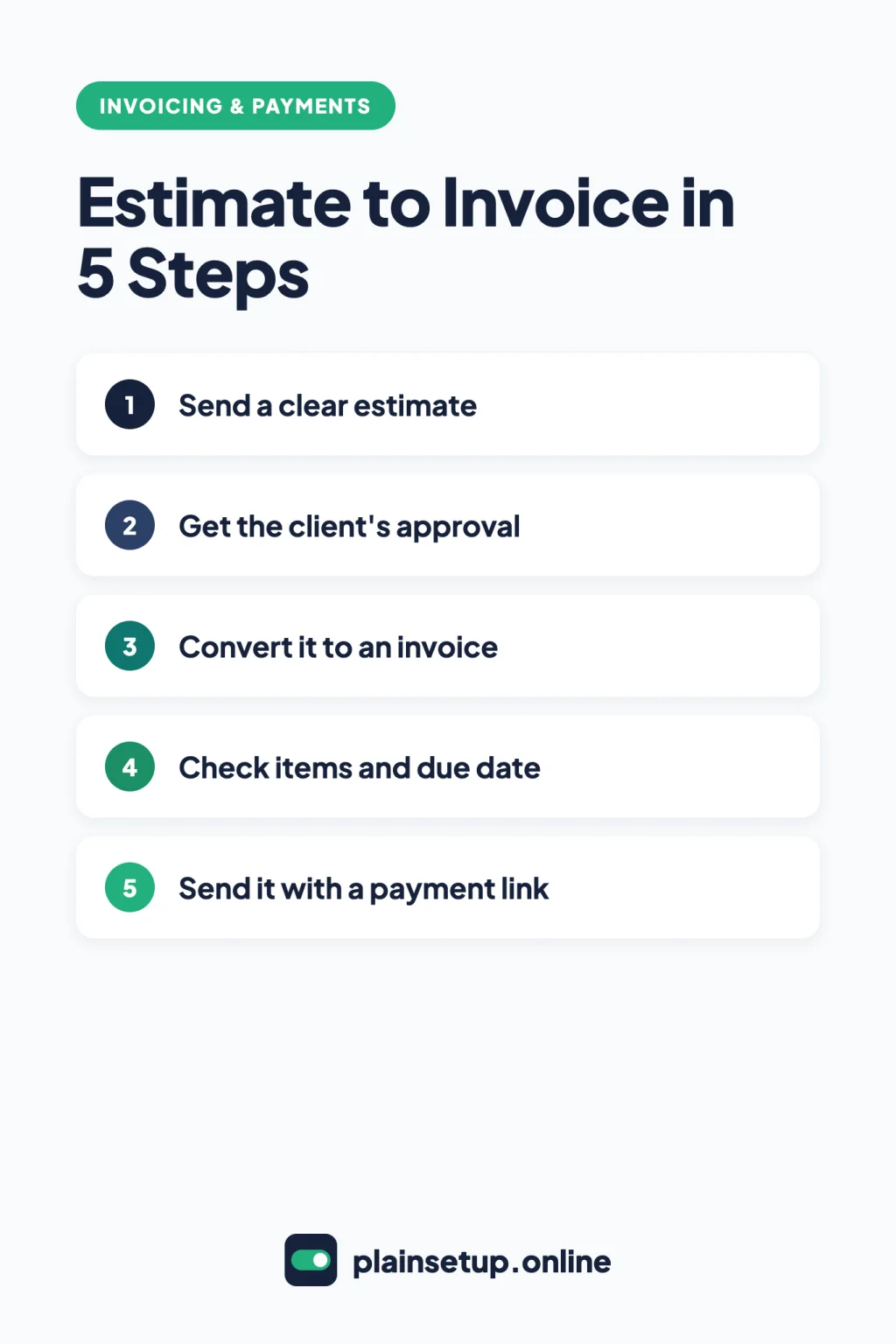
Quick steps
- Send a clear estimate with every item, price and an expiry date.
- Get the client’s approval and mark the estimate as accepted.
- Convert the estimate to an invoice with the tool’s convert button.
- Check the items, amounts and due date on the new invoice.
- Send the invoice with a payment link.
Before you turn an estimate into an invoice: what each tool needs
Every tool here can convert an estimate, but approval and automatic conversion depend on the plan.
| Tool | Client approval | Convert button | Plan notes |
|---|---|---|---|
| Wave | Client clicks Accept, or you mark it accepted | Convert to invoice | Accepting needs Pro or online payments |
| QuickBooks Online | Status updates when the client accepts by email | Create invoice or Convert to invoice | Estimates are limited on Free and Lite |
| FreshBooks | Client clicks accept, or you accept it | Convert to Invoice | Unlimited estimates on all plans |
| Square Invoices | Client accepts, or you mark it accepted | Convert to invoice | Auto-convert needs Plus or Premium |
Prices as listed: Wave Starter is $0 and Pro is $19 USD per month, billed monthly, or $190 USD per year, billed annually. QuickBooks Online Simple Start is $38 per month, and the Free plan sends 2 invoices per month. FreshBooks Lite is $23.00 USD per month, with a 30-day free trial and no free plan. Square Free is $0 per month per location, and Plus is $49 per month per location.
Prices checked in October 2026. Plans and prices change, so confirm on the official pricing page before you buy.
Step 1: Send a clear estimate
An estimate that lists every item, quantity and price becomes a clean invoice.
- Wave: go to Sales & Payments > Estimates > Create estimate. Set the date and the “valid until” date, add items, then select Save and continue and Approve draft. A draft must be approved before you can send or convert it. To carry your notes over to the invoice, tick the checkbox in the Notes / Terms section.
- QuickBooks Online: select + Create > Estimate, add the customer and products, then Save. To email it, select Review and send > Send estimate. New estimates start as Pending.
- FreshBooks: go to Estimates > Create New.. > Estimate. Select Add a Line for each item, then Send… To > Send Estimate.
- Square: go to Orders & payments > Invoices > Estimates > Create estimate. Older menus say Invoices & Payments or Payments. Add items, a due date and any discount, then select Send.
In Wave, sending by email through Wave needs Pro or online payments. On Starter without payments, select Send estimate > More options > Copy link or Download PDF, send it from your own email, then select Mark as sent.
Step 2: Get the client’s approval
Approval tells you the client agreed to the price, and in some tools it unlocks the convert button.
Wave (Pro or online payments)
Per Wave’s guide to marking an estimate as accepted, clients who get the estimate through Wave can click Accept at the top of it, and you both get an email. If the client says yes by phone, open Sales & Payments > Estimates, select the dropdown arrow next to the estimate and choose Mark as accepted. You can then select Notify customer. Wave adds one caution: “Accepting an estimate does not create a binding contract.”
You can’t accept an expired estimate. Edit its Valid Until date first. On Starter without online payments, the accept option isn’t available, so keep the client’s written yes, such as their email reply.
QuickBooks Online
QuickBooks updates the status on its own when a client accepts or declines from the estimate email. To set it yourself, go to All apps > Customer Hub > Estimates, open the dropdown in the Action column, select Update status, choose Accepted and select OK.
FreshBooks
The client’s email includes a button to accept, and only the primary client contact can use it. To accept it yourself, go to Estimates, tick the box next to the estimate, select Actions > Accept.
Square Invoices
The client accepts the estimate from what you sent. If they agree another way, select (•••) next to the estimate and choose Mark as Accepted.
Step 3: Convert it to an invoice
Wave (all plans)
Go to Sales & Payments > Estimates, select the dropdown arrow next to the estimate and choose Convert to invoice. Wave creates a new invoice in Draft status. You can’t undo a conversion. If you need changes later, duplicate the estimate and start again.
QuickBooks Online
The estimate status must be Accepted. Go to All apps > Customer Hub > Estimates and select Create invoice in the Action column. Intuit’s guide to converting an estimate into an invoice also gives a second path: All apps > Sales & Get Paid > Sales transactions > Convert to invoice. If the client declined, change the status back to Pending and send it again.
For a long job, progress invoicing splits one estimate into several invoices. Turn it on in Settings > Account and settings > Sales > Progress Invoicing > Edit, switch on Create multiple partial invoices from a single estimate and select Done. Intuit’s progress invoicing guide doesn’t list which plans include it, so check your settings. Once you’ve invoiced the full estimate, its status changes to Converted.
FreshBooks (all plans)
Go to Estimates, open the estimate, select More Actions > Convert to Invoice. The invoice opens for editing. Select Save to keep it as a draft, or Send To to email it right away.
Square Invoices
Square’s estimates guide is direct: “you’ll need to convert the estimate to an invoice so the customer can pay.” Go to Invoices > Estimates, select (•••) next to the estimate and choose Convert to invoice.
On Plus or Premium, turn on Automatically convert estimate to invoice when customer accepts when you create the estimate. The new invoice goes out the same way as the estimate, so a texted estimate becomes a texted invoice.
Step 4: Check items and due date
The invoice copies the estimate, but the job may have changed. Before you send it, check:
- Items and quantities: add extra work, remove anything you didn’t do and confirm each price.
- Discounts and deposits: in QuickBooks, a deposit the client paid on the estimate is applied as a partial payment. In Wave, if the deposit wasn’t received, you can add a partial payment to the invoice.
- Due date: FreshBooks offers On Date of Issue, After x Days or Custom, and its reminders and late fees run off this date. Wave and Square ask for a due date on the invoice.
In Wave, the converted invoice stays a draft until you open it under Sales & Payments > Invoices > Draft and select Approve draft. This works only in a web browser.
Step 5: Send it with a payment link
An invoice the client can pay online needs online payments turned on in each tool.
- Wave: sending through Wave needs Pro, online payments or payroll. With online payments, the email has a Review & Pay button. Otherwise, share a link or PDF.
- QuickBooks Online: select Review and send on the invoice. For card or bank payments online, apply for QuickBooks Payments.
- FreshBooks: select Send… To > Send Invoice. Check that Accept Online Payments is on for that invoice.
- Square: choose email, text message or a share link in the communication step. Email lets you add up to 8 more recipients and automatic reminders.
Frequently asked questions
Can I turn an estimate into an invoice for free?
Yes, in Wave Starter, QuickBooks Free (with limits on estimates) and Square Free, whose pricing page lists estimates on every plan. Wave’s free plan converts estimates, but accepting them and emailing through Wave need Pro or online payments. FreshBooks has no free plan, only a 30-day trial.
Can I undo a converted estimate?
Not in Wave: Wave’s conversion guide says you can’t undo it, but you can duplicate the estimate. In FreshBooks, the estimates guide says to delete the converted invoice, then convert the estimate again.
Why can’t I convert my estimate in QuickBooks?
QuickBooks only converts estimates with an Accepted status. If you asked for a deposit, the client must also pay it and accept the estimate. Update the status under Customer Hub > Estimates, then try again.
Why do my FreshBooks estimates say “Quotes”?
FreshBooks renames estimates to quotes when your account language is English (United Kingdom). The steps and the Convert to Invoice option work the same way.
Sources
- Wave: Create an estimate
- Wave: What’s the difference between saving an estimate and approving a draft
- Wave: Generate a PDF or a link to an estimate
- Wave: Mark an estimate as accepted
- Wave: Convert an estimate to an invoice
- Wave: Approve a draft invoice
- Wave: Send an invoice through Wave
- Wave: Understand how customers pay invoices through Wave
- Wave: Pricing
- QuickBooks: Create and send estimates
- QuickBooks: Convert an estimate into an invoice in QuickBooks
- QuickBooks: Set up and send progress invoices
- QuickBooks: Request a customer deposit on an estimate
- QuickBooks: Online Pricing
- FreshBooks: How do I create an estimate?
- FreshBooks: How do I create an invoice?
- FreshBooks: Pricing
- Square: Create and send invoice estimates
- Square: Create and send invoices
- Square: Invoices Pricing & Plans
Your Next Step
Open the last estimate a client approved, check that it’s marked as accepted, and turn an estimate into an invoice with your tool’s convert button today. Review the due date, then send it with a payment link. For more help, browse our Invoicing & Payments guides.

Fernando Pompeu is a journalist and digital content writer with more than 8 years of experience in media outlets and news portals. He writes to explain things clearly and without jargon. At PlainSetup, he publishes step-by-step guides to the everyday tools small businesses run on, based on each tool’s official documentation and written for owners without an IT team.