
Your bookkeeper’s last day is Friday. Client invoices still land in her inbox, the price list lives in her Google Drive and her calendar holds three client calls for next month. Delete the account too fast and some of that can be gone for good; leave it alone and you keep paying for a seat nobody uses. This checklist shows how to remove a user in Google Workspace without losing files, email or meetings.
It follows Google’s Admin Help pages, linked as we go, and assumes a verified domain and a super admin account. Menu names can change, so compare them with your Admin console at admin.google.com. Hiring a replacement? Create their account first, as shown in our guide to setting up Google Workspace for a small business, so someone is ready to receive the files.
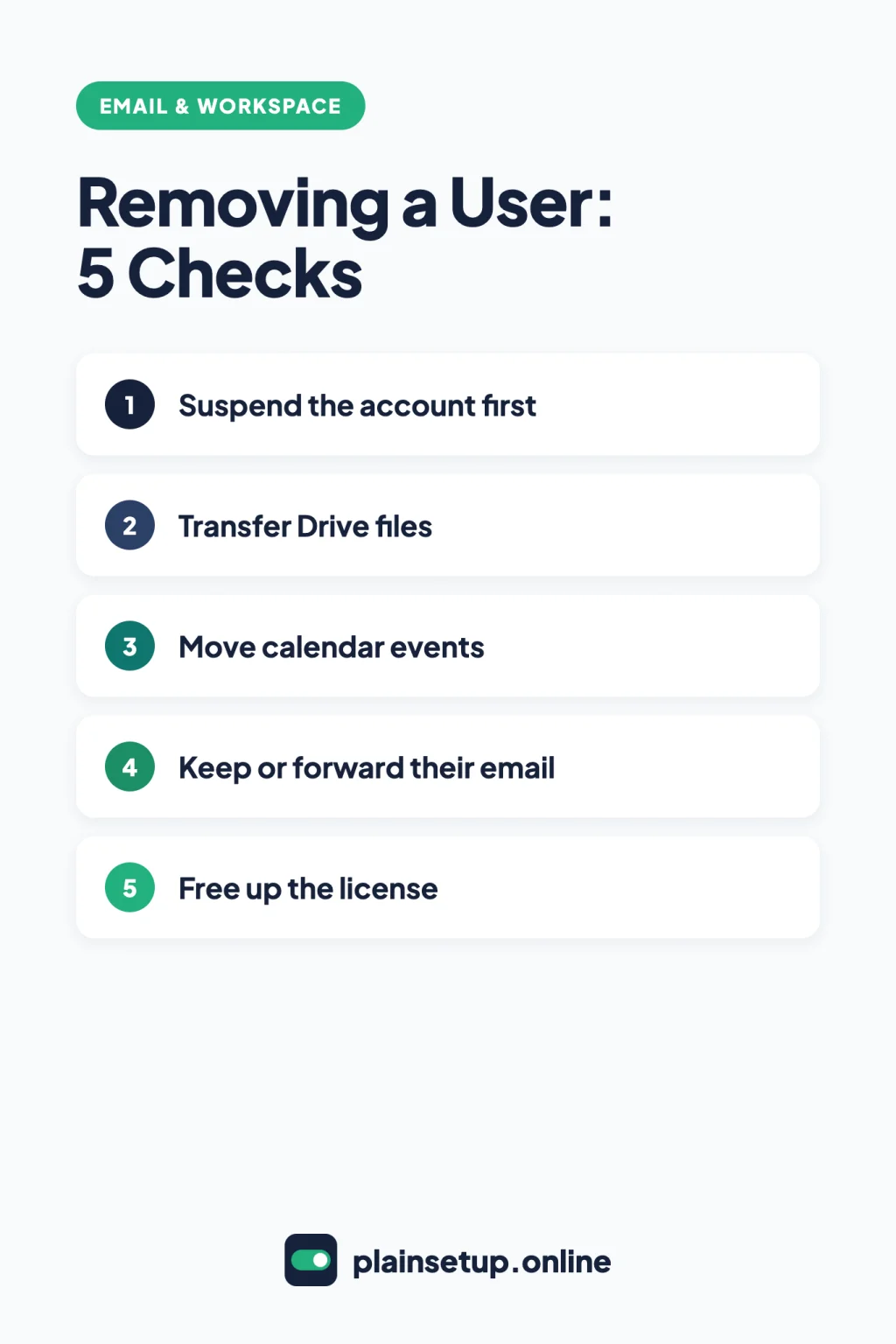
Checklist
- Choose to suspend, archive or delete the account.
- Suspend the account and sign the user out everywhere.
- Transfer their Drive files to a teammate.
- Transfer or cancel their calendar events and calendars.
- Decide where their email goes.
- Delete the user and transfer what’s left.
- Free up or reduce the license.
- Remember the 20-day restore window.
1. Decide how to remove a user in Google Workspace: suspend, archive or delete
All three start in Menu > Directory > Users: point to the person and click More options. Here’s what each does, per Google’s pages on how to suspend a user temporarily, archive former employee accounts and delete or remove a user.
| Option | What happens | Billing, as Google describes it |
|---|---|---|
| Suspend | Access is blocked; email, files and calendars are kept; new email and invitations are blocked. | Charged the same as an active account. |
| Archive | The user can’t sign in; Google keeps the data. | Needs a paid Archived User license or the Flexible Plan; that license is still charged. |
| Delete | Access ends; data you don’t transfer is deleted. | Flexible Plan: prorated. Annual/Fixed-Term Plan: license count unchanged. |
Google says to delete only when the person is leaving, and not just to save a license if you need the data; that’s what archiving is for. On Business editions, it sits under More options > Delete user > Archive user. If you aren’t offered Buy archived user subscription, Google points you to its sales team or a Google Cloud partner.
2. Suspend the account and sign them out
Suspend first, so the person can’t sign in, create or move files while you work: More options > Suspend user > Suspend. Don’t leave it there for long, though: “Suspended accounts are still charged at the same rate as active accounts.”
Google’s page on how to maintain data security after an employee leaves adds more locks:
- Change the password: point to the user and click Reset password > Automatically generate a password > Reset.
- Reset sign-in cookies: on the user’s account page, click Security > Sign in cookies > Reset. Per Google’s steps to reset a user’s password, doing both signs them out of all active sessions.
- Remove their recovery email and phone, revoke security keys and app passwords, and wipe company data from their mobile devices.
3. Transfer their Drive files
Files a deleted user owns in My Drive are deleted with them; files in shared drives stay, because the organization owns them. Google’s page on how to transfer Drive files to a new owner as an admin gives these steps:
- Ask the new owner not to add files to Drive during the transfer.
- Move anything you need out of the leaver’s Trash. Items in Trash aren’t transferred.
- Go to Menu > Apps > Google Workspace > Drive and Docs > Transfer ownership.
- Fill in From user and To user, then click Transfer Files.
The new owner needs an active account, enough storage and Drive turned on. The files land in a transfer folder in their My Drive, and who can open each file doesn’t change. A transfer that runs past 36 hours stops and must be restarted.
4. Move calendar events and calendars
Google’s page on how to cancel or transfer events or secondary calendars before deleting a user warns that unmanaged events lose their organizer and keep blocking calendars and meeting rooms. Go to Menu > Apps > Google Workspace > Calendar > Event and Secondary calendar management, then:
- Events transfer: enter the leaver’s username, check Transfer events to other user, enter the new owner and click Transfer Events > Done. Only future, non-private events from their main calendar with at least one guest or resource move over; private events are canceled and past events stay behind. It starts about 10 minutes later and can last 15 minutes.
- Secondary calendar transfer: enter From user and To user, then click Transfer Secondary Calendars. Do this before deleting: once the owner is deleted, their secondary calendars are deleted too.
- Events Cancellation: use it if you don’t need the meetings. It can’t be undone.
5. Keep or forward their email
Deleting a user deletes their Gmail messages. Plan for both old and new mail:
- Old messages: migrate them to another account with Google’s data migration service, or archive the user instead. Google’s page on options to preserve former employee data compares these and notes that license fees still apply to the account holding the data.
- New messages: per Google’s guide to redirect or forward Gmail messages to another user, go to Menu > Apps > Google Workspace > Gmail > Routing (not Default routing), select the top-level organizational unit and click Configure next to Email forwarding using recipient address map. Click Add, enter the old address in Address and the replacement in Map to address, leave Also route to original destination unchecked and click Save. It can take up to 24 hours.
After deletion, you can also add the old address to a current user as an alternate email address (alias): open their account page, click Add Alternate Emails, type the part before the @ under Alternate email and click Save. Google lets you reassign the address before the 20-day period after deletion ends. For a role address like info@, a shared inbox in Google Workspace lets several people answer it.
6. Delete the user and transfer what’s left
Go to Menu > Directory > Users, point to the user and click More options > Delete user. As a super admin, next to Data in other apps, select Transfer, search for the new owner and, under Select data to transfer, check Drive and Docs (optionally including files that aren’t shared with anyone), Calendar and Data Studio. For Calendar, you can also check Also release all calendar resources booked in events organized by the user. Then click Delete User.
The account stays suspended until the transfer finishes, then it’s deleted. If the transfer fails, nothing is deleted and the Admin console shows an error. Admins who aren’t super admins can’t transfer here, so they move data first (items 3 to 5).
If you use Google Vault (among Business editions, only Business Plus with a verified domain, per Compare Business editions): the Google Vault FAQ says retention rules and holds stop applying when you delete a user, and recommends an Archived User license to keep that data. If your business has record-keeping rules, check them before you remove a user in Google Workspace.
7. Free up or reduce the license
Per Google’s page on how to reduce user licenses, it depends on your plan:
- Flexible Plan: deleting the user removes the license and lowers your monthly payment. Google’s example: a user added on April 1 and deleted on April 15 is charged for half a month.
- Annual/Fixed-Term Plan: your payment stays the same until renewal, but you can give the license to the replacement. To pay for fewer seats next term, go to Menu > Billing > Subscriptions, click your subscription, click Change next to Renewal options, select Auto-renew my contract with fewer licenses and click Save.
8. Remember the 20-day restore window
Per Google’s page on how to restore a recently deleted user, you can bring an account back up to 20 days after deleting it; after that, the data is gone. As a super admin, go to Menu > Directory > Users > More options > Recently deleted users, point to the user, click Recover > Continue, pick an organizational unit and click Recover. You need an available license, and if their address is now an alias, remove it first.
Common mistakes
- Suspending and forgetting. A suspended account is billed like an active one.
- Deleting before moving secondary calendars. They’re deleted with the owner.
- Leaving files in Trash. Drive transfers skip them.
- Deleting just to save a license. If you need the data, Google points to an Archived User license.
Frequently asked questions
Does a suspended user still cost money?
Yes. Google says suspended accounts are charged at the same rate as active accounts on both the Annual and Flexible plans. To stop paying for the seat, delete the account, or archive it if you need the data.
How long can I restore a deleted Google Workspace user?
Up to 20 days, with a super admin account and an available license. Google says restoring brings back their Gmail, untransferred Drive files and their main and shared calendars.
What happens to shared drive files when I delete a user?
They stay. Google says files in shared drives aren’t deleted because the organization owns them. Files the user owned in My Drive are deleted unless you transfer them.
Sources
- Google: Delete or remove a user from your organization
- Google: Suspend a user temporarily
- Google: Archive former employee accounts
- Google: Maintain data security after an employee leaves
- Google: Reset a user’s password
- Google: Transfer Drive files to a new owner as an admin
- Google: Cancel or transfer events or secondary calendars before deleting a user
- Google: Options to preserve former employee data
- Google: Redirect or forward Gmail messages to another user
- Google: Add or delete an alternate email address (email alias)
- Google: Compare Business editions
- Google: Google Vault FAQ
- Google: Reduce user licenses
- Google: Restore a recently deleted user
Your Next Step
Today, open Menu > Directory > Users, find the person who’s leaving and write down who will take over their files and calendar, and whether you’re on the Flexible or Annual plan. With those answers, you can remove a user in Google Workspace in one sitting, working down this checklist. For more help, browse our Email & Workspace guides.

Fernando Pompeu is a journalist and digital content writer with more than 8 years of experience in media outlets and news portals. He writes to explain things clearly and without jargon. At PlainSetup, he publishes step-by-step guides to the everyday tools small businesses run on, based on each tool’s official documentation and written for owners without an IT team.