
Your bookkeeper is leaving, and the folder with every client invoice lives in her My Drive. Before you delete her account, someone has to move those files, or they go with her. That’s the real question behind shared drive vs My Drive in Google Workspace: who owns the files when people come and go.
Both live in Google Drive and look almost the same in the left menu. The difference is ownership. My Drive belongs to one person. A shared drive belongs to your business. This guide compares the two using Google’s own help pages.
Shared drive vs My Drive: the short answer
Put files the business needs to keep in a shared drive: client folders, templates, finances and anything several people edit. Keep personal drafts and private notes in My Drive. Files in a shared drive belong to your organization and stay when someone leaves. Files in My Drive belong to the person who created them.
| Question | My Drive | Shared drive |
|---|---|---|
| Who owns the files? | The person who created them | Your organization |
| Who can add files? | Only the owner of that My Drive | Members with Contributor access or higher |
| Who sees what? | Each person sees only what’s shared with them | All members see all files, except limited-access folders |
| Someone’s account is deleted | Their files are deleted unless an admin transfers them first | Files stay in the shared drive |
| Restoring from Trash | The file’s owner | Any member with Contributor access or higher |
| Which accounts have it | Every Google account | Work or school accounts on editions that include it |
Who owns the files
In My Drive, you own the files you create or upload (Make someone else the owner of your file). On a work account, you can transfer ownership only to someone in your organization.
In a shared drive, ownership moves up a level: “Shared drive files belong to the team instead of an individual” (What are shared drives?). When you move a file you created into a shared drive, you’re still the creator but no longer the owner. Even content an outside member adds is owned by your organization.
Google’s admin guide to setting up shared drives gives examples. Project plans and team meeting notes belong in shared drives. One-on-one meeting notes and performance assessments belong in My Drive.
What happens when someone leaves
This is where the choice matters most. When an admin deletes a user, any data that isn’t transferred is deleted (Delete or remove a user). Their Drive files are kept for 20 days, but you can open them only by restoring the user.
Files in My Drive need a transfer first. An admin goes to Menu > Apps > Google Workspace > Drive and Docs > Transfer ownership, fills in From user and To user, then clicks Transfer Files (Transfer Drive files to a new owner). Know three things:
- The files land in a transfer folder in the new owner’s My Drive.
- Items in Trash are not transferred.
- A transfer running longer than 36 hours stops, and you start it again.
Files in a shared drive need nothing. The delete page lists files in shared drives under what isn’t deleted, because your organization owns them.
To block access without deleting, you can suspend the user. Their documents aren’t deleted and collaborators keep access. But “Suspended accounts are still charged at the same rate as active accounts.” For keeping a leaver’s data at lower cost, Google points to an Archived User license.
Who can do what: the five access levels
My Drive sharing works file by file, with roles such as Editor or Viewer. A shared drive gives each member one of five access levels for the whole drive (How file access works in shared drives):
| Access level | What it adds |
|---|---|
| Viewer | View files and folders |
| Commenter | Plus comment on files |
| Contributor | Plus edit and add files, share files, restore from Trash, move files in from My Drive |
| Content manager | Plus move files within the drive, move files to Trash, share folders |
| Manager | Plus manage members and access levels, move folders in from My Drive, permanently delete, delete the shared drive |
New members start as Content manager, which can delete files. If that worries you, Google suggests Contributor, Commenter or Viewer, since they can’t delete files (Create a shared drive). In Drive for desktop, Contributor gives only read access, so people who edit there need Content manager or Manager. To keep one folder private, a Manager can give it limited access.
Does your plan include shared drives?
Shared drives are only available for work or school accounts, so a free Gmail account has only My Drive. Google’s Compare Business editions page lists shared drive creation and membership on Business Starter, Business Standard and Business Plus, if you signed up with a business email address or verified your domain. By default, every user on a Business edition can create shared drives.
Business Starter has a limit. Google’s table marks advanced shared drive sharing, access and storage limits only for Business Standard and Business Plus. On Starter, all shared drive sharing settings are set to allow (Manage shared drives as an admin), so you can’t block outside sharing for one shared drive. That needs a paid upgrade to Business Standard or higher.
Shared drive content also counts toward your organization’s pooled storage (storage FAQ for admins), which is 30 GB per user on Business Starter. Still choosing a suite? See our Google Workspace vs Microsoft 365 comparison.
Sharing with people outside your company
From My Drive, you share individual files or folders. Admin sharing settings apply to people and groups, not to single folders in someone’s My Drive. To let only certain files go outside, Google suggests a shared drive, which then acts as that folder (Manage external sharing).
From a shared drive, if your organization allows it, you can:
- Add an outside person as a member. They need a Google Account, and anything they create or upload belongs to your organization.
- Share one file or folder with a non-member, such as a client, without opening the whole drive.
On Business Standard and above, if a Manager later blocks outside sharing, external people lose access to the drive’s files. Their permission stays, so access returns if sharing is allowed again.
Moving folders from My Drive to a shared drive
Team folders already sitting in someone’s My Drive can move, with stricter rules than a normal drag and drop (Move files & folders into shared drives):
- Files: by default you can move only files you own, into a shared drive where you’re Contributor or higher. An admin can let editors move files under Drive and Docs > Migration settings > Allow users to migrate files to shared drives (Move your organization’s content).
- Folders: you need Manager access to the shared drive, and you move them at drive.google.com, not in Drive for desktop.
- Outside owners: files or folders owned by external users can’t be moved.
After the move, all members can see the folder’s contents, including files that were hidden from some people. Direct shares keep access and Editors become Content managers, but access inherited from a parent folder isn’t copied.
Items that can’t move become shortcuts, and the originals go to their owner’s My Drive. Google rejects the move if 25 items or 10% of items can’t move, whichever is smaller, and one move is capped at 100,000 items. A shared drive holds up to 500,000 items (Shared drive limits).
Which one should you choose?
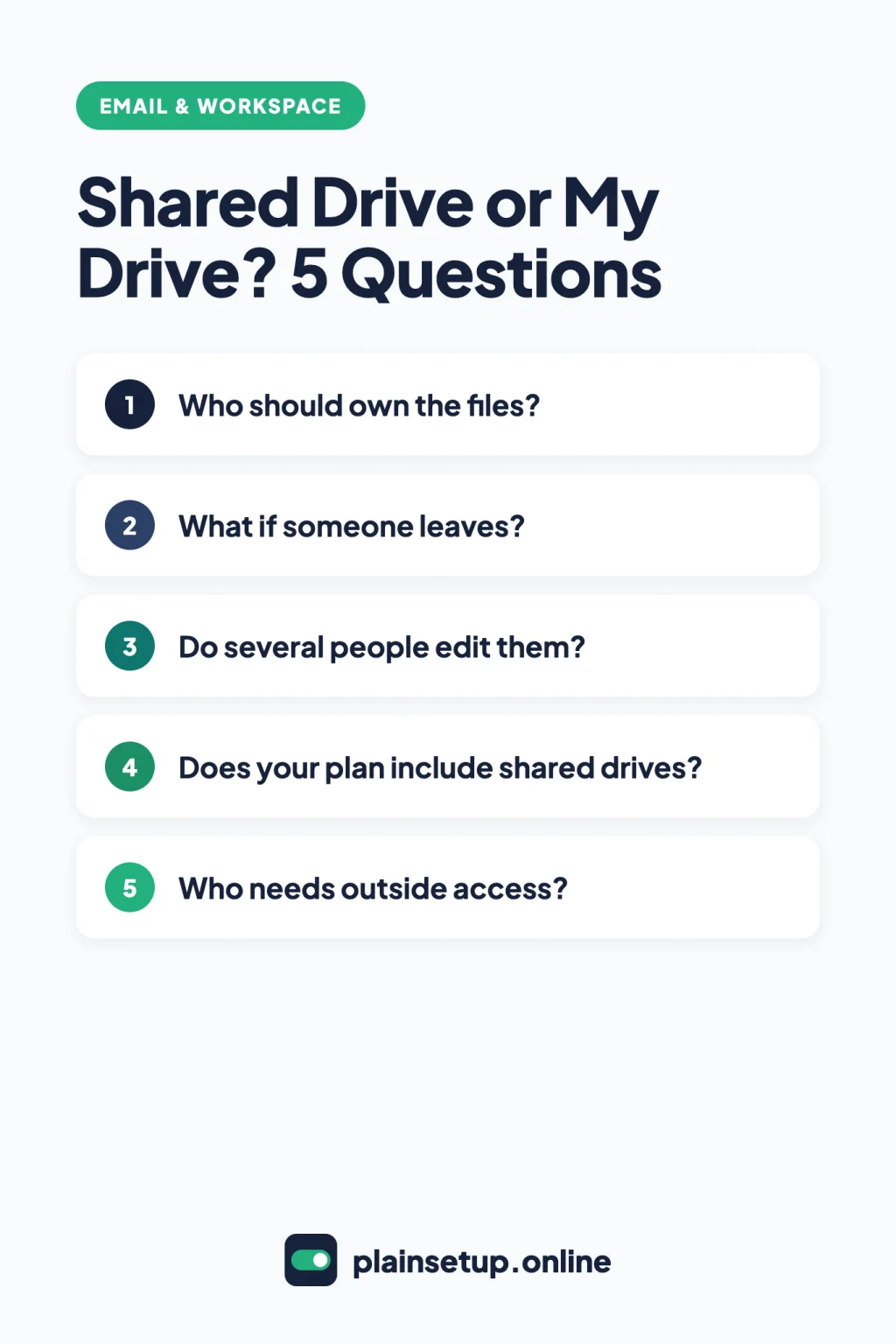
Most small teams use both. Settle shared drive vs My Drive file by file with one question: would the business need this if its creator left tomorrow?
- Client, project and company files several people use: a shared drive, so nothing depends on a transfer when someone leaves.
- Personal drafts and private notes: My Drive.
- Files an outside agency or client works on: a folder in a shared drive, shared with them. On Business Starter, you can’t restrict sharing per shared drive.
- A one-person business: My Drive covers most needs until a second person joins.
Our guide to setting up Google Workspace for a small business shows how to create a shared drive in one step.
Frequently asked questions
Can I use shared drives with a free Gmail account?
No. Google’s Create a shared drive page says they’re only available for work or school accounts. A Workspace user can still add your Google Account to their shared drive if their organization allows outside members.
Do files in a shared drive count toward storage?
Yes. The storage FAQ for admins counts shared drive content toward your organization’s pooled storage, along with Trash until it’s permanently deleted. The Admin console shows which users and shared drives use the most.
What happens to my file when I move it into a shared drive?
Your organization becomes the owner and you stay listed as the creator. Direct access is kept, but access inherited from a folder isn’t. If the shared drive’s permissions change, you could lose access to a file you created (How file access works in shared drives).
Sources
- Google Workspace Learning Center: What are shared drives?
- Google Workspace Learning Center: Create a shared drive
- Google Workspace Learning Center: How file access works in shared drives
- Google Workspace Learning Center: Shared drive limits
- Google Drive Help: Move files & folders into shared drives
- Google Drive Help: Make someone else the owner of your file
- Google Workspace Admin Help: Set up shared drives
- Google Workspace Admin Help: Manage shared drives as an admin
- Google Workspace Admin Help: Compare Business editions
- Google Workspace Admin Help: Move your organization’s content to shared drives
- Google Workspace Admin Help: Manage external sharing
- Google Workspace Admin Help: Transfer Drive files to a new owner
- Google Workspace Admin Help: Delete or remove a user
- Google Workspace Admin Help: Suspend a user temporarily
- Google Workspace Admin Help: Storage FAQ for admins
Your Next Step
Today, open drive.google.com and list the My Drive folders other people rely on, like client work, templates and invoices. Create one shared drive for the busiest one and move that folder in, so the shared drive vs My Drive question is settled for the files that matter most. For more help, browse our Email & Workspace guides.

Fernando Pompeu is a journalist and digital content writer with more than 8 years of experience in media outlets and news portals. He writes to explain things clearly and without jargon. At PlainSetup, he publishes step-by-step guides to the everyday tools small businesses run on, based on each tool’s official documentation and written for owners without an IT team.